This is a topic that has been addressed a few times on this blog, whether by posts that use the 3D graphics system to capture screenshots or the series of posts regarding the Screenshot Plugin of the Month from a few years ago. I thought it worth revisiting, though, as I noticed an API that I hadn't used before and decided to put it through its paces.
The API is a simple one – Document.CapturePreviewImage() – and it's been covered before on the AutoCAD DevBlog. But I thought I'd take some file-selection code from the Screenshot app and see whether it was possible to create a full-size screenshot of the current drawing window using it.
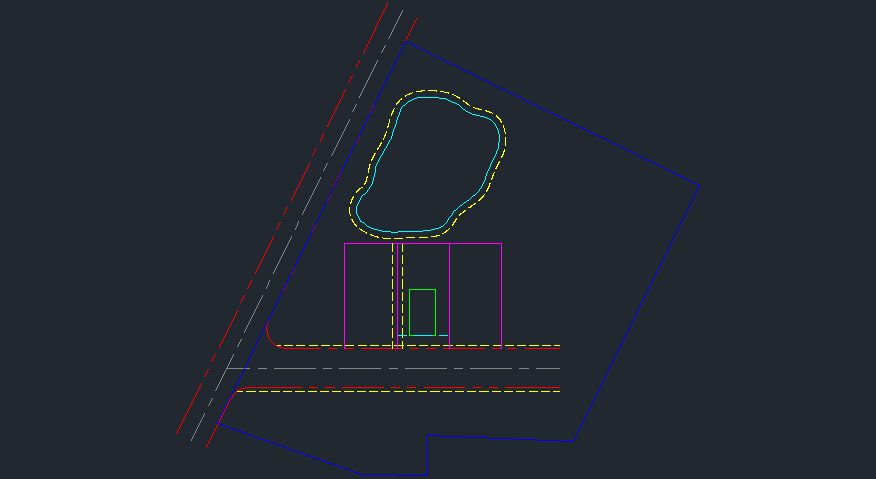
Here's the C# implementation of a CPI command that uses the API to save a "preview" image that's the same exact size as the document window.
using Autodesk.AutoCAD.ApplicationServices;
using Autodesk.AutoCAD.EditorInput;
using Autodesk.AutoCAD.Runtime;
using System;
using System.Drawing.Imaging;
using System.IO;
namespace ListApplications
{
public static class Extensions
{
// Return the image format to use for a particular filename
public static ImageFormat GetFormat(this string filename)
{
// If all else fails, let's create a PNG
// (might also choose to throw an exception)
var imf = ImageFormat.Png;
if (filename.Contains("."))
{
// Get the filename's extension (what follows the last ".")
string ext = filename.Substring(filename.LastIndexOf(".") + 1);
// Get the first three characters of the extension
if (ext.Length > 3)
ext = ext.Substring(0, 3);
// Choose the format based on the extension (in lowercase)
switch (ext.ToLower())
{
case "bmp":
imf = ImageFormat.Bmp;
break;
case "gif":
imf = ImageFormat.Gif;
break;
case "jpg":
imf = ImageFormat.Jpeg;
break;
case "tif":
imf = ImageFormat.Tiff;
break;
case "wmf":
imf = ImageFormat.Wmf;
break;
default:
imf = ImageFormat.Png;
break;
}
}
return imf;
}
}
public class Commands
{
[CommandMethod("CPI")]
static public void CreatePreviewImage()
{
var doc = Application.DocumentManager.MdiActiveDocument;
if (doc == null) return;
var ed = doc.Editor;
// Select the filename and type for our output image
var pofo = new PromptSaveFileOptions("\nSelect image location");
pofo.Filter =
"Bitmap (*.bmp)|*.bmp|GIF (*.gif)|*.gif|JPEG (*.jpg)|*.jpg|" +
"PNG (*.png)|*.png|TIFF (*.tif)|*.tif";
// Set the default save location to be that of the current drawing
string fn = doc.Database.Filename;
if (fn.Contains("."))
{
int extIdx = fn.LastIndexOf(".");
if (fn.Substring(extIdx + 1) != "dwt" && fn.Contains("\\"))
{
pofo.InitialDirectory = Path.GetDirectoryName(doc.Database.Filename);
}
}
var pfnr = ed.GetFileNameForSave(pofo);
if (pfnr.Status != PromptStatus.OK)
return;
var outFile = pfnr.StringResult;
// Get the size of the document and capture the preview at that size
var size = doc.Window.DeviceIndependentSize;
using (
var bmp =
doc.CapturePreviewImage(
Convert.ToUInt32(size.Width), Convert.ToUInt32(size.Height)
)
)
{
// Save the file with the format derived from the filename
bmp.Save(outFile, outFile.GetFormat());
}
}
}
}
Here's a sample drawing we'll run the command against:
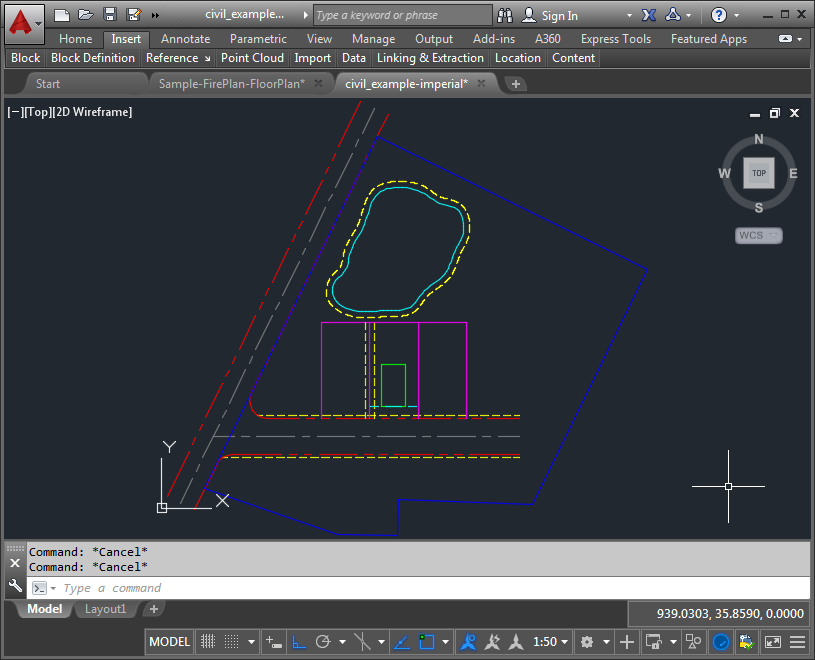
And here's the output of the command:


Leave a Reply