A little over a month ago, Autodesk acquired Tinkercad. Tinkercad is a 3D CAD tool that uses WebGL to display graphics directly in your browser. While this tool is primarily targeted at consumers – it's proving very popular among the 3D printing community – I thought I'd check it out to understand its customization capabilities.
If you want to get to know the capabilities of the Tinkercad system, I suggest taking a look at these step-by-step lessons. I personally just dove right in – the system is very straightforward to learn – but I'm sure there are basics that I've missed by doing so. 🙂
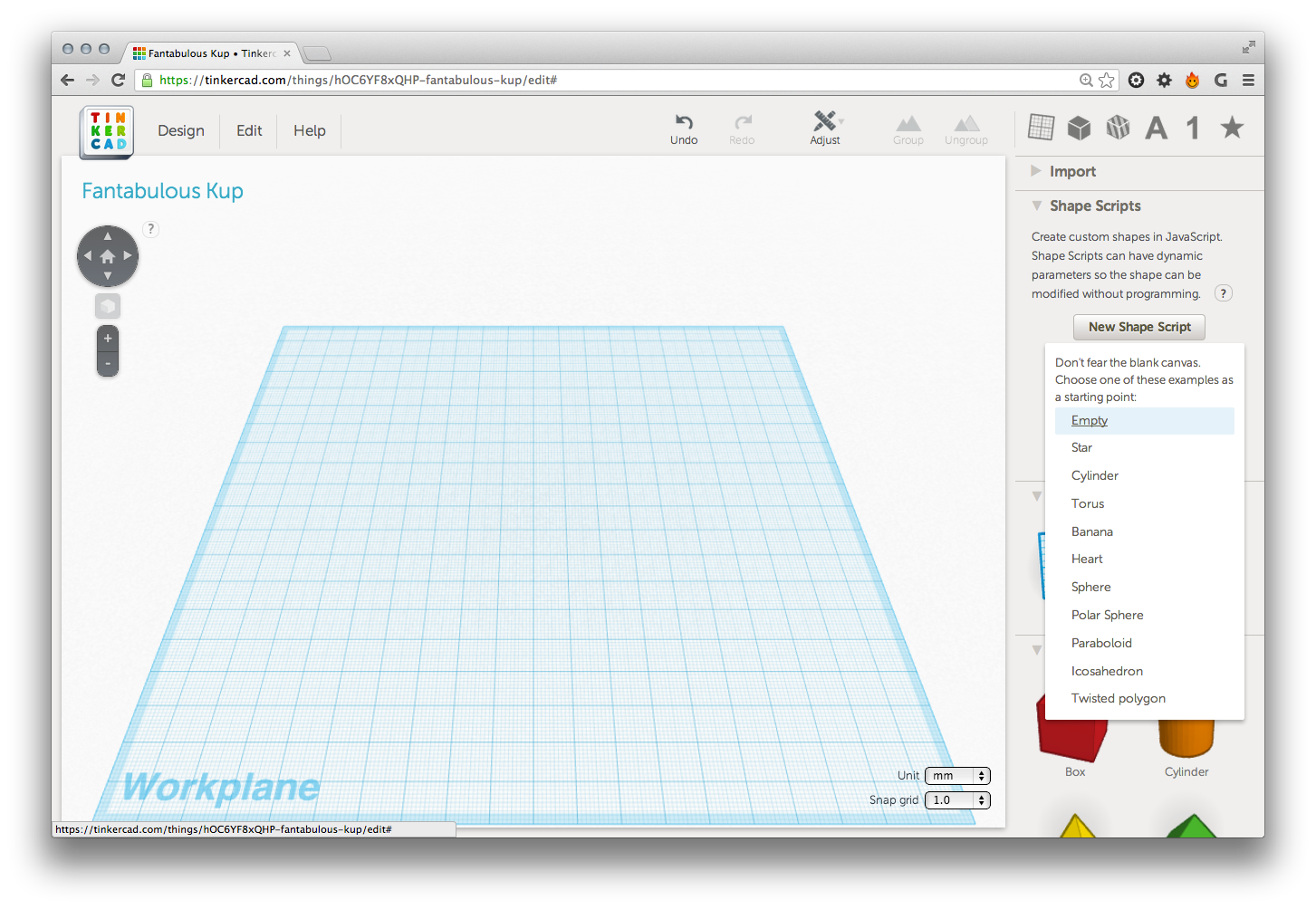
After creating a new design – which gets assigned a fun random name, in my case "Fantabulous Kup" – you get presented with your blank workplane. On the right-sash, you'll see the "Shape Scripts" section, from which you can create a Shape Script based on an existing sample or start from scratch. You should definitely check out the samples – there's some great stuff there – but we'll just copy and paste from code into an "Empty" Shape Script.
Once the empty script has been created, we'll see the JavaScript code that forms the basis of the Shape Script in a window at the bottom left of the screen.
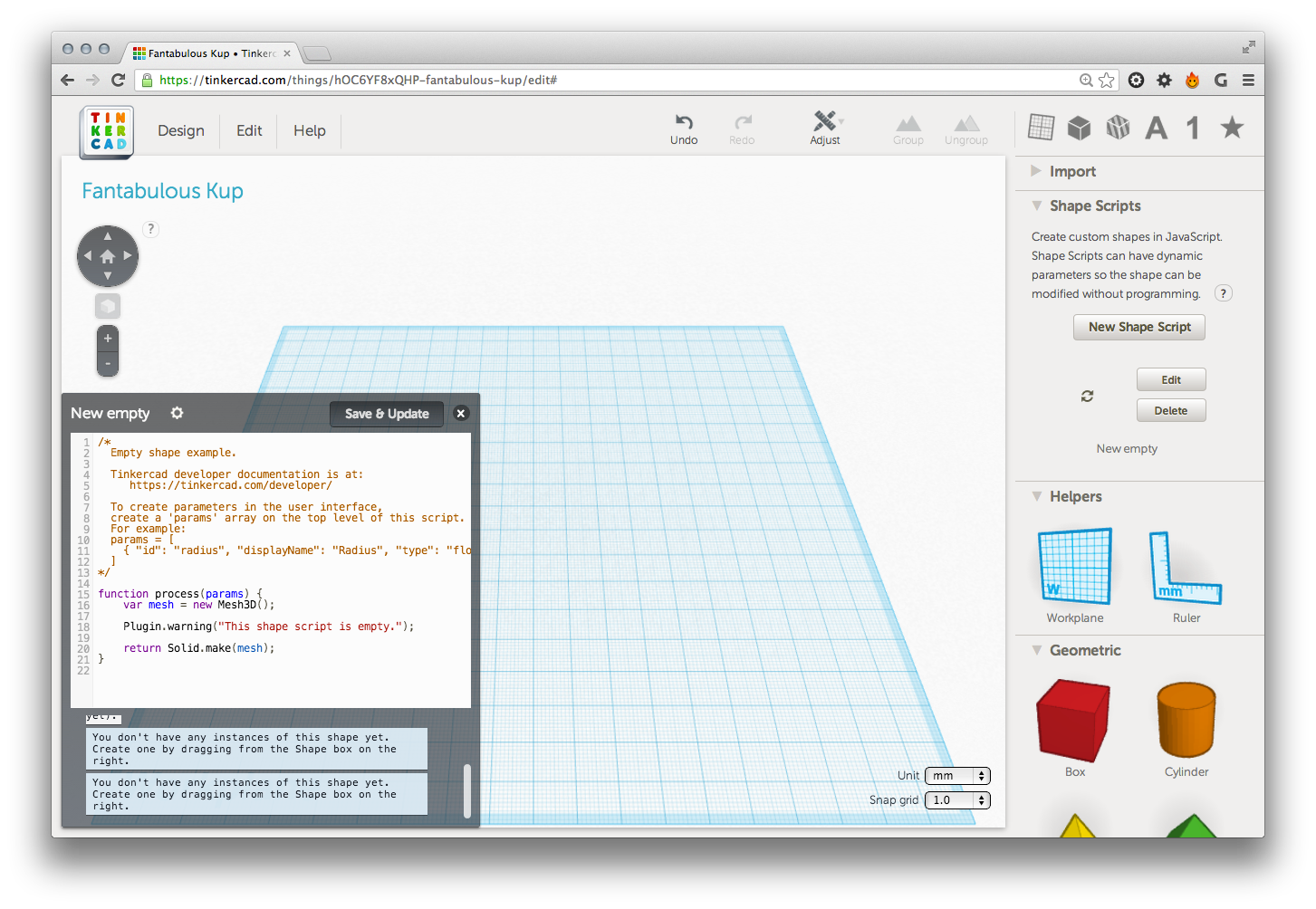
This JavaScript code will get executed on the server against the Gen6 geometry kernel. For more detailed information on how this all works, check out the developer documentation and specifically the API reference.
Here's the JavaScript implementation of our simple Shape Script – that creates a grid of square columns – for you to copy & paste into the implementation window:
params = [
{ "id": "cols",
"displayName": "Columns",
"type": "int",
"rangeMin": 1,
"rangeMax": 10,
"default": 2
},
{ "id": "rows",
"displayName": "Rows",
"type": "int",
"rangeMin": 1,
"rangeMax": 10,
"default": 2
},
{ "id": "size",
"displayName": "Size",
"type": "int",
"rangeMin": 1,
"rangeMax": 10,
"default": 2
},
{ "id": "gap",
"displayName": "Gap",
"type": "int",
"rangeMin": 0,
"rangeMax": 10,
"default": 2
},
{ "id": "height",
"displayName": "Height",
"type": "float",
"rangeMin": 1,
"rangeMax": 100,
"default": 10
}
]
function process(params) {
var c = params.cols;
var r = params.rows;
var h = params.height;
var s = params.size;
var g = params.gap;
// Our array of paths to populate
var paths;
for (var i = 0; i < c; i++) {
for (var j = 0; j < r; j++) {
// Create a square 2D path at the
// appropriate location
var path = new Path2D();
var isg = i * (s + g);
var jsg = j * (s + g);
path.moveTo(isg, jsg);
path.lineTo(isg + s, jsg);
path.lineTo(isg + s, jsg + s);
path.lineTo(isg, jsg + s);
path.lineTo(isg, jsg);
// If the first item in the array, create it
// otherwise append to it
if (i == 0 && j == 0) {
paths = [path];
}
else {
paths = paths.concat(path);
}
}
}
// Extrude the paths into our grid
var solid = Solid.extrude(paths, h);
// Flip the shape vertically
var tm =
[
1, 0, 0, 0,
0, -1, 0, 0,
0, 0, 1, 0,
0, 0, 0, 0
];
solid.transform(tm);
return solid;
}
Once you've pasted the code in, if you click the cog you can modify the Shape Script's name.

At some point, the preview for the Shape Script – based on the default parameters defined in the script – will get displayed in the UI. Even before this happens we can drag the object defined by the script onto our workplane.
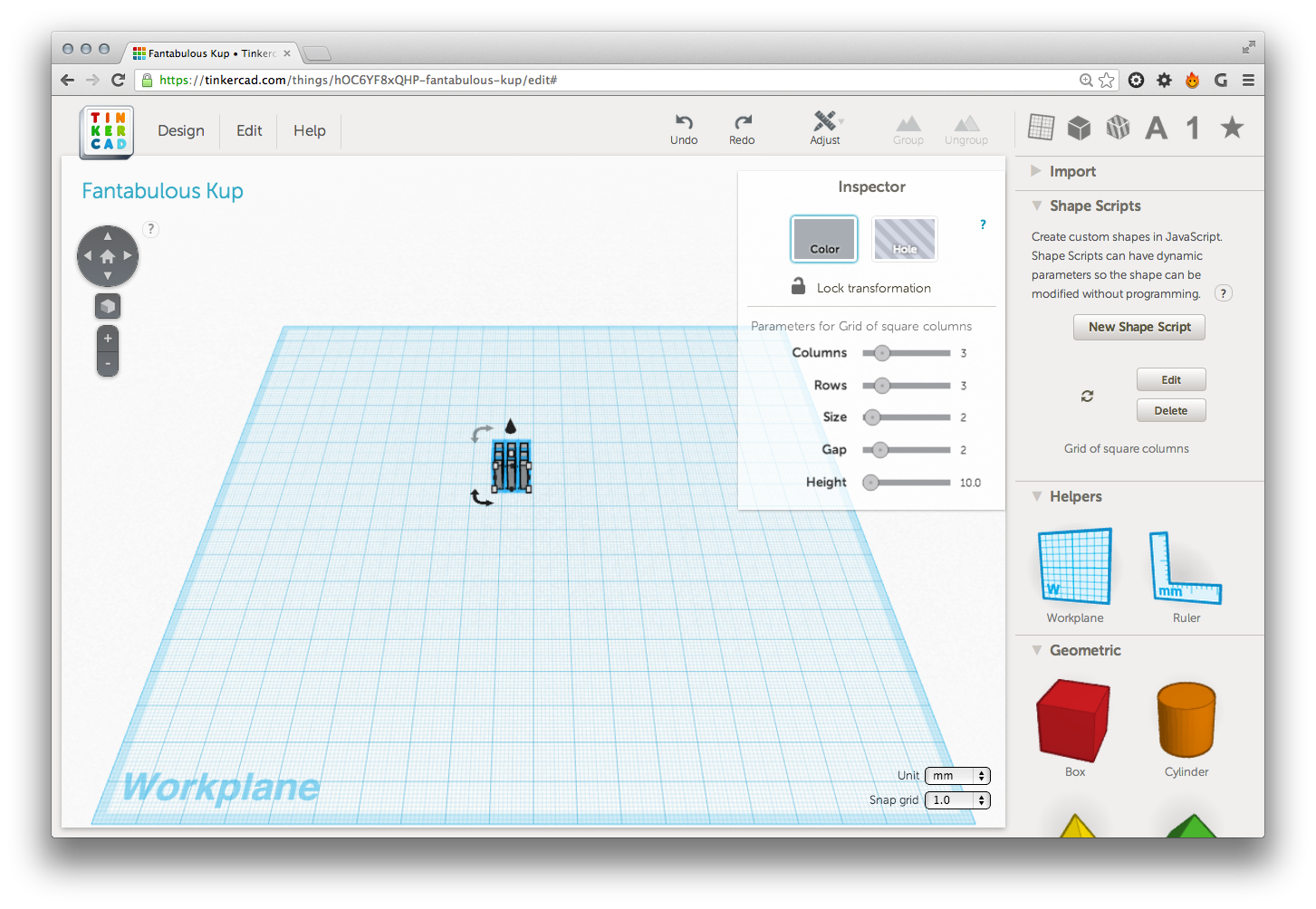
You'll see the parameters for the object get displayed in the "Inspector" window. We can modify these parameters to see the results of our script in action (it gets re-executed on the server whenever a parameter is changed).
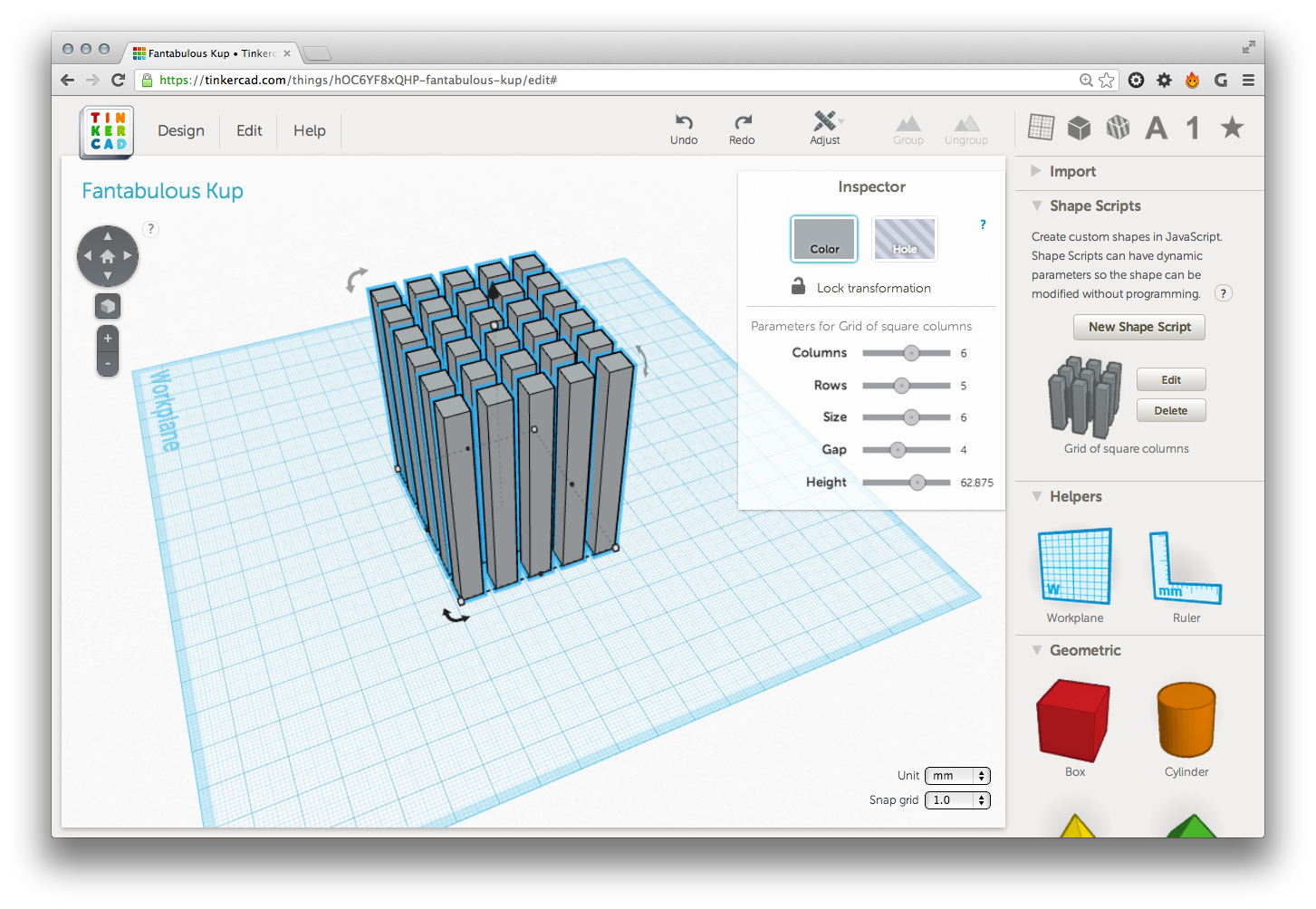
Here you'll see the sliders have been moved across – and the view changed – and the preview has also now been displayed in the right-sash.
That's it for my first playing around with Tinkercad and Gen6. I'd really like to implement something more complicated, such as a tree object or a Hilbert cube, but I can see there are some limitations placed on the modelling operations you can perform (for the first we'd probably need to return or union multiple solids, for the second we'd need to extrude along an arbitrary 3D path, neither of which seem to be possible with the current Shape Script implementation). I really like the way extensibility has been built into the Tinkercad system, though, and am looking forward to doing more with it.


Leave a Reply