Drawing text planar to the screen inside AutoCAD's drawing window using .NET

I've often seen the question, over the years, of how to draw text in the plane of the screen, even when the current view is not planar to the current UCS. This ability to "screen fix" text has been there, but has required a number of sometimes tricky transformations to get the right behaviour. Well, during a recent internal discussion I became aware of a really handy facility inside AutoCAD which allows you to dependably draw screen-fixed text without jumping through hoops.

In this simple example, we're implementing a DrawJig - a jig that doesn't host an entity but allows us to implement a WorldDraw() callback for something to be drawn - which draws text at a fixed screen location, with a fixed size and orientation. Our code takes the simple task of asking the user to select a point, and shows the current cursor location during the drag at an offset of 30, 30 from the bottom left corner of the drawing window.

Here's the C# code:

using Autodesk.AutoCAD.ApplicationServices;

using Autodesk.AutoCAD.Runtime;

using Autodesk.AutoCAD.EditorInput;

using Autodesk.AutoCAD.Geometry;

using Autodesk.AutoCAD.GraphicsInterface;

namespace JigTextPlanarToScreen

{

  public class TextJig : DrawJig

  {

    private Point3d _position;

    public Point3d Position

    {

      get { return _position; }

    }

    // We'll keep our style alive rather than recreating it

    private TextStyle _style;

    public TextJig()

    {

      _style = new TextStyle();

      _style.Font =

        new FontDescriptor("Calibri", false, true, 0, 0);

      _style.TextSize = 10;

    }

    protected override SamplerStatus Sampler(JigPrompts prompts)

    {

      JigPromptPointOptions opts = new JigPromptPointOptions();

      opts.UserInputControls =

          UserInputControls.Accept3dCoordinates;

      opts.Message = "\nSelect point: ";

      PromptPointResult res = prompts.AcquirePoint(opts);

      if (res.Status == PromptStatus.OK)

      {

        if (_position == res.Value)

        {

          return SamplerStatus.NoChange;

        }

        else

        {

          _position = res.Value;

          return SamplerStatus.OK;

        }

      }

      return SamplerStatus.Cancel;

    }

    protected override bool WorldDraw(WorldDraw draw)

    {

      // We make use of another interface to push our transforms

      WorldGeometry2 wg2 = draw.Geometry as WorldGeometry2;

      if (wg2 != null)

      {

        // Push our transforms onto the stack

        wg2.PushOrientationTransform(

          OrientationBehavior.Screen

        );

        wg2.PushPositionTransform(

          PositionBehavior.Screen,

          new Point2d(30, 30)

        );

        // Draw our screen-fixed text

        wg2.Text(

          new Point3d(0, 0, 0),  // Position

          new Vector3d(0, 0, 1), // Normal

          new Vector3d(1, 0, 0), // Direction

          _position.ToString(), // Text

          true,                  // Rawness

          _style                // TextStyle

        );

        // Remember to pop our transforms off the stack

        wg2.PopModelTransform();

        wg2.PopModelTransform();

      }

      return true;

    }

    [CommandMethod("SELPT")]

    static public void SelectPointWithJig()

    {

      Document doc =

        Application.DocumentManager.MdiActiveDocument;

      Editor ed = doc.Editor;

      TextJig jig = new TextJig();

      PromptResult res = ed.Drag(jig);

      if (res.Status == PromptStatus.OK)

      {

        ed.WriteMessage(

          "\nPoint selected: {0}",

          jig.Position

        );

      }

    }

  }

}

Now let's see our SELPT command in action.

First in a fairly standard view:
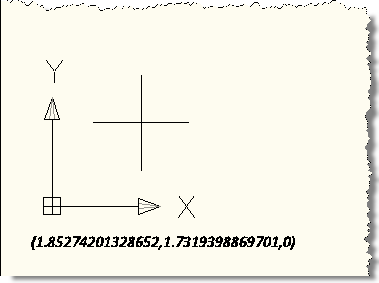
Screen-fixed text during point selection - simple 2D view

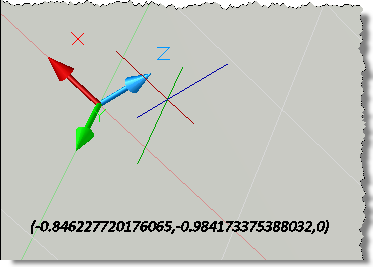
And now in an arbitrary 3D view:

Screen-fixed text during point selection - twisted 3D view

OK, that's it for today. Right now I'm at our Developer Day event in Paris, and after this I'm taking a four-week break over the holiday season. Which means my blog output is likely to slow down (to a trickle, perhaps even stop completely) over the coming weeks. So - just in case - I'd like to wish all the readers of "Through the Interface" all the very best for the holiday season. Thank you for your continued support and readership over the last year, here's looking forward to a fun and productive 2009! ๐Ÿ™‚

11 responses to “Drawing text planar to the screen inside AutoCAD's drawing window using .NET”

  1. Hi Kean,

    It was kind to meet you at Paris

    I can't use your code, where is the class WorldGeometry2

    Best regard
    Christophe

  2. Hi Christophe,

    It was nice to meet you, too.

    I wrote and tested this code for/with AutoCAD 2009: I don't know at what point WorldGeometry2 was introduced but it may have been as recent as with this release.

    If you're using an older release, then that's probably the issue.

    Regards,

    Kean

  3. hi Kean
    How to set the current viewstyle to "Conceptual"?

  4. Steven -

    I don't have the time to provide support unrelated to the code in a particular post. If you have questions unrelated to a post, please submit them via the ADN site, if you're a member, or the AutoCAD .NET Discussion Group, if not.

    Kean

  5. Thanks for another great example.

    It might be worth noting that jig draggng occurs in multiple viewports.

    With multiple viewports having different view orientations, I think you may need to use ViewportDraw() to acheive the desired result in all viewports.

  6. [quote] ... here's looking forward to a fun and productive 2009! ๐Ÿ™‚ [/quote]

    absolutely !

  7. I'm running AutoCAD 2011 and even I don't have WorldGeomtry2 class

  8. That's most probably because the functionality in that class has now been folded into the WorldGeometry class. Try commenting out the cast and see if it works.

    Kean

  9. I know its a bit off topic, but Im interested to know if I can "lock" the scale of drawjig or entityjig objects to keep the same object/viewport ratio, no matter how far we zoom in or zoom out (or to keep it 50 pixels wide)? Basically a new cursor, that will keep its scale zoom independent. ty

    1. Yes, it is off-topic (a great topic for the discussion groups, though: forums.autodesk.com/t5/net/... :-).

      If you want to generate a virtual cursor, then you might look at using TransientGraphics to do it. I used a sphere as a cursor for Kinect, for instance (and did control the size myself - you could certainly make it zoom independent).

      Kean

      1. Thanks for your reply. I'm active at ADN, but I value your opinion(you got me through the hardest part of my learning curve), and I apologize for being egocentric when asking here, but I knowingly "spam" , in hope that you might be inspired to elaborate in greater details than might be awailable elsewhere, not only for my self but people that may go through same steps as me. (great value of this blog is its organisation, and indepth coverage you may not be able to find elsewhere + user replies are also of great value since some of my quesitons have been answered through user comments) ๐Ÿ™‚ I apologize 1nce more, and thank you!

Leave a Reply to Christophe Cancel reply

Your email address will not be published. Required fields are marked *