In this previous post I showed some code which uploads photos to Photofly and pulls down and imports the resultant point cloud into AutoCAD 2011. The application relies on a special executable from the Photofly team which was built from code extracted from Photo Scene Editor that uploads photos to Photofly and asks for them to be stitched together into a scene on the server.
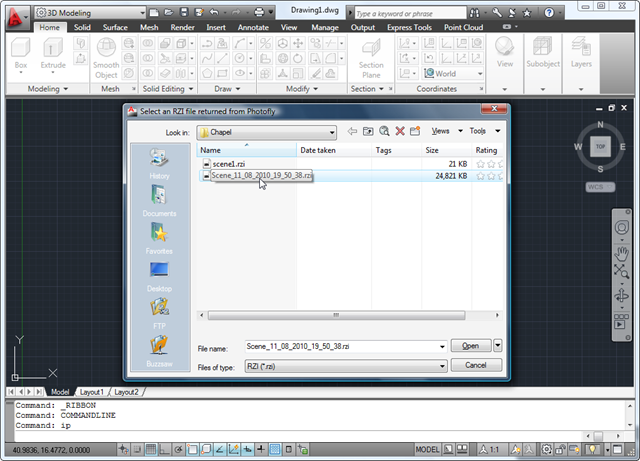
While we're working to tidy this little executable up for publishing, I realised that a good portion of the application could be used as it stands: rather than uploading the photos directly from AutoCAD to Photofly, we can simply use the IP command directly to select the RZI file that has been downloaded for a particular photo scene using Photo Scene Editor. This simply means an updated IP command – a command that was previously only called internally – which now shows a dialog to select an RZI file when called interactively with FILEDIA set to 1.
The previous implementation of the application should be able to use this new version of the command as-is, although it may choose to delete the temporary RZI file on completion (something we don't want for this version).
Here is the updated, stripped down C# code:
using Autodesk.AutoCAD.ApplicationServices;
using Autodesk.AutoCAD.EditorInput;
using Autodesk.AutoCAD.Runtime;
using Autodesk.AutoCAD.Windows;
using System.Reflection;
using System.IO;
using System.Xml.Xsl;
using System.Diagnostics;
using System;
namespace ImportPhotofly
{
public class Commands
{
[CommandMethod("IP")]
public void ImportFromPhotofly()
{
Document doc =
Application.DocumentManager.MdiActiveDocument;
Editor ed = doc.Editor;
PromptOpenFileOptions opts =
new PromptOpenFileOptions(
"Select an RZI file returned from Photofly"
);
short fd = (short)Application.GetSystemVariable("FILEDIA");
short ca = (short)Application.GetSystemVariable("CMDACTIVE");
// Use the command-line version is FILEDIA is 0 or
// CMDACTIVE indicates we're being called from a script
// or from LISP
opts.PreferCommandLine = (fd == 0 || (ca & 36) > 0);
opts.Filter =
"RZI (*.rzi)|*.rzi|All files (*.*)|*.*";
PromptFileNameResult pr = ed.GetFileNameForOpen(opts);
if (pr.Status != PromptStatus.OK)
return;
string rziPath = pr.StringResult;
string name = Path.GetFileNameWithoutExtension(rziPath);
// Paths for our temporary files
string localPath = Path.GetDirectoryName(rziPath) + "\\";
string txtPath = localPath + "points.txt";
string lasPath = localPath + "points.las";
// Our PCG file will be stored under My Documents
string outputPath =
Environment.GetFolderPath(
Environment.SpecialFolder.MyDocuments
) + "\\Photofly Point Clouds\\";
if (!Directory.Exists(outputPath))
Directory.CreateDirectory(outputPath);
// We'll use the title as a base filename for the PCG,
// but will use an incremented integer to get an unused
// filename
int cnt = 0;
string pcgPath;
do
{
pcgPath =
outputPath + name +
(cnt == 0 ? "" : cnt.ToString()) + ".pcg";
cnt++;
}
while (File.Exists(pcgPath));
// The path to the txt2las tool will be the same as the
// executing assembly (our DLL)
string exePath =
Path.GetDirectoryName(
Assembly.GetExecutingAssembly().Location
) + "\\";
if (!File.Exists(exePath + "txt2las.exe"))
{
ed.WriteMessage(
"\nCould not find the txt2las tool: please make sure it " +
"is in the same folder as the application DLL."
);
return;
}
ed.WriteMessage(
"\nCreating a LAS from the downloaded points.\n"
);
if (File.Exists(rziPath))
{
string xslPath = exePath + "rzi2txt.xslt";
XslCompiledTransform xct = new XslCompiledTransform();
xct.Load(xslPath);
xct.Transform(rziPath, txtPath);
}
else
{
ed.WriteMessage("\nScene not generated.");
}
if (File.Exists(txtPath))
{
// Use the txt2las utility to create a .LAS
// file from our text file
ProcessStartInfo psi =
new ProcessStartInfo(
exePath + "txt2las",
"-i \"" + txtPath +
"\" -o \"" + lasPath +
"\" -parse xyz"
);
psi.CreateNoWindow = false;
psi.WindowStyle = ProcessWindowStyle.Hidden;
// Wait for the process to exit
try
{
using (Process p = Process.Start(psi))
{
p.WaitForExit();
}
}
catch
{ }
// If there's a problem, we return
if (!File.Exists(lasPath))
{
ed.WriteMessage(
"\nError creating LAS file."
);
return;
}
File.Delete(txtPath);
ed.WriteMessage(
"Indexing the LAS and attaching the PCG.\n"
);
// Index the .LAS file, creating a .PCG
string lasLisp = lasPath.Replace('\\', '/'),
pcgLisp = pcgPath.Replace('\\', '/');
doc.SendStringToExecute(
"(command \"_.POINTCLOUDINDEX\" \"" +
lasLisp + "\" \"" +
pcgLisp + "\")(princ) ",
false, false, false
);
// Attach the .PCG file
doc.SendStringToExecute(
"_.WAITFORFILE2 \"" +
pcgLisp + "\" \"" +
lasLisp + "\" " +
"(command \"_.-POINTCLOUDATTACH\" \"" +
pcgLisp +
"\" \"0,0\" \"1\" \"0\")(princ) ",
false, false, false
);
doc.SendStringToExecute(
"_.ZOOM _E ",
false, false, false
);
}
}
// Return whether a file is accessible
private bool IsFileAccessible(string filename)
{
// If the file can be opened for exclusive access it means
// the file is accesible
try
{
FileStream fs =
File.Open(
filename, FileMode.Open,
FileAccess.Read, FileShare.None
);
using (fs)
{
return true;
}
}
catch (IOException)
{
return false;
}
}
// A command which waits for a particular PCG file to exist
[CommandMethod("WAITFORFILE2", CommandFlags.NoHistory)]
public void WaitForFileToExist()
{
Document doc =
Application.DocumentManager.MdiActiveDocument;
Editor ed = doc.Editor;
PromptResult pr = ed.GetString("Enter path to PCG: ");
if (pr.Status != PromptStatus.OK)
return;
string pcgPath = pr.StringResult.Replace('/', '\\');
pr = ed.GetString("Enter path to LAS: ");
if (pr.Status != PromptStatus.OK)
return;
string lasPath = pr.StringResult.Replace('/', '\\');
ed.WriteMessage(
"\nWaiting for PCG creation to complete...\n"
);
// Check the write time for the PCG file...
// if it hasn't been written to for at least half a second,
// then we try to use a file lock to see whether the file
// is accessible or not
const int ticks = 50;
TimeSpan diff;
// First loop is to see when writing has stopped
// (better than always throwing exceptions)
while (true)
{
if (File.Exists(pcgPath))
{
DateTime dt = File.GetLastWriteTime(pcgPath);
diff = DateTime.Now - dt;
if (diff.Ticks > ticks)
break;
}
System.Windows.Forms.Application.DoEvents();
}
// Second loop will wait until file is finally accessible
// (by calling a function that requests an exclusive lock)
int inacc = 0;
while (true)
{
if (IsFileAccessible(pcgPath))
break;
else
inacc++;
System.Windows.Forms.Application.DoEvents();
}
ed.WriteMessage("\nFile inaccessible {0} times.", inacc);
try
{
CleanupTmpFiles(lasPath);
}
catch
{ }
}
private void CleanupTmpFiles(string txtPath)
{
if (File.Exists(txtPath))
File.Delete(txtPath);
Directory.Delete(
Path.GetDirectoryName(txtPath)
);
}
}
}
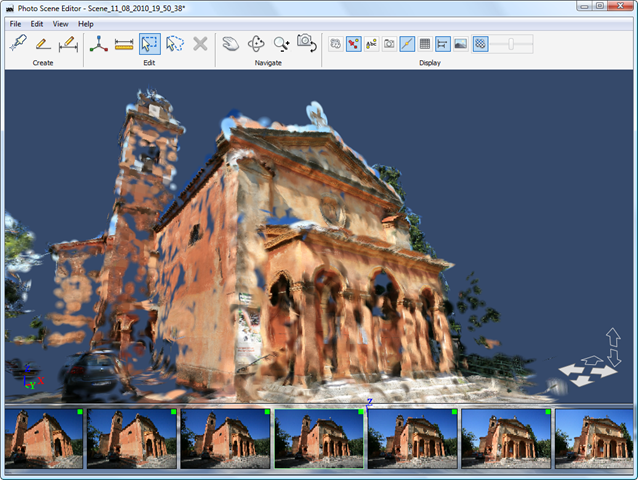
First let's use Photo Scene Editor to create – and edit, should we so desire, an advantage over the "one-click" approach – a photo scene:
 Now when we execute the IP command, we get prompted to select an RZI file:
 And we end up with our chapel's point cloud inside AutoCAD:
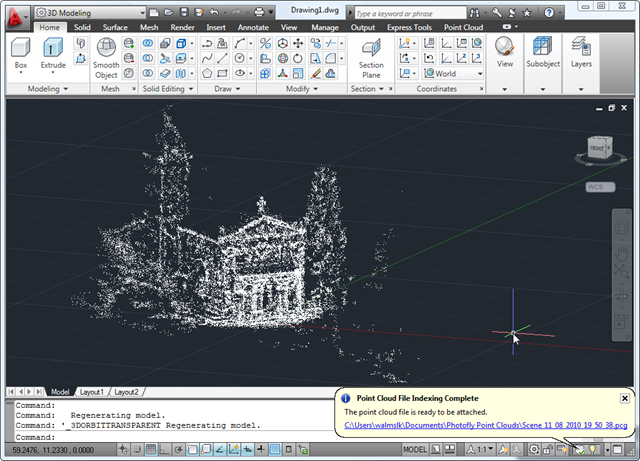 The plugin implementing the IP command also requires the XSLT file shown in the prior post, as well as the TXT2LAS tool to generate a LAS file from the TXT output of the XSLT transformation process. Because of this added complexity, I've zipped the various files up for you to test and download directly.
One final comment… I should probably have mentioned that the Photo Scene Editor already allows export to DWG. This export is unfortunately a set of separate point objects, which is the main reason for using this alternative approach to get a true AutoCAD point cloud. We will be updating Photo Scene Editor's existing export implementation, in due course.


Leave a Reply to Stephen Cancel reply