As promised, today's post delivers a simple application that provides a user-interface for the command implemented in this previous post.
I chose to implement the UI as a WPF user control which is then hosted by a standard AutoCAD palette. Aside from its core function – to allow composition of transformation matrices to be applied on an AutoCAD object – it demonstrates a couple of handy tips for working with Palettes:
- Separate the core functionality from our UI, using SendStringToExecute() to call it
- This will reduce the chance of issues related to Document vs. Session context, document-locking, etc.
- If you need to call a selection command in AutoCAD from your palette, use SetFocus() first
- This will reduce a click to set focus on the main AutoCAD editing window
- Implement the SizeChanged() event to allow your hosted WPF user control to be resized
- As mentioned in this previous post, WPF controls added to a PaletteSet via AddVisual() do not automatically resize with the palette
- Rather than using an ElementHost() along with the standard WinForms Add() method, an event can be used
- This makes for a slightly cleaner resize experience – from a graphics refresh perspective – as less thunking is needed
But you really needn't worry about these details: the application is intended less for people interested in implementing a palette-hosted, WPF user control, rather than for people wanting to play around with and learn about transformation matrices. In fact, if you're not at all interested in the coding specifics, feel free to skip down to the bottom of the post, where you'll see the app in action.
To reflect the exploratory nature of the tool, I decided to implement a "playful" WPF theme for the palette found on this site. To make use of this theme, I also needed the WPF Toolkit, which I used from here (but probably could/should have picked up from here, as it seems more recent). The WPFToolkit.dll file needed by the application is included in the source project.
Here's our updated C# code from the main plugin project:
using Autodesk.AutoCAD.ApplicationServices;
using Autodesk.AutoCAD.EditorInput;
using Autodesk.AutoCAD.DatabaseServices;
using Autodesk.AutoCAD.Geometry;
using Autodesk.AutoCAD.Runtime;
using Autodesk.AutoCAD.Windows;
using System.Drawing;
using System.Reflection;
using System.Windows.Forms;
using System.Windows.Forms.Integration;
using System;
using MatrixEditor;
namespace Transformer
{
public class App : IExtensionApplication
{
public void Initialize()
{
try
{
DemandLoading.RegistryUpdate.RegisterForDemandLoading();
}
catch
{ }
}
public void Terminate()
{
}
}
public class Commands
{
[CommandMethod("SELMATENT"< span style="line-height: 140%">)]
static public void SelectMatrixEntity()
{
Document doc =
Autodesk.AutoCAD.ApplicationServices.
Application.DocumentManager.MdiActiveDocument;
Database db = doc.Database;
Editor ed = doc.Editor;
PromptEntityResult per = ed.GetEntity("\nSelect entity: ");
if (per.Status != PromptStatus.OK)
return;
_mec.SetSelectedEntity(per.ObjectId);
}
[CommandMethod("TRANS", CommandFlags.UsePickSet)]
static public void TransformEntity()
{
Document doc =
Autodesk.AutoCAD.ApplicationServices.
Application.DocumentManager.MdiActiveDocument;
Database db = doc.Database;
Editor ed = doc.Editor;
// Our selected entity (only one supported, for now)
ObjectId id;
// First query the pickfirst selection set
PromptSelectionResult psr = ed.SelectImplied();
if (psr.Status != PromptStatus.OK || psr.Value == null)
{
// If nothing selected, ask the user
PromptEntityOptions peo =
new PromptEntityOptions(
"\nSelect entity to transform: "
);
PromptEntityResult per = ed.GetEntity(peo);
if (per.Status != PromptStatus.OK)
id = per.ObjectId;
}
else
{
// If the pickfirst set has one entry, take it
SelectionSet ss = psr.Value;
if (ss.Count != 1)
{
ed.WriteMessage(
"\nThis command works on a single entity."
);
return;
}
ObjectId[] ids = ss.GetObjectIds();
id = ids[0];
}
PromptResult pr = ed.GetString("\nEnter property name: ");
if (pr.Status != PromptStatus.OK)
return;
string prop = pr.StringResult;
// Now let's ask for the matrix string
pr = ed.GetString("\nEnter matrix values: ");
if (pr.Status != PromptStatus.OK)
return;
// Split the string into its individual cells
string[] cells = pr.StringResult.Split(new char[] { ',' });
if (cells.Length != 16)
{
ed.WriteMessage("\nMust contain 16 entries.");
return;
}
try
{
// Convert the array of strings into one of doubles
double[] data = new double[cells.Length];
for (int i = 0; i < cells.Length; i++)
{
d
ata[i] = double.Parse(cells[i]);
}
// Create a 3D matrix from our cell data
Matrix3d mat = new Matrix3d(data);
// Now we can transform the selected entity
Transaction tr =
doc.TransactionManager.StartTransaction();
using (tr)
{
Entity ent =
tr.GetObject(id, OpenMode.ForWrite)
as Entity;
if (ent != null)
{
bool transformed = false;
// If the user specified a property to modify
if (!string.IsNullOrEmpty(prop))
{
// Query the property's value
object val =
ent.GetType().InvokeMember(
prop, BindingFlags.GetProperty, null, ent, null
);
// We only know how to transform points and vectors
if (val is Point3d)
{
// Cast and transform the point result
Point3d pt = (Point3d)val,
res = pt.TransformBy(mat);
// Set it back on the selected object
ent.GetType().InvokeMember(
prop, BindingFlags.SetProperty, null,
ent, new object[] { res }
);
transformed = true;
}
else if (val is Vector3d)
{
// Cast and transform the vector result
Vector3d vec = (Vector3d)val,
res = vec.TransformBy(mat);
// Set it back on the selected object
ent.GetType().InvokeMember(
prop, BindingFlags.SetProperty, null,
ent, new object[] { res }
);
transformed = true;
}
}
// If we didn't transform a property,
// do the whole object
if (!transformed)
ent.TransformBy(mat);
}
tr.Commit();
}
}
catch (Autodesk.AutoCAD.Runtime.Exception ex)
{
ed.WriteMessage(
"\nCould not transform entity: {0}", ex.Message
);
}
}
static PaletteSet _ps = null;
static MatrixEditorControl _mec = null;
[CommandMethod("MATRIX")]
public void MatrixEditor()
{
if (_ps == null)
{
// Create the palette set
_ps =
new PaletteSet(
"Matrix",
new Guid("DB5A1D34-51E8-49c6-B607-FFFE21C48669")
);
_ps.Size = new Size(720, 630);
_ps.DockEnabled =
(DockSides)((int)DockSides.Left + (int)DockSides.Right);
// Create our first user control instance and
// host it on a palette using AddVisual()
_mec = new MatrixEditorControl();
_ps.AddVisual("MatrixEditor", _mec);
// Resize the control when the palette resizes
_ps.SizeChanged +=
delegate(object sender, PaletteSetSizeEventArgs e)
{
_mec.Width = e.Width;
_mec.Height = e.Height;
};
}
// Display our palette set
_ps.KeepFocus = true;
_ps.Visible = true;
}
}
}
Here's the XAML from our WPF user control, which we've kept in a separate project (which builds the APNPlugin-MatrixEditorControl.dll module). You'll notice the ResourceDictionary reference to Theme.xaml, which is the "UX Musing Rough Green" theme – with some minor editing – from the previously mentioned WPF Themes CodePlex project. If you want a more classic look-and-feel, just remove that entry from the UserControl's resources.
<UserControl x:Class="MatrixEditor.MatrixEditorControl"
xmlns="http://schemas.microsoft.com/winfx/2006/xaml/presentation"
xmlns:x="http://schemas.microsoft.com/winfx/2006/xaml"
Height="Auto" Width="538">
<UserControl.Resources>
<ResourceDictionary Source="Theme.xaml"/>
</UserControl.Resources>
<Grid
Width="{Binding RelativeSource={RelativeSource FindAncestor,
AncestorType={x:Type UserControl}}, Path=ActualWidth}">
<StackPanel Background="White">
<Button
Name="IdentityButton"
Height="28"
Click="IdentityButton_Click">Clear (Identity)</Button>
<Button
Name="UCSButton"
Height="28"
Click="UCSButton_Click">Get Current UCS</Button>
<Button
Name="TransposeButton"
Height="28"
Click="TransposeButton_Click">Transpose</Button>
<DockPanel HorizontalAlignment="Stretch">
<Label
Name="DispVectorLabel"
Height="28"
Width="53">Vector</Label>
<TextBox
Name="DispVectorX"
Height="35"
Width="40">5</TextBox>
<TextBox
Name="DispVectorY"
Height="35"
Width="40">5</TextBox>
<TextBox
Name="DispVectorZ"
Height="35"
Width="40">5</TextBox>
<Button
Name="DispButton"
Height="28"
Click="DispButton_Click">Add Displacement</Button>
</DockPanel>
<DockPanel HorizontalAlignment="Stretch">
<Label
Name="ScaleOriginLabel"
Height="28"
Width="53">Origin</Label>
<TextBox
Name="ScaleOrigX"
Height="35"
Width="40">0</TextBox>
<TextBox
Name="ScaleOrigY"
Height="35"
Width="40">0</TextBox>
<TextBox
Name="ScaleOrigZ"
Height="35"
Width="40">0</TextBox>
<Label
Name="ScaleFactorLabel"
Height="28"
Width="50">Factor</Label>
<TextBox
Name="ScaleFactor"
Height="35"
Width="40">5</TextBox>
<Button
Name="ScaleButton"
Height="28"
Click="ScaleButton_Click">Add Scaling</Button>
</DockPanel>
<DockPanel HorizontalAlignment="Stretch">
<Label
Name="MirrStartLabel"
Height="28"
Width="53">Start</Label>
<TextBox
Name="MirrStartX"
Height="35"
Width="40">10</TextBox>
<TextBox
Name="MirrStartY"
Height="35"
Width="40">0</TextBox>
<TextBox
Name="MirrStartZ"
Height="35"
Width="40">0</TextBox>
<Label
Name="MirrEndLabel"
Height="28"
Width="40">End</Label>
<TextBox
Name="MirrEndX"
Height="35"
Width="40">10</TextBox>
<TextBox
Name="MirrEndY"
Height="35"
Width="40">10</TextBox>
<TextBox
Name="MirrEndZ"
Height="35"
Width="40">0</TextBox>
<Button
Name="MirrButton"
Height="28"
Click="MirrButton_Click">Add Mirroring</Button>
</DockPanel>
<DockPanel HorizontalAlignment="Stretch">
<Label
Name="RotOriginLabel"
Height="28"
Width="53">Origin</Label>
<TextBox
Name="RotOrigX"
Height="35"
Width="40">0</TextBox>
<TextBox
Name="RotOrigY"
Height="35"
Width="40">0</TextBox>
<TextBox
Name="RotOrigZ"
Height="35"
Width="40">0</TextBox>
<Label
Name="RotAxisLabel"
Height="28"
Width="40">Axis</Label>
<TextBox
Name="RotAxisX"
Height="35"
Width="40">0</TextBox>
<TextBox
Name="RotAxisY"
Height="35"
Width="40">0</TextBox>
<TextBox
Name="RotAxisZ"
Height="35"
Width="40">1</TextBox>
<Label
Name="RotAngleLabel"
Height="28"
Width="50">Angle</Label>
<TextBox
Name="RotAngle"
Height="35"
Width="45">180</TextBox>
<Button
Name="RotButton"
Height="28"
Click="RotButton_Click">Add Rotation</Button>
</DockPanel>
<Separator/>
<DockPanel>
<Grid HorizontalAlignment="Center">
<Grid.ColumnDefinitions>
<ColumnDefinition Width="Auto" />
<ColumnDefinition Width="Auto" />
<ColumnDefinition Width="Auto" />
<ColumnDefinition Width="Auto" />
</Grid.ColumnDefinitions>
<Grid.RowDefinitions>
<RowDefinition Height="50" />
<RowDefinition Height="50" />
<RowDefinition Height="50" />
<RowDefinition Height="50" />
<RowDefinition Height="50" />
<RowDefinition Height="50" />
</Grid.RowDefinitions>
<TextBox
Name="a"
FontSize="14pt"
Grid.Column="0"
Grid.Row="1"
TextChanged="cell_TextChanged">a</TextBox>
<TextBox
Name="b"
FontSize="14pt"
Grid.Column="1"
Grid.Row="1"
TextChanged="cell_TextChanged">b</TextBox>
<TextBox
Name="c"
FontSize="14pt"
Grid.Column="2"
Grid.Row="1"
TextChanged="cell_TextChanged">c</TextBox>
<TextBox
Name="d"
FontSize="14pt"
Grid.Column="3"
Grid.Row="1"
TextChanged="cell_TextChanged">d</TextBox>
<TextBox
Name="e"
FontSize="14pt"
Grid.Column="0"
Grid.Row="2"
TextChanged="cell_TextChanged">e</TextBox>
<TextBox
Name="f"
FontSize="14pt"
Grid.Column="1"
Grid.Row="2"
TextChanged="cell_TextChanged">f</TextBox>
<TextBox
Name="g"
FontSize="14pt"
Grid.Column="2"
Grid.Row="2"
TextChanged="cell_TextChanged">g</TextBox>
<TextBox
Name="h"
FontSize="14pt"
Grid.Column="3"
Grid.Row="2"
TextChanged="cell_TextChanged">h</TextBox>
<TextBox
Name="i"
FontSize="14pt"
Grid.Column="0"
Grid.Row="3"
TextChanged="cell_TextChanged">i</TextBox>
<TextBox
Name="j"
FontSize="14pt"
Grid.Column="1"
Grid.Row="3"
TextChanged="cell_TextChanged">j</TextBox>
<TextBox
Name="k"
FontSize="14pt"
Grid.Column="2"
Grid.Row="3"
TextChanged="cell_TextChanged">k</TextBox>
<TextBox
Name="l"
FontSize="14pt"
Grid.Column="3"
Grid.Row="3"
TextChanged="cell_TextChanged">l</TextBox>
<TextBox
Name="m"
FontSize="14pt"
Grid.Column="0"
Grid.Row="4"
TextChanged="cell_TextChanged">m</TextBox>
<TextBox
Name="n"
FontSize=< /span>"14pt"
Grid.Column="1"
Grid.Row="4"
TextChanged="cell_TextChanged">n</TextBox>
<TextBox
Name="o"
FontSize="14pt"
Grid.Column="2"
Grid.Row="4"
TextChanged="cell_TextChanged">o</TextBox>
<TextBox
Name="p"
FontSize="14pt"
Grid.Column="3"
Grid.Row="4"
TextChanged="cell_TextChanged">p</TextBox>
</Grid>
</DockPanel>
<Separator/>
<DockPanel HorizontalAlignment="Stretch">
<Button
Height="28"
Width="150"
Name="SelectButton"
Click="SelectButton_Click">Select Entity >></Button>
<ComboBox
Name="PropertyCombo"
Height="28"
Width="250"
IsEnabled="False"
IsEditable="False">
<ComboBoxItem>Entire entity</ComboBoxItem>
</ComboBox>
<Button
Name="TransformButton"
Height="28"
IsEnabled="False"
Click="TransformButton_Click"
DockPanel.Dock="Right"> </Button>
</DockPanel>
</StackPanel>
</Grid>
</UserControl>
Here's the C# code-behind:
using Autodesk.AutoCAD.ApplicationServices;
using Autodesk.AutoCAD.DatabaseServices;
using Autodesk.AutoCAD.EditorInput;
using Autodesk.AutoCAD.Geometry;
using System.Runtime.InteropServices;
using System.Reflection;
using System.Globalization;
using System.Windows.Controls;
using System.Windows.Media;
using System.Windows;
using System.Text;
using System;
namespace MatrixEditor
{
/// <summary>
/// Interaction logic for MatrixEditorControl.xaml
/// </summary>
///
public partial class MatrixEditorControl : UserControl
{
#region Member variables / constants
Matrix3d _current; // The current matrix state
ObjectId _entId; // The selected entity
bool _dirty; // Whether the matrix has been edited
// String to display in property combo
const string entireEntity = "Entire entity";
#endregion
#region P/Invoke declarations
// Win32 call to avoid double-click on entity selection
[DllImport("user32.dll")]
private static extern IntPtr SetFocus(IntPtr hWnd);
#endregion
#region Constructor
public MatrixEditorControl()
{
InitializeComponent();
SetIdentity();
ClearPropertyCombo();
_dirty = fals
e;
}
#endregion
#region Externally callable protocol
// Called by our external command to set the
// selected entity
public void SetSelectedEntity(ObjectId id)
{
_entId = id;
ClearPropertyCombo();
PropertyCombo.SelectedIndex = 0;
if (id == ObjectId.Null)
{
// Disable the UI, if the ID is null
TransformButton.IsEnabled = false;
TransformButton.Content = " ";
PropertyCombo.IsEnabled = false;
}
else
{
// Enabled the UI
TransformButton.IsEnabled = true;
PropertyCombo.IsEnabled = true;
TransformButton.Content = "Transform";
Document doc =
Autodesk.AutoCAD.ApplicationServices.Application.
DocumentManager.MdiActiveDocument;
Transaction tr = doc.TransactionManager.StartTransaction();
using (tr)
{
// Open our object and query its properties and their
// types
Entity ent = tr.GetObject(id, OpenMode.ForRead) as Entity;
if (ent != null)
{
PropertyInfo[] props = ent.GetType().GetProperties();
foreach (PropertyInfo prop in props)
{
// We currently only transform 3D points and matrices
if ((prop.PropertyType == typeof(Matrix3d) ||
prop.PropertyType == typeof(Point3d))
&& prop.CanWrite)
{
PropertyCombo.Items.Add(prop.Name);
}
}
}
tr.Commit();
}
}
}
#endregion
#region Matrix display functions
// Reset display to the identity matrix
internal void SetIdentity()
{
_current = Matrix3d.Identity;
LoadMatrix(_current);
LoadMatrix(_current);
}
// Load a specified matrix in the UI
internal void LoadMatrix(Matrix3d mat)
{
double[] data = mat.ToArray();
SetMatrixEntry(a, data[0], true);
SetMatrixEntry(b, data[1], true);
SetMatrixEntry(c, data[2], true);
SetMatrixEntry(d, data[3], true);
SetMatrixEntry(e, data[4], true);
SetMatrixEntry(f, data[5], true);
SetMatrixEntry(g, data[6], true);
SetMatrixEntry(h, data[7], true);
SetMatrixEntry(i, data[8], true);
SetMatrixEntry(j, data[9], true);
SetMatrixEntry(k, data[10], true);
SetMatrixEntry(l, data[11], true);
SetMatrixEntry(m, data[12], true);
SetMatrixEntry(n, data[13], true);
SetMatrixEntry(o, data[14], true);
SetMatrixEntry(p, data[15], true);
}
// Add (by multiplication) a matrix to the current one
// and display it in the UI
internal void AddMatrix(Matrix3d mat)
{
_current = _current.PreMultiplyBy(mat);
LoadMatrix(_current);
}
// Update our current matrix if edited manually
internal void UpdateIfDirty()
{
if (_dirty)
{
double[] data =
new double[16]
{
Double.Parse(a.Text),
Double.Parse(b.Text),
Double.Parse(c.Text),
Double.Parse(d.Text),
Double.Parse(e.Text),
Double.Parse(f.Text),
Double.Parse(g.Text),
Double.Parse(h.Text),
Double.Parse(i.Text),
Double.Parse(j.Text),
Double.Parse(k.Text),
Double.Parse(l.Text),
Double.Parse(m.Text),
Double.Parse(n.Text),
Double.Parse(o.Text),
Double.Parse(p.Text)
};
_current = new Matrix3d(data);
LoadMatrix(_current);
_dirty = false;
}
}
// Truncate a matrix value for display
private string TruncateForDisplay(double value)
{
int whole = (int)value;
double partial = Math.Abs(value - whole);
if (partial < Tolerance.Global.EqualPoint)
return whole.ToString();
else
return value.ToString("F2", CultureInfo.InvariantCulture);
}
// Set the value of a matrix entry, changing the colour
// to red, if it has changed
private void SetMatrixEntry(
TextBox tb, double value, bool truncate
)
{
string content =
(truncate ? TruncateForDisplay(value) : value.ToString());
if (tb.Text != content)
{
tb.Text = content;
tb.Foreground = Brushes.Red;
}
else
{
tb.Foreground = Brushes.Black;
}
}
// Get the current matrix as a string,
// to send as a command argument
internal string GetMatrixString(Matrix3d mat)
{
double[] data = mat.ToArray();
StringBuilder sb = new StringBuilder();
for (int i = 0; i < data.Length; i++)
{
sb.Append(data[i]);
if (i < data.Length - 1)
sb.Append(',');
}
return sb.ToString();
}
#endregion
#region Other UI functions
// Clear the property selection combobox
internal void ClearPropertyCombo()
{
PropertyCombo.Items.Clear();
PropertyCombo.Items.Add(entireEntity);
}
#endregion
#region Button-click events
private void IdentityButton_Click(
object sender, RoutedEventArgs e
)
{
SetIdentity();
}
private void UCSButton_Click(
object sender, RoutedEventArgs e
)
{
_current =
Autodesk.AutoCAD.ApplicationServices.Application.
DocumentManager.MdiActiveDocument.Editor.
CurrentUserCoordinateSystem;
LoadMatrix(_current);
}
private void TransposeButton_Click(
object sender, RoutedEventArgs e
)
{
UpdateIfDirty();
_current = _current.Transpose();
LoadMatrix(_current);
}
private void DispButton_Click(
object sender, RoutedEventArgs e
)
{
UpdateIfDirty();
AddMatrix(
Matrix3d.Displacement(
new Vector3d(
Double.Parse(DispVectorX.Text),
Double.Parse(DispVectorY.Text),
Double.Parse(DispVectorZ.Text)
)
)
);
}
private void ScaleButton_Click(
object sender, RoutedEventArgs e
)
{
UpdateIfDirty();
AddMatrix(
Matrix3d.Scaling(
Double.Parse(ScaleFactor.Text),
new Point3d(
Double.Parse(ScaleOrigX.Text),
Double.Parse(ScaleOrigY.Text),
Double.Parse(ScaleOrigZ.Text)
)
)
);
}
private void MirrButton_Click(
object sender, RoutedEventArgs e
)
{
UpdateIfDirty();
AddMatrix(
Matrix3d.Mirroring(
new Line3d(
new Point3d(
Double.Parse(MirrStartX.Text),
Double.Parse(MirrStartY.Text),
Double.Parse(MirrStartZ.Text)
),
new Point3d(
Double.Parse(MirrEndX.Text),
Double.Parse(MirrEndY.Text),
Double.Parse(MirrEndZ.Text)
)
)
)
);
}
private void RotButton_Click(
object sender, RoutedEventArgs e
)
{
UpdateIfDirty();
AddMatrix(
Matrix3d.Rotation(
Double.Parse(RotAngle.Text) * Math.PI / 180.0,
new Vector3d(
Double.Parse(RotAxisX.Text),
Double.Parse(RotAxisY.Text),
Double.Parse(RotAxisZ.Text)
),
new Point3d(
Double.Parse(RotOrigX.Text),
Double.Parse(RotOrigY.Text),
Double.Parse(RotOrigZ.Text)
)
)
);
}
private void SelectButton_Click(
object sender, RoutedEventArgs e
)
{
SetFocus(
Autodesk.AutoCAD.ApplicationServices.Application.
MainWindow.Handle
);
Autodesk.AutoCAD.ApplicationServices.
Application.DocumentManager.MdiActiveDocument.
SendStringToExecute(
"_SELMATENT ", false, false, false
);
}
private void TransformButton_Click(
object sender, RoutedEventArgs e
)
{
Document doc =
Autodesk.AutoCAD.ApplicationServices.
Application.DocumentManager.MdiActiveDocument;
Editor ed = doc.Editor;
UpdateIfDirty();
ed.SetImpliedSelection(new ObjectId[] { _entId });
string cmd =
"_TRANS " +
(PropertyCombo.Text == entireEntity ?
" " : PropertyCombo.Text + " ") +
GetMatrixString(_current) + " ";
doc.SendStringToExecute(
cmd, false, false, true
);
}
#endregion
#region Other UI events
// A matrix value has been edited manually
private void cell_TextChanged(
object sender, TextChangedEventArgs e
)
{
// Change the text colour to red and set the dirty flag
TextBox tb = (TextBox)sender;
tb.Foreground = Brushes.Red;
_dirty = true;
}
#endregion
}
}
Let's see the application in action. If you load the ADNPlugin-Transformer.dll file using NETLOAD (which relies on ADNPlugin-MatrixEditorControl.dll and WPFToolkit.dll – no need to NETLOAD these supporting DLLs, they just need to be in the same folder), you will then be able to launch the MATRIX command displaying our custom palette:

The top two buttons set (or reset) the current transformation matrix:
- Clear (Identity) sets the contents of our 4x4 matrix to the unit (or identity) matrix, which, when used to transform something, doesn't change it in any way, but is a great base for applying additional transformations 🙂
- Get Current UCS populates the matr
ix with that used to define the current UCS- If you're in WCS, this will also be the unit matrix
The buttons below these perform operations on the current transformation matrix:
- Transpose (logically enough) transposes the matrix
- Add Displacement adds a translation component to the matrix, as per the specified vector (with a default of X=5, Y=5, Z=5)
- Add Scaling adds a scaling component to the matrix, as per the specified origin and scale factor
- Add Mirroring adds a mirroring component to the matrix using the specified mirror line
- Add Rotation adds a rotation component to the matrix around the specified origin & axis and with the specified angle
The "add" operations actually multiply the current matrix by the newly specified transformation: all this is done using AutoCAD's Matrix3d class, just as you would do in your own code.
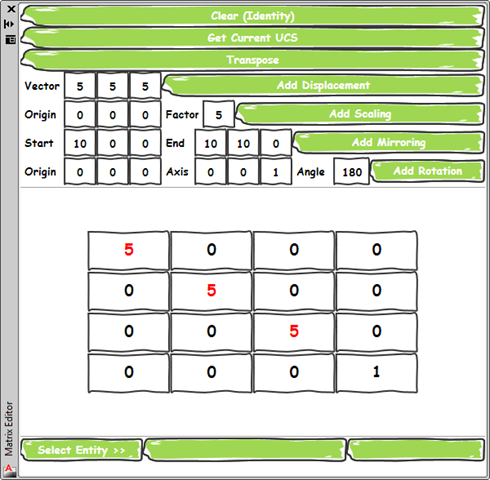
As we apply transformations, the modified cells get highlighted in red. Here's the result of us adding a scaling (accepting the default argument values) to the unit matrix:
Now let's add a displacement…

And a rotation…
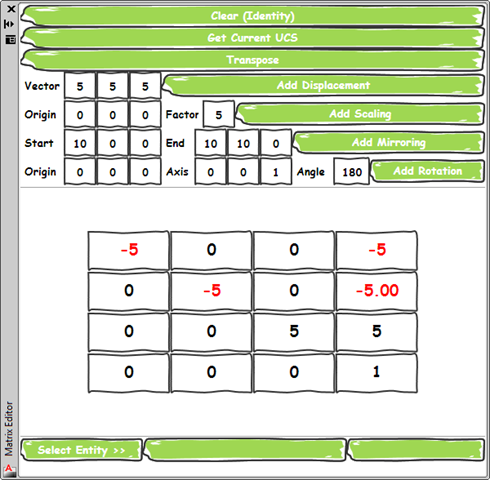
You'll notice one of the above numbers has become –5.00: the reason it has been truncated to two decimal places is that it has a decimal part that is greater than the standard tolerance value, so we've represented it to 2 decimal places.
Now let's select a line entity using the Select Entity >> button at the bottom of the palette. This should enable the combo-box to its right and the Transform button to the right of that:
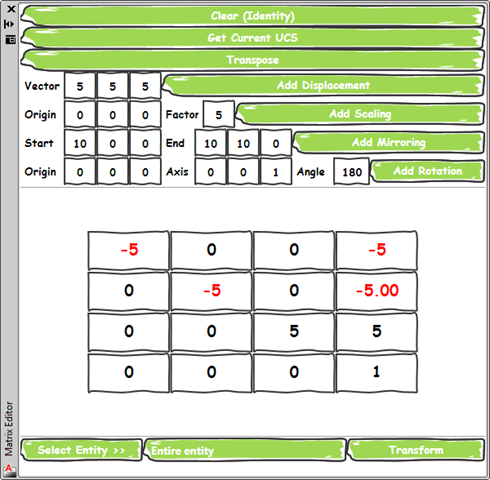
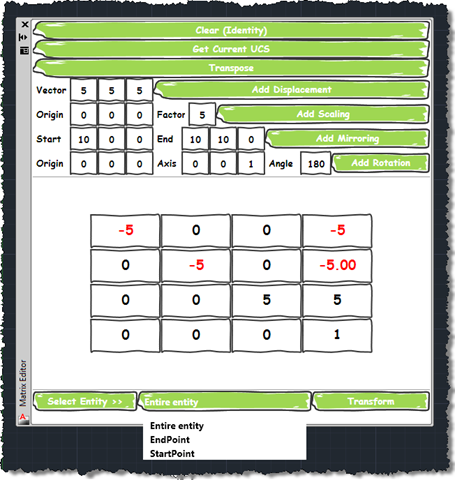
You can see the combo-box defaults to "Entire entity", but you can also use it to select the entity's writeable properties of type Matrix3d or Point3d:
Once we've selected how we want to apply the transformation to the entity, we can do so via the Transform button. I should probably add that you can edit the cells of the matrix yourself, if you're feeling confident you've grasped what you need of the theory. 🙂
That's about it for this little tool, for now… please give it a spin and let me know what you think. And a big thanks for Jeremy Tammik for providing his feedback prior to our "DevTech Switzerland Xmas Fondue", this afternoon.


Leave a Reply