I've been meaning to post on this topic for some time, and a recent comment reminded me to do so.
As many of you will have noticed, when you do a straight copy & paste of code from this blog into Visual Studio, it comes with unwanted line feeds.
For instance, taking some recently posted code using Internet Explorer 9:
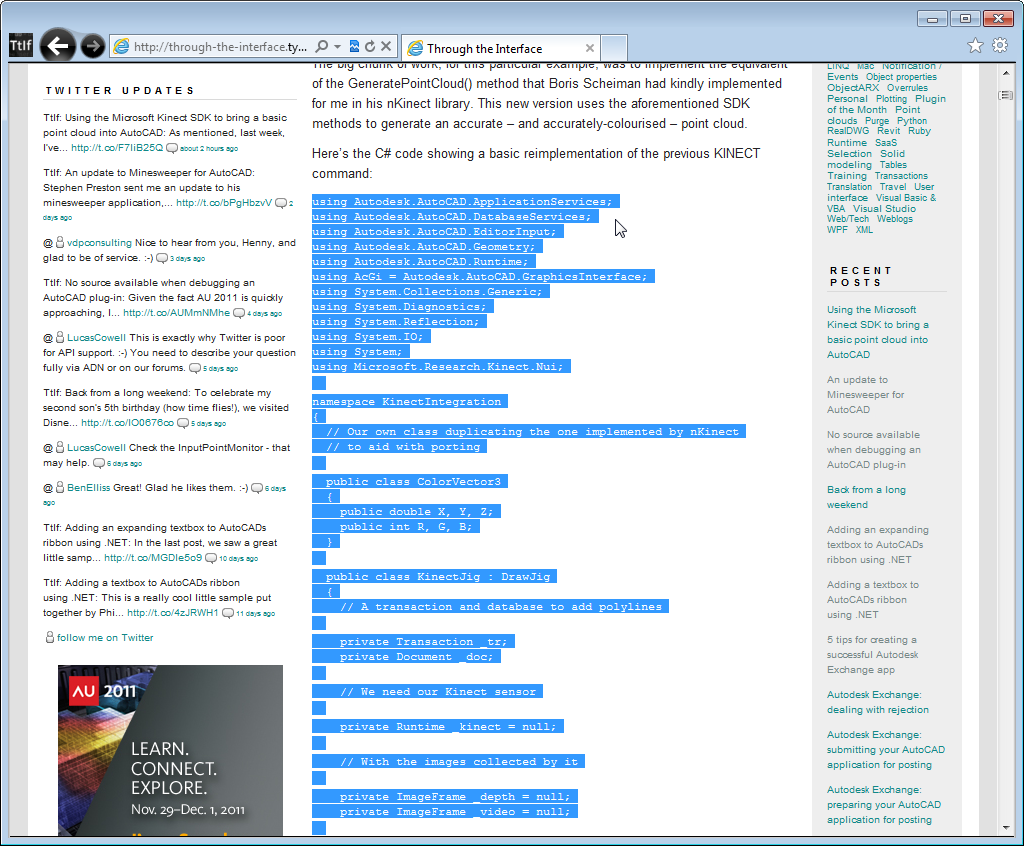
And pasting it into VS2010 results in unwanted linefeeds in the code:
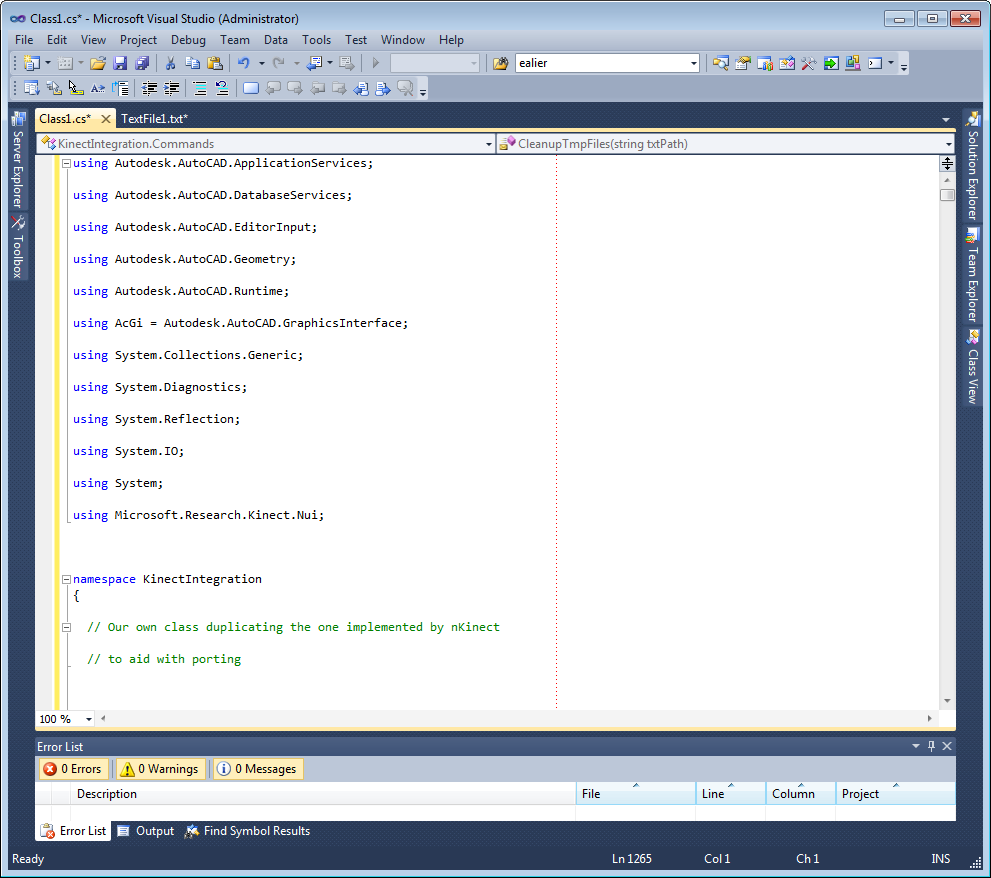
Less than ideal, to say the least. The reason this happens is probably the way the HTML gets formatted by the CopySourceAsHtml tool I use to get the code from Visual Studio into Windows Live Writer (my preferred blogging tool).
When posting code to his blog, Jeremy Tammik runs a Python script to edit the clipboard contents and minimise the code created (replacing hardcoded styles with CSS, adjusting the inclusion of linefeeds, etc,.), but I prefer not to: as far as it goes I'm actually pretty happy with the way the code comes across into the blog using CopySourceAsHtml, and don't see the need to introduce an additional step in my posting process.
But I certainly acknowledge the ugliness of the linefeed issue when trying to reuse the code. To that end, this post lists three options for getting code from this blog cleanly into Visual Studio.
1. Copy using Google Chrome
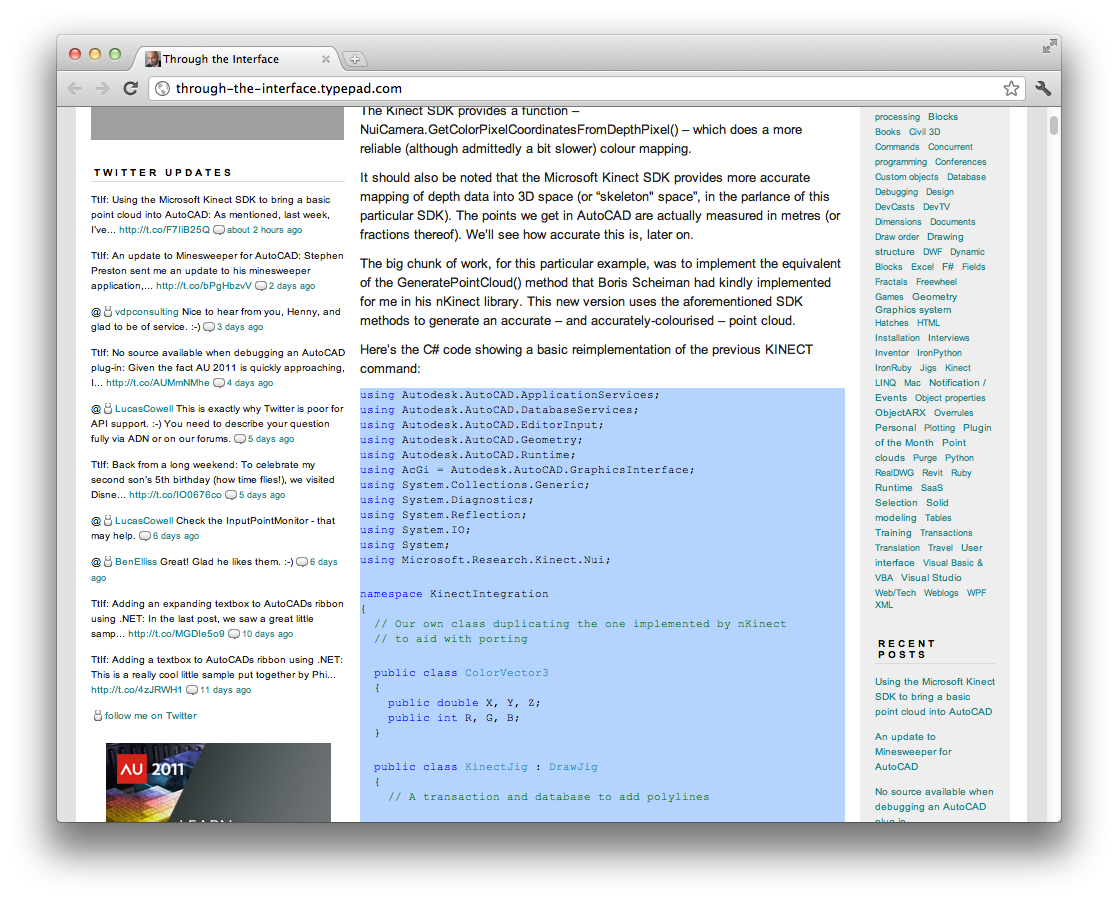
This is, in many ways, the simplest solution I've found: if you copy the code from this blog using Google Chrome, it comes across into Visual Studio without the additional whitespace. This is a nice option as it's simple and free. But obviously means you have to install an additional browser, if you don't already have it.
I happen to have Chrome installed in OS X on my system, but as Parallels Desktop shares a clipboard with OS X, it works well pasting into Visual Studio for me, too:
2. Use ClipboardFusion to search for & replace double linefeeds
ClipboardFusion from Binary Fortress Software is a free tool (with optional subscription pricing for ClipboardFusion Online) that allows you to "scrub" your clipboard. This may mean removing HTML tags, or some other activity. In our case we want to perform a simple search & replace operation: we want to replace double-linefeeds with single ones.
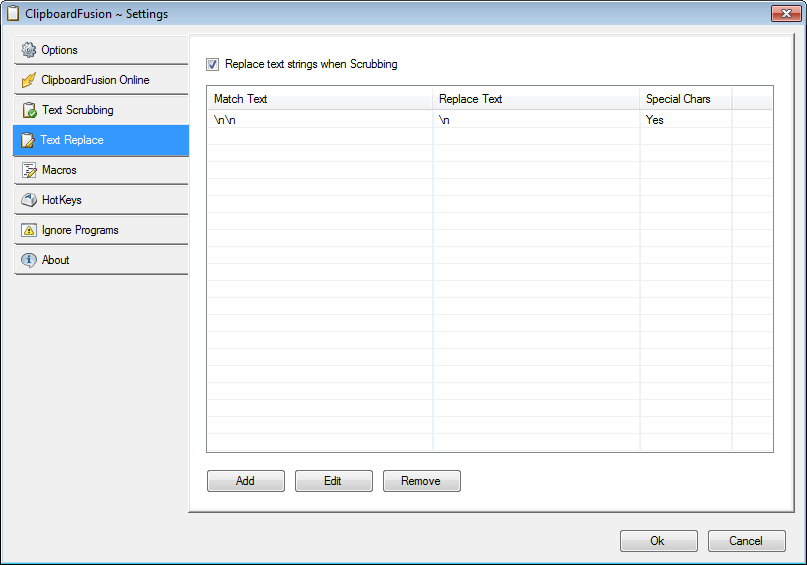
Once the tool has been installed, you can edit the ClipboardFusion settings, to specify the desired "Text Replace" operation, to match "\n\n" and replace it with "\n":
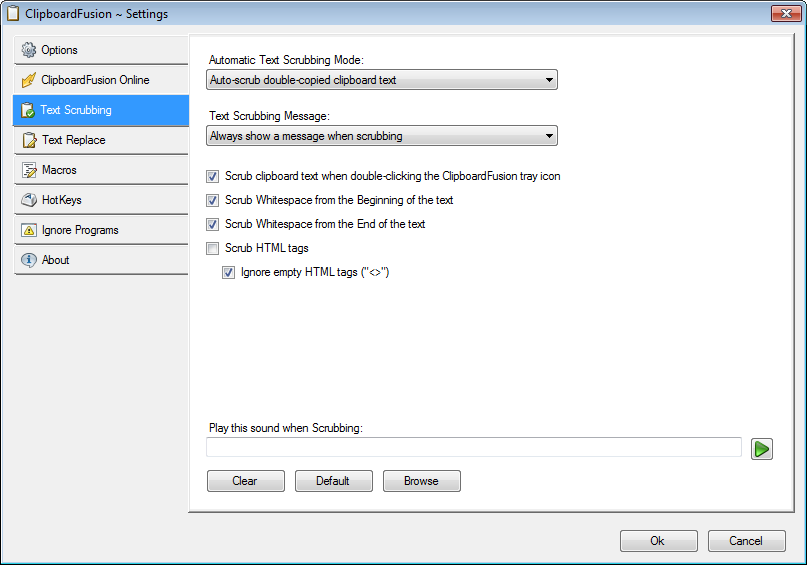
You can set the scrubbing to occur on "double-copy" (if you copy the same text twice it scrubs), which is a nice feature:
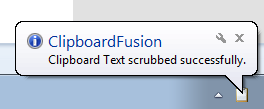
Then, when a scrub occurs, you will get notified via a balloon (unless you prefer to opt for a sound being played, etc.):
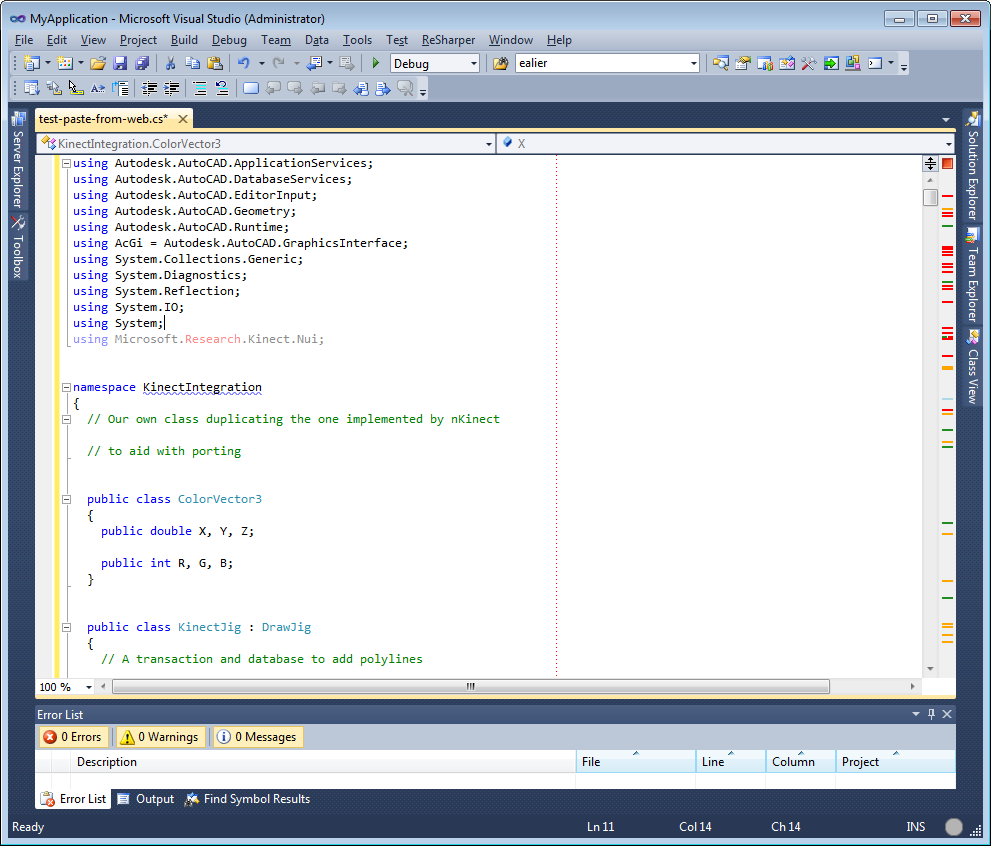
3. Use ReSharper in Visual Studio
Thanks to Kerry Brown for this suggestion.
ReSharper from JetBrains is a productivity tool for Visual Studio that – among other things – helps with formatting and refactoring code you copy from the web. This is not a free option – outside the 30-day evaluation period – so do be aware of that.
One possible advantage of using ReSharper is its ability to apply various rules when reformatting your code – pretty handy if you have (for instance) a standard column width of >70 (I use 70 characters per line to get code to fit my blog). You can also set up and deploy such standards acorss your programming team fairly easily, from what I can tell.
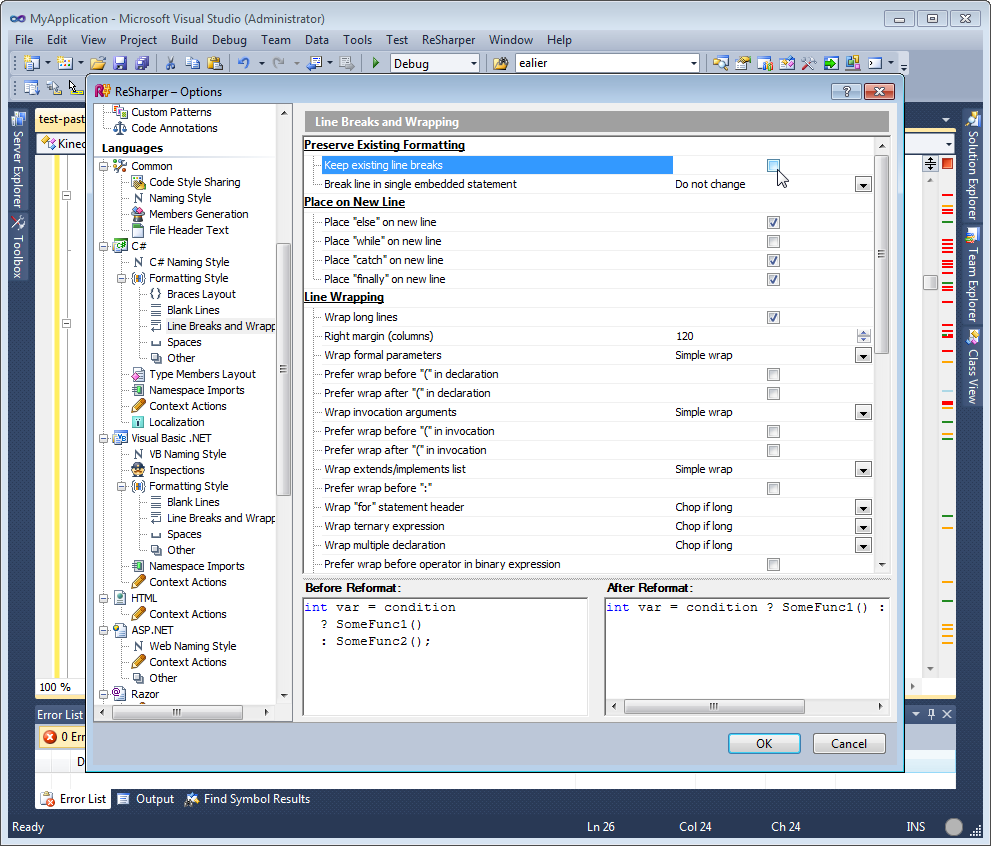
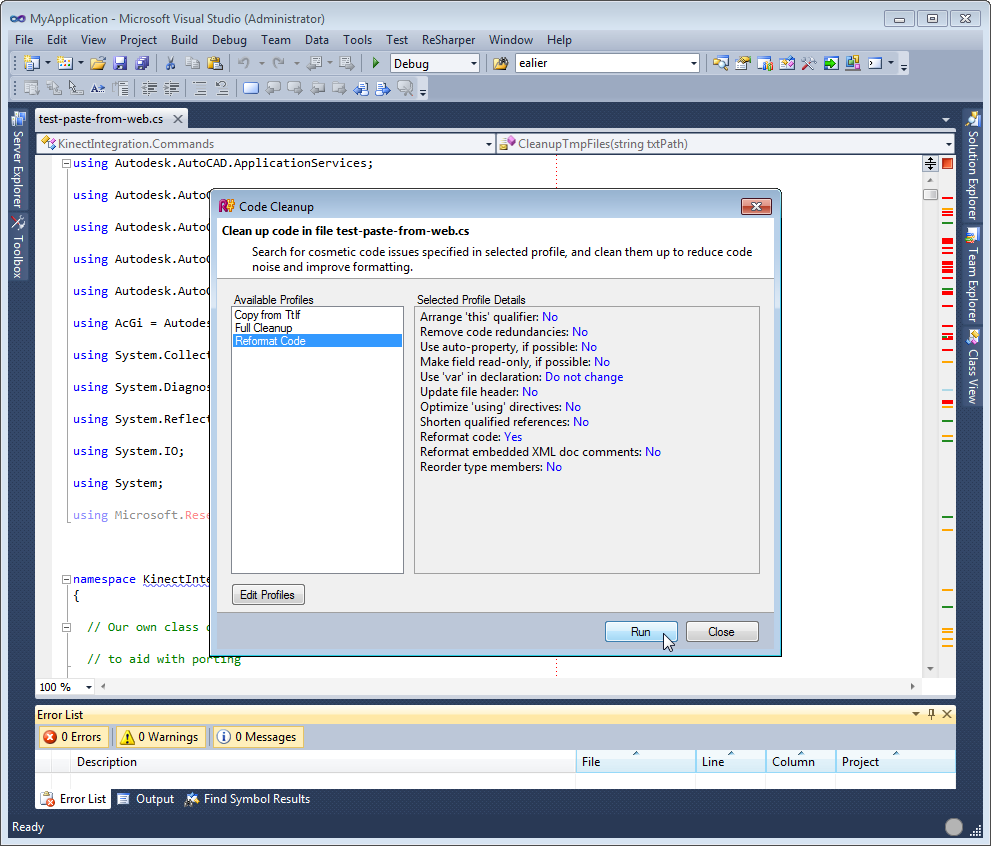
You can then run ReSharper –> Tools –> Cleanup code… (with a custom profile just specifying you want to reformat, should you wish) and your code will get reformatted.
Conclusion
Any of these three options seem valid, depending on your preference: Chrome is a straightforward option, but may mean browsing with another tool. ClipboardFusion is handy, but means some installation (and the need to live with the risk of it scrubbing your clipboard when you'd rather it didn't). ReSharper gives you a lot of power to impose standards upon your code (and code you find from elsewhere), but will take time to set up, and doesn't come for free.
I assume there are other options out there… if you have one to suggest, please post a comment!
Incidentally, I'm going to be on vacation in Egypt for the next two weeks. I've queued up a few posts to keep things moving, while I'm away, but please don't expect me to respond promptly to comments (despite me having asked people to post comments in this very post). I'll do my best to catch up quickly on my return.


Leave a Reply to ali Cancel reply