So after several posts leading up to the big reveal, as it were, in today's post we're going to see the full "De-skew Raster" application in action – and give you the complete source to fool around with.
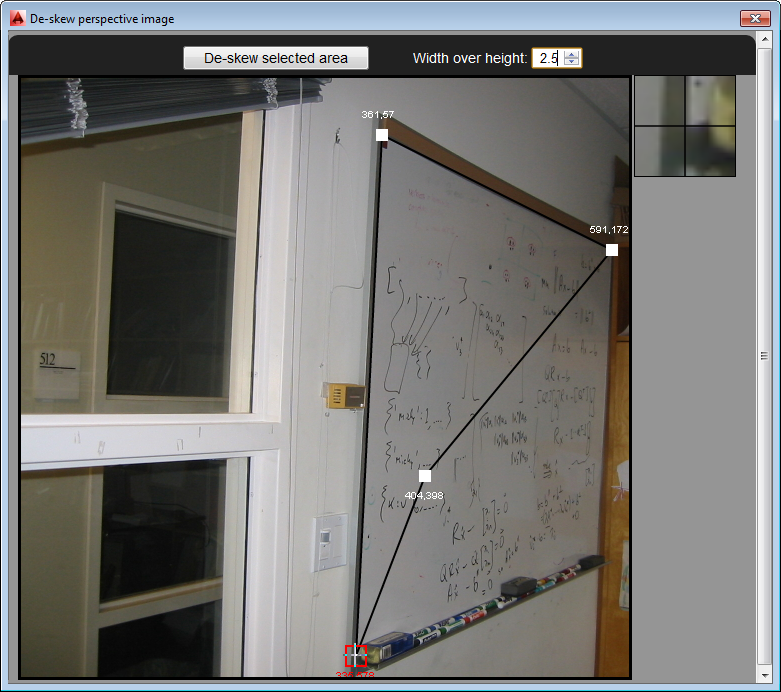
The main addition over where we were in the last post is the HTML5 and JavaScript UI implementation, as well as the new C# command – called DESKEW – that loads and displays it:
Our JavaScript code uses the new JavaScript API in AutoCAD 2014 to execute the other command (DESKEW_IMAGE, which we saw implemented last time) that drives the core Python implementation.
I had a lot of fun creating this UI. I started with an HTML5 sample I found that implements an image cropping tool, but adjusted the code to maintain four separate vertices for the corners (rather than forcing the selection area to be aligned with the image itself). I also implemented a magnifying area to help with more precise selection of the respective vertices.
Here's the HTML file, which is extremely simple:
<html>
<head>
<title>De-skew perspective image</title>
<link href="main.css" rel="stylesheet" type="text/css" />
<script
type="text/javascript"
src="http://code.jquery.com/jquery-latest.min.js">
</script>
<script
type="text/javascript"
src="http://www.autocadws.com/jsapi/v1/Autodesk.AutoCAD.js">
</script>
<script src="WindowSelect.js" type="text/javascript"></script>
</head>
<body onload="onLoad()">
<div class="container">
<div class="contr">
<div class="inside">
<div style="float:left">
<button onclick="deskewCmd()">
De-skew selected area
</button>
</div>
<div
class="facinput"
style="float:right"
title="A value of 1 means a square output image">
Width over height:
<input
class="numinput"
id="factor"
type="number"
value="1.0" />
</div>
</div>
</div>
<div id="canvases">
<div style="float:left"><canvas id="panel"/></div>
<div style="float:left"><canvas id="magnifier"/></div>
</div>
</div>
</body>
</html>
The JavaScript behind it has a little more going on, but still:
// Based on http://www.script-tutorials.com/demos/197/index.html
// Globals
var canvas, ctx, magnifier, magctx;
var image;
var mouseX, mouseY = 1;
var selArea;
var urlVars;
var off = 10;
var zs = 10;
var magsz = off * zs
// Helper function to get URL vars, courtesy of:
// http://papermashup.com/read-url-get-variables-withjavascript
function getUrlVars() {
var vars = {};
var parts =
window.location.href.replace(
/[?&]+([^=&]+)=([^&]*)/gi,
function (m, key, value) {
vars[key] = value;
}
);
return vars;
}
// Selection constructor
function Selection(pts) {
// Our (usually 4) corners
this.points = pts;
// Some constants
this.csize = 6; // Resize cubes size
this.csizeh = 10; // Grip cubes size (on hover)
this.highlight = '#f00';
this.linecolor = '#000';
this.textcolor = '#fff';
// Status of whether the mouse is hovering over or dragging the
// corners
this.hovering = [false, false, false, false]; // Hover status
this.dragging = [false, false, false, false]; // Drag status
}
// Selection draw method
Selection.prototype.draw = function () {
// Draw lines between the corners
ctx.strokeStyle = this.linecolor;
ctx.lineWidth = 2;
ctx.beginPath();
ctx.moveTo(this.points[0][0], this.points[0][1]);
for (i = 1; i < this.points.length; i++) {
ctx.lineTo(this.points[i][0], this.points[i][1]);
}
ctx.lineTo(this.points[0][0], this.points[0][1]);
ctx.closePath();
ctx.stroke();
// Draw grip cubes
for (i = 0; i < this.points.length; i++) {
ctx.fillStyle =
this.dragging[i] ? this.highlight : this.textcolor;
// If a vertex is being dragged, draw it in a highlight colour
if (this.dragging[i]) {
var x = this.points[i][0];
var y = this.points[i][1];
var sz = this.csizeh;
// First draw the grip cube
ctx.strokeStyle = this.highlight;
ctx.strokeRect(x - sz, y - sz, sz * 2, sz * 2);
ctx.strokeStyle = this.linecolor;
// Next we'll draw a magnified portion of the part of the
// image under the cursor, with cross-hairs
magctx.clearRect(0, 0, magsz, magsz);
var xpos = x < off ? 0 : x - off;
var ypos = y < off ? 0 : y - off;
var fromRight = image.width - x;
var fromBottom = image.height - y;
var wid = fromRight <= off ? off + fromRight - 1 : off * 2;
var hgt = fromBottom <= off ? off + fromBottom - 1 : off * 2;
var fac = 1 / (off * 2);
magctx.drawImage(
image, xpos, ypos, wid, hgt,
(xpos - (x - off)) * zs / 2, (ypos - (y - off)) * zs / 2,
Math.floor(wid * fac * magsz),
Math.floor(hgt * fac * magsz)
);
// And the cross-hairs
magctx.strokeStyle = this.linecolor;
magctx.lineWidth = 1;
// Vertical
magctx.beginPath();
magctx.moveTo(magsz / 2, 0);
magctx.lineTo(magsz / 2, magsz);
magctx.closePath();
magctx.stroke();
// Horizontal
magctx.beginPath();
magctx.moveTo(0, magsz / 2);
magctx.lineTo(magsz, magsz / 2);
magctx.closePath();
magctx.stroke();
}
else {
// Draw filled cubes for the grips, larger if hovered over
var csz = this.hovering[i] ? this.csizeh : this.csize;
ctx.fillRect(
this.points[i][0] - csz, this.points[i][1] - csz,
csz * 2, csz * 2
);
}
// Now we'll draw some text with the coordinate information in
// them at an appropriate point for each of the corners
// Make the text centered (vertically)
ctx.textBaseline = 'middle';
ctx.textAlign = 'left';
// We'll work out X and Y offsets to make sure the text looks
// OK and doesn't try to leave the canvas
xoff = -2 * this.csizeh;
yoff = (i > 0 && i < 3 ? 2 : -2) * this.csizeh;
// If at the bottom, reverse the Y offset
if (
this.points[i][1] + yoff > ctx.canvas.height ||
this.points[i][1] + yoff < 0
)
yoff = -yoff;
// If at the left, make the text appear right at X = 0
if (
this.points[i][0] + xoff < 0
)
xoff = -this.points[i][0];
// If nearly at the right, make the text right-justified and set
// the location to be at the right margin
if (
this.points[i][0] + xoff > ctx.canvas.width - (4 * this.csizeh)
) {
ctx.textAlign = 'right';
xoff = ctx.canvas.width - this.points[i][0];
}
// And draw the coordinate text
ctx.fillText(
this.points[i][0] + ',' + this.points[i][1],
this.points[i][0] + xoff,
this.points[i][1] + yoff
);
}
}
function drawScene() { // Main drawScene function
// Clear canvas
ctx.clearRect(0, 0, image.width, image.height);
// Draw source image
ctx.drawImage(image, 0, 0, image.width, image.height);
selArea.draw();
}
function onLoad() {
// Just load our URL parameters once
urlVars = getUrlVars();
// Load the source image
image = new Image();
image.onload = function () {
window.resizeTo(image.width, image.Height);
// Create initial selection with points at 1/3 and 2/3
// across the width and height
var x1 = Math.floor(image.width / 3);
var y1 = Math.floor(image.height / 3);
var x2 = x1 * 2;
var y2 = y1 * 2;
selArea =
new Selection([[x1, y1], [x1, y2], [x2, y2], [x2, y1]]);
$('#panel').attr('width', image.width);
$('#panel').attr('height', image.height);
$('#magnifier').attr('width', magsz);
$('#magnifier').attr('height', magsz);
drawScene();
}
// Load the image specified in the URL parameter or a stock
// image if not (useful for testing outisde AutoCAD)
image.src =
"input" in urlVars ?
"file:///" + decodeURIComponent(urlVars["input"]) :
"input.png";
// Create canvas and context objects (also for magnified area)
canvas = document.getElementById('panel');
ctx = canvas.getContext('2d');
magnifier = document.getElementById('magnifier');
magctx = magnifier.getContext('2d');
$('#panel').mousemove(function (e) { // Mouse-move event
// Calculate the position of the mouse on the canvas
var canvasOffset = $(canvas).offset();
mouseX = Math.floor(e.pageX - canvasOffset.left - 2);
mouseY = Math.floor(e.pageY - canvasOffset.top - 2);
if (mouseX < 0) mouseX = 0;
if (mouseY < 0) mouseY = 0;
if (mouseX >= image.width) mouseX = image.width - 1;
if (mouseY >= image.height) mouseY = image.height - 1;
// Hovering over resize cubes
for (i = 0; i < selArea.points.length; i++) {
var x = selArea.points[i][0];
var y = selArea.points[i][1];
var csz = selArea.csizeh;
selArea.hovering[i] =
mouseX > x - csz && mouseX < x + csz &&
mouseY > y - csz && mouseY < y + csz;
}
// In case of dragging of resize cubes
for (i = 0; i < selArea.points.length; i++) {
if (selArea.dragging[i]) {
selArea.points[i][0] = mouseX;
selArea.points[i][1] = mouseY;
}
}
drawScene();
});
$('#panel').mousedown(function (e) { // Mouse-down event
// Stop the standard behaviour from replacing our cursor
// with an I-bar
e.preventDefault();
// If already hovering over a particular corner, set its
// drag status to true
for (i = 0; i < selArea.points.length; i++) {
if (selArea.hovering[i]) {
selArea.dragging[i] = true;
}
}
});
$('#panel').mouseup(function (e) { // Mouse-up event
// Set all the drag statuses to false
for (i = 0; i < selArea.points.length; i++) {
selArea.dragging[i] = false;
}
// Clear the magnified view
magctx.clearRect(0, 0, magsz, magsz);
});
drawScene();
}
function deskewCmd() {
// Get the name of the output file chosen by the user from
// the URL parameters and replace its backslashes with forward
// slashes (or we just use a standard name, if not found)
var output =
"output" in urlVars ?
"file:///" +
decodeURIComponent(urlVars["output"]).replace(/\\/g,"/") :
"output.png";
// Execute our command to process the image with the provided
// coordinates and width factor
var pts = selArea.points;
Acad.Editor.executeCommandAsync(
'_.DESKEW_IMAGE ' + '\"' + image.src + '\" \"' + output + '\" ' +
pts[0][0].toString() + ',' + pts[0][1].toString() + ',' +
pts[1][0].toString() + ',' + pts[1][1].toString() + ',' +
pts[2][0].toString() + ',' + pts[2][1].toString() + ',' +
pts[3][0].toString() + ',' + pts[3][1].toString() + ' ' +
$('#factor').val().toString()
);
// Close this dialog (setting the commit flag to true)
Acad.Application.activedocument.modalDialogCommit(true);
}
Now let's look at the additional C# implementation we use to display the HTML page. What's especially interesting about this is the way we tell the page what to load: we're encoding the arguments we want to pass (which in this case means the input filename as well as the output filename – more on why we do that in a bit) as URL parameters, which means they come after the URL to the .htm page in this way:
http://my-site.something/my-page.htm?input=input-url&output=output-url
Please don't click on this link – it won't take you anywhere interesting. My apologies to those of you who clicked on it before reading this message. 😉
The input-url and output-url parameters will be URL-encoded URLs (which would typically reside on the local file-system, but not necessarily, I suppose) to the input and output files. To say they're URL-encoded means that they have any characters that might conflict with the outer URL (such as colons, forward-slashes, etc.) replaced with % and a hexadecimal number representing their ASCII value. An example as when you come across a space in an URL that gets replaced by %20. To encode filesystem URLs using .NET we had a minor issue to deal with, but the provided workaround was straightforward enough to include in our code.
So why also pass the output location? We could have maintained that value in the C# code, of course, setting it as a member variable on the Commands class that gets picked up later, but that makes for a more tightly-coupled system. We ideally want our DESKEW_IMAGE command to be a clean interface to our Python functionality so that it can be called separately. It does mean the values need to be URL-encoded, but that's a fairly trivial task from most modern programming languages (and we could also adjust the code to pass these in a less web-centric – perhaps more LISP-friendly – way, if we so chose).
Here's the additional C# code:
[CommandMethod("DESKEW")]
public void DeskewRasterImageCommand()
{
var doc =
Application.DocumentManager.MdiActiveDocument;
var ed = doc.Editor;
var asm = Assembly.GetExecutingAssembly();
var expath = Path.GetDirectoryName(asm.Location) + "\\";
var uipath = expath + "HTML\\";
var pofo =
new PromptOpenFileOptions("Select image file to de-skew");
pofo.Filter =
"Portable Network Graphics (*.png)|*.png";
var cwd = Directory.GetCurrentDirectory();
var pr = ed.GetFileNameForOpen(pofo);
if (pr.Status != PromptStatus.OK)
return;
var filename = pr.StringResult;
var pofs =
new PromptSaveFileOptions(
"Specify file to save de-skewed image to"
);
pofs.Filter =
"Portable Network Graphics (*.png)|*.png";
pr = ed.GetFileNameForSave(pofs);
if (pr.Status != PromptStatus.OK)
return;
var deskewed = pr.StringResult;
// Workaround: GetFileNameForOpen() seems to change the
// working directory to that of the selected file
Directory.SetCurrentDirectory(cwd);
var resized = Path.GetTempFileName();
bool doresize = false;
var sz = ImageSize(filename);
if (
(sz.Width > 600 && sz.Height > 600) ||
sz.Width > 1000 || sz.Height > 1000
)
{
ed.WriteMessage(
"\nImage bounds are {0} x {1}. ", sz.Width, sz.Height
);
int newHeight, newWidth;
if (sz.Width > sz.Height)
{
newHeight = 600;
newWidth = sz.Width * newHeight / sz.Height;
}
else
{
newWidth = 600;
newHeight = sz.Height * newWidth / sz.Width;
}
doresize =
!GetYesOrNo(
ed,
"Resize to " +
newWidth.ToString() + " x " + newHeight.ToString() + "?",
true
);
if (doresize)
{
ResizeImage(
filename, resized, newWidth, newHeight
);
}
}
if (!doresize)
{
File.Copy(filename, resized, true);
}
// Workaround for Microsoft bug 594562:
// http://connect.microsoft.com/VisualStudio/feedback/details/594562/uri-class-does-not-parse-filesystem-url-with-query-string
// http://stackoverflow.com/questions/8757585/why-doesnt-system-uri-recognize-query-parameter-for-local-file-path
var uriParserType = typeof(UriParser);
var fileParserInfo =
uriParserType.GetField(
"FileUri", BindingFlags.Static | BindingFlags.NonPublic
);
var fileParser =
(UriParser)fileParserInfo.GetValue(null);
var fileFlagsInfo =
uriParserType.GetField(
"m_Flags", BindingFlags.NonPublic | BindingFlags.Instance
);
int fileFlags = (int)fileFlagsInfo.GetValue(fileParser);
int mayHaveQuery = 0x20;
fileFlags |= mayHaveQuery;
fileFlagsInfo.SetValue(fileParser, fileFlags);
var fileUri =
new System.Uri(
"file://" + uipath +
"ImageView.htm?input=" +
HttpUtility.UrlEncode(
doresize ? resized : filename
) +
"&output=" + HttpUtility.UrlEncode(deskewed)
);
Application.ShowModalWindow(fileUri);
}
private Size ImageSize(string imageFile)
{
using (var src = System.Drawing.Image.FromFile(imageFile))
{
return new Size(src.Width, src.Height);
}
}
// Based on
// http://stackoverflow.com/questions/11137979/image-resizing-using-c-sharp
private void ResizeImage(
string imageFile, string outputFile,
int newWidth, int newHeight
)
{
using (var src = System.Drawing.Image.FromFile(imageFile))
{
using (var newImage = new Bitmap(newWidth, newHeight))
using (var graphics = Graphics.FromImage(newImage))
{
graphics.SmoothingMode = SmoothingMode.AntiAlias;
graphics.InterpolationMode =
InterpolationMode.HighQualityBicubic;
graphics.PixelOffsetMode = PixelOffsetMode.HighQuality;
graphics.DrawImage(
src, new Rectangle(0, 0, newWidth, newHeight)
);
newImage.Save(outputFile);
}
}
}
private static bool GetYesOrNo(
Editor ed,
string prompt,
bool defval
)
{
bool changed = false;
var pko =
new PromptKeywordOptions(prompt + " [Yes/No]: ", "Yes No");
// The default depends on our current settings
pko.Keywords.Default = (defval ? "Yes" : "No");
var pr = ed.GetKeywords(pko);
if (pr.Status == PromptStatus.OK)
{
// Change the settings, as needed
bool newval =
(pr.StringResult == "Yes");
if (defval != newval)
{
changed = true;
}
}
return changed;
}
Here are a few boring demonstration videos of the DESKEW command in action. I say they're boring but the first minute and the last 5 seconds of each are actually quite interesting, and the bits in between I've left uncut to give people a sense of how long the code currently takes to work. Please feel free to fast forward those parts, although it is kinda cool to see AutoCAD's progress meter being controlled from Python code.
Here's the de-skewing of the painting in my living room:
And here's the de-skewing of the original whiteboard image provided as part of the linear algebra class that inspired this project:
That's about it for the main body of this series. That said – and as I've mentioned before – I do want to investigate the possibility of moving the Python core into the cloud, most probably using Google App Engine. We could then decouple the application even further from AutoCAD, by calling the web-service directly from the HTML page and only then launching (for instance) the IMAGEATTACH command inside AutoCAD with the output image location.
I'd also like to see whether Google's famed MapReduce mechanism can usefully be thrown at parts of the problem (the most likely candidate area being the code that currently generates the output pixels from the transformed image information). I expect the overhead would only make sense for larger images, but we'll see.


Leave a Reply to Robert Vaughan Cancel reply