After yesterday's introduction to this series of posts, today we're going to dive into some specifics, implementing a basic, web-based, stereoscopic viewer.
While this series of posts is really about using Google Cardboard to view Autodesk 360 models in 3D (an interesting topic, I hope you'll agree ;-), it's also about how easily you can use the Autodesk 360 viewer to power Google Cardboard: we'll see it's a straightforward way to get 3D content into a visualization system that's really all about 3D.
Let's start with some basics. We clearly need two views in our web-page, one for each eye. For now we're not going to worry about making the page full-screen – which basically means hiding the address bar – as we'll address that when we integrate device-tilt navigation tomorrow. But the web-page will fill the screen estate that we have, of course.
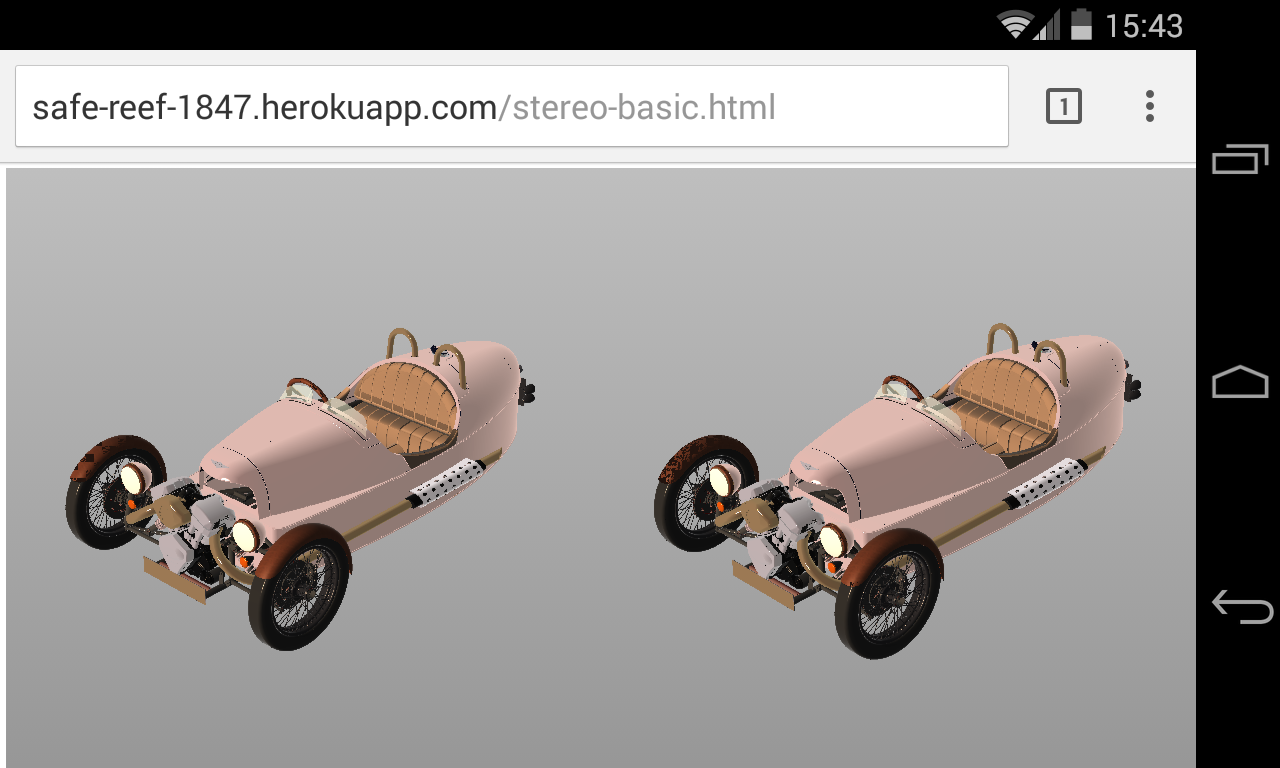
The Autodesk 360 viewer doesn't currently support multiple viewports on a single scene – even if this is a capability that Three.js provides – so for now we're going to embed two separate instances of the Autodesk 360 viewer. At some point the viewer will hopefully provide viewporting capability – and allow us to reduce the app's network usage and memory footprint – but we'll see over the coming posts that even with two separate viewer instances the app performs well.
In this post and the next we're going to make use of the Morgan model that we saw "steampunked" using Fusion 360 and then integrated into my first Autodesk 360 application. Basically because it's the model that's content that can already be accessed by this particular site. On Thursday we'll extend that to be able to choose from a selection of models.
The lighting used for this model is different from in the previous sample: "simple grey" works better on mobile devices that "riverbank", it seems (which has much more going on in terms of lights and environment backgrounds, etc.).
I'm looking at this viewer as an "object viewer", which allows us to spin the camera around a fixed point of interest and view it from different angles, rather than a "walk-/fly-through viewer". This is a choice, of course: you could easily take the foundation shown in this series and make a viewer that's better-suited for viewing an architectural model from the inside, for instance.
OK, before we go much further, I should probably add this caveat: I don't actually yet have a Google Cardboard device in my possession. I have a Nexus 4 phone – which has Android 4.4.4 and can run the native Google Cardboard app as well as host WebGL for a web-based viewer implementation – but I don't actually have the lenses, etc. I have a DODOcase VR Cardboard Toolkit waiting for me in San Francisco, but until now I haven't tested to see whether the stereoscopic effect works or not. I've squinted at the screen from close up, of course, but haven't yet seen anything jump out in 3D. That said, Jim Quanci assures me it looks great with the proper case, so I'm fairly sure I'm not wasting everyone's time with these posts.
The main "known unknown" until I test firsthand has been the distance to be used between the two camera positions. Three.js allows us to translate a camera in the X direction (relative to its viewing direction along Z, which basically means pan left or right) very easily, but I've had to guess a little with the distance. For now I've taken 4% of the distance between the camera and the target – as this gives a very slight difference between the views for various models I tried – but this value may need some tweaking.
Beyond working out the camera positions of the two views, the main work is about keeping them in sync: if the lefthand view changes then the righthand view should adjust to keep the stereo effect and vice-versa. In my first implementation I used a number of HTML5 events to do this: click, mouseup, mousemove, touchstart, touchend, touchcancel, touchleave & touchmove. And then I realised that there was no simple way to hook into zoom, which drove me crazy for a while. Argh. But then I realised I could hook into the viewer's cameraChanged event, instead, which was much better (although this gets called for any change in the viewer, and you also need to make sure you don't get into some circular modifications, leading to your model disappearing into the distance… :-).
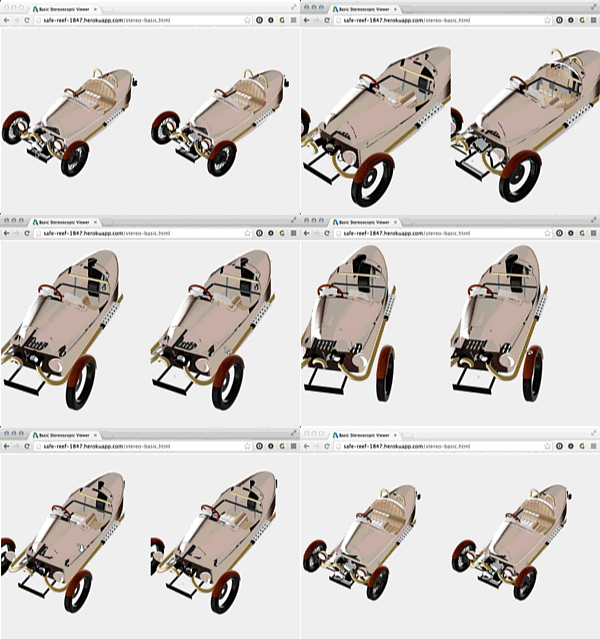
Here's an animated GIF of the views being synchronised successfully between the two embedded viewers inside a desktop browser:
Now for some code… here's the HTML page (which I've named stereo-basic.html) for the simple, stereoscopic viewer. I've embedded the styles but have kept the JavaScript in a separate file for easier debugging.
<!DOCTYPE html>
<html>
<head>
<meta charset="utf-8">
<title>Basic Stereoscopic Viewer</title>
<link rel="shortcut icon" type="image/x-icon" href="/favicon.ico?v=2">
<meta
name="viewport"
content=
"width=device-width, minimum-scale=1.0, maximum-scale=1.0" />
<meta charset="utf-8">
<link
rel="stylesheet"
href="https://developer.api.autodesk.com/viewingservice/v1/viewers/style.css"
type="text/css">
<script
src=
"https://developer.api.autodesk.com/viewingservice/v1/viewers/viewer3D.min.js">
</script>
<script src="js/jquery.js"></script>
<script src="js/stereo-basic.js"></script>
<style>
body {
margin: 0px;
overflow: hidden;
}
</style>
</head>
<body onload="initialize();" oncontextmenu="return false;">
<table width="100%" height="100%">
<tr>
<td width="50%">
<div id="viewLeft" style="width:50%; height:100%;"></div>
</td>
<td width="50%">
<div id="viewRight" style="width:50%; height:100%;"></div>
</td>
</tr>
</table>
</body>
</html>
And here's the referenced JavaScript file:
var viewerLeft, viewerRight;
var updatingLeft = false, updatingRight = false;
var leftLoaded = false, rightLoaded = false, cleanedModel = false;
function initialize() {
// Get our access token from the internal web-service API
$.get('http://' + window.location.host + '/api/token',
function (accessToken) {
// Specify our options, including the document ID
var options = {};
options.env = 'AutodeskProduction';
options.accessToken = accessToken;
options.document =
'dXJuOmFkc2sub2JqZWN0czpvcy5vYmplY3Q6c3RlYW1idWNrL1NwTTNXNy5mM2Q=';
// Create and initialize our two 3D viewers
var elem = document.getElementById('viewLeft');
viewerLeft = new Autodesk.Viewing.Viewer3D(elem, {});
Autodesk.Viewing.Initializer(options, function () {
viewerLeft.initialize();
loadDocument(viewerLeft, options.document);
});
elem = document.getElementById('viewRight');
viewerRight = new Autodesk.Viewing.Viewer3D(elem, {});
Autodesk.Viewing.Initializer(options, function () {
viewerRight.initialize();
loadDocument(viewerRight, options.document);
});
}
);
}
function loadDocument(viewer, docId) {
// The viewer defaults to the full width of the container,
// so we need to set that to 50% to get side-by-side
viewer.container.style.width = '50%';
viewer.resize();
// Let's zoom in and out of the pivot - the screen
// real estate is fairly limited - and reverse the
// zoom direction
viewer.navigation.setZoomTowardsPivot(true);
viewer.navigation.setReverseZoomDirection(true);
if (docId.substring(0, 4) !== 'urn:')
docId = 'urn:' + docId;
Autodesk.Viewing.Document.load(docId,
function (document) {
// Boilerplate code to load the contents
var geometryItems = [];
if (geometryItems.length == 0) {
geometryItems =
Autodesk.Viewing.Document.getSubItemsWithProperties(
document.getRootItem(),
{ 'type': 'geometry', 'role': '3d' },
true
);
}
if (geometryItems.length > 0) {
viewer.load(document.getViewablePath(geometryItems[0]));
}
// Add our custom progress listener and set the loaded
// flags to false
viewer.addEventListener('progress', progressListener);
leftLoaded = rightLoaded = false;
},
function (errorMsg, httpErrorCode) {
var container = document.getElementById('viewerLeft');
if (container) {
alert('Load error ' + errorMsg);
}
}
);
}
// Progress listener to set the view once the data has started
// loading properly (we get a 5% notification early on that we
// need to ignore - it comes too soon)
function progressListener(e) {
// If we haven't cleaned this model's materials and set the view
// and both viewers are sufficiently ready, then go ahead
if (!cleanedModel &&
((e.percent > 0.1 && e.percent < 5) || e.percent > 5)) {
if (e.target.clientContainer.id === 'viewLeft')
leftLoaded = true;
else if (e.target.clientContainer.id === 'viewRight')
rightLoaded = true;
if (leftLoaded && rightLoaded && !cleanedModel) {
// Iterate the materials to change any red ones to grey
for (var p in viewerLeft.impl.matman().materials) {
var m = viewerLeft.impl.matman().materials[p];
if (m.color.r >= 0.5 && m.color.g == 0 && m.color.b == 0) {
m.color.r = m.color.g = m.color.b = 0.5;
m.needsUpdate = true;
}
}
for (var p in viewerRight.impl.matman().materials) {
var m = viewerRight.impl.matman().materials[p];
if (m.color.r >= 0.5 && m.color.g == 0 && m.color.b == 0) {
m.color.r = m.color.g = m.color.b = 0.5;
m.needsUpdate = true;
}
}
// Zoom to the overall view initially
zoomEntirety(viewerLeft);
setTimeout(function () { transferCameras(true); }, 0);
cleanedModel = true;
}
}
else if (cleanedModel && e.percent > 10) {
// If we have already cleaned and are even further loaded,
// remove the progress listeners from the two viewers and
// watch the cameras for updates
unwatchProgress();
watchCameras();
}
}
// Add and remove the pre-viewer event handlers
function watchCameras() {
viewerLeft.addEventListener('cameraChanged', left2right);
viewerRight.addEventListener('cameraChanged', right2left);
}
function unwatchCameras() {
viewerLeft.removeEventListener('cameraChanged', left2right);
viewerRight.removeEventListener('cameraChanged', right2left);
}
function unwatchProgress() {
viewerLeft.removeEventListener('progress', progressListener);
viewerRight.removeEventListener('progress', progressListener);
}
// Event handlers for the cameraChanged events
function left2right() {
if (!updatingRight) {
updatingLeft = true;
transferCameras(true);
setTimeout(function () { updatingLeft = false; }, 500);
}
}
function right2left() {
if (!updatingLeft) {
updatingRight = true;
transferCameras(false);
setTimeout(function () { updatingRight = false; }, 500);
}
}
function transferCameras(leftToRight) {
// The direction argument dictates the source and target
var source = leftToRight ? viewerLeft : viewerRight;
var target = leftToRight ? viewerRight : viewerLeft;
var pos = source.navigation.getPosition();
var trg = source.navigation.getTarget();
// Set the up vector manually for both cameras
var upVector = new THREE.Vector3(0, 0, 1);
source.navigation.setWorldUpVector(upVector);
target.navigation.setWorldUpVector(upVector);
// Get the new position for the target camera
var up = source.navigation.getCameraUpVector();
// Get the position of the target camera
var newPos = offsetCameraPos(source, pos, trg, leftToRight);
// Save the left-hand camera position: device tilt orbits
// will be relative to this point
leftPos = leftToRight ? pos : newPos;
// Zoom to the new camera position in the target
zoom(
target, newPos.x, newPos.y, newPos.z, trg.x, trg.y, trg.z,
up.x, up.y, up.z
);
}
function offsetCameraPos(source, pos, trg, leftToRight) {
// Get the distance from the camera to the target
var xd = pos.x - trg.x;
var yd = pos.y - trg.y;
var zd = pos.z - trg.z;
var dist = Math.sqrt(xd * xd + yd * yd + zd * zd);
// Use a small fraction of this distance for the camera offset
var disp = dist * 0.04;
// Clone the camera and return its X translated position
var clone = source.autocamCamera.clone();
clone.translateX(leftToRight ? disp : -disp);
return clone.position;
}
// Model-specific helper to zoom into a specific part of the model
function zoomEntirety(viewer) {
zoom(viewer, -48722.5, -54872, 44704.8, 10467.3, 1751.8, 1462.8);
}
// Set the camera based on a position, target and optional up vector
function zoom(viewer, px, py, pz, tx, ty, tz, ux, uy, uz) {
// Make sure our up vector is correct for this model
var upVector = new THREE.Vector3(0, 0, 1);
viewer.navigation.setWorldUpVector(upVector, true);
var up =
(ux && uy && uz) ? new THREE.Vector3(ux, uy, uz) : upVector;
viewer.navigation.setView(
new THREE.Vector3(px, py, pz),
new THREE.Vector3(tx, ty, tz)
);
viewer.navigation.setCameraUpVector(up);
}
To host something similar yourself, I recommend starting with the post I linked to earlier and building it up from there (you basically need to provide the '/api/token' server API – using your own client credentials – for this to work).
But you don't need to build it yourself – or even have an Android device – to give this a try. Simply load the HTML page in your preferred WebGL-capable browser (Chrome is probably safest, considering that's what I've been using when developing this) and have a play.
On a PC it will respond to mouse or touch navigation, of course, but in tomorrow's post we'll implement a much more interesting – at least with respect to Google Cardboard, where you can't get your fingers near the screen to navigate – tilt-based navigation mechanism. We'll also take a look at how we can use Google Chrome Canary to emulate device-tilt on a PC, reducing the need to jump through the various hoops needed to debug remotely. Interesting stuff. 🙂


Leave a Reply