After introducing the topic, showing a basic stereoscopic viewer using the Autodesk 360 viewer and then adding full-screen and device-tilt navigation, today we're going to extend our UI to allow viewing of multiple models.
Firstly it's worth pointing out that for models to be accessible by the viewer that makes use of my client credentials, I also need to upload that content with the same credentials. You can follow the procedure in this previous post to see how you do that, although I believe the ADN team has created some samples that help simplify the process, too.
Once you have the Base64 document IDs for your various models, it's pretty simple to abstract the code to work on an arbitrary model. The main caveat is that there may be custom behaviours you want for particular models. For instance there are models for which the up direction is the Z-axis rather than the Y-axis (mainly because the translation process isn't perfect or at least wasn't when the model was processed) or for which you may want to save a custom view.
We take care of this in the below code by providing a couple of optional arguments to our launchViewer() function that can be used to specify an up direction and an initial zoom for particular models.
And that's pretty much all this version of the code does beyond yesterday's. Here's the main modified section – you can, of course, just take a look at the complete file.
var viewerLeft, viewerRight;
var updatingLeft = false, updatingRight = false;
var leftLoaded = false, rightLoaded = false, cleanedModel = false;
var leftPos, baseDir, upVector;
var initZoom;
function Commands() { }
Commands.morgan = function () {
launchViewer(
'dXJuOmFkc2sub2JqZWN0czpvcy5vYmplY3Q6c3RlYW1idWNrL1NwTTNXNy5mM2Q=',
new THREE.Vector3(0, 0, 1),
function () {
zoom(
viewerLeft,
-48722.5, -54872, 44704.8,
10467.3, 1751.8, 1462.8
);
}
);
};
Commands.robot_arm = function () {
launchViewer(
'dXJuOmFkc2sub2JqZWN0czpvcy5vYmplY3Q6c3RlYW1idWNrL1JvYm90QXJtLmR3Zng='
);
};
Commands.chassis = function () {
launchViewer(
'dXJuOmFkc2sub2JqZWN0czpvcy5vYmplY3Q6c3RlYW1idWNrL0NoYXNzaXMuZjNk'
);
};
Commands.front_loader = function () {
launchViewer(
'dXJuOmFkc2sub2JqZWN0czpvcy5vYmplY3Q6c3RlYW1idWNrL0Zyb250JTIwTG9hZGVyLmR3Zng=',
new THREE.Vector3(0, 0, 1)
);
};
Commands.suspension = function () {
launchViewer(
'dXJuOmFkc2sub2JqZWN0czpvcy5vYmplY3Q6c3RlYW1idWNrL1N1c3BlbnNpb24uaXB0'
);
};
Commands.V8_engine = function () {
launchViewer(
'dXJuOmFkc2sub2JqZWN0czpvcy5vYmplY3Q6c3RlYW1idWNrL1Y4RW5naW5lLnN0cA=='
);
};
function initialize() {
// Populate our initial UI with a set of buttons, one for each
// function in the Commands object
var panel = document.getElementById('control');
for (var fn in Commands) {
var button = document.createElement('div');
button.classList.add('cmd-btn');
// Replace any underscores with spaces before setting the
// visible name
button.innerHTML = fn.replace('_', ' ');
button.onclick = (function (fn) {
return function () { fn(); };
})(Commands[fn]);
// Add the button with a space under it
panel.appendChild(button);
panel.appendChild(document.createTextNode('\u00a0'));
}
}
function launchViewer(docId, upVec, zoomFunc) {
// Assume the default "world up vector" of the Y-axis
// (only atypical models such as Morgan and Front Loader require
// the Z-axis to be set as up)
upVec =
typeof upVec !== 'undefined' ?
upVec :
new THREE.Vector3(0, 1, 0);
// Ask for the page to be fullscreen
// (can only happen in a function called from a
// button-click handler or some other UI event)
requestFullscreen();
// Hide the controls that brought us here
var controls = document.getElementById('control');
controls.style.visibility = 'hidden';
// Bring the layer with the viewers to the front
// (important so they also receive any UI events)
var layer1 = document.getElementById('layer1');
var layer2 = document.getElementById('layer2');
layer1.style.zIndex = 1;
layer2.style.zIndex = 2;
// Store the up vector in a global for later use
upVector = new THREE.Vector3().copy(upVec);
// The same for the optional Initial Zoom function
if (zoomFunc)
initZoom = zoomFunc;
// Get our access token from the internal web-service API
$.get('http://' + window.location.host + '/api/token',
function (accessToken) {
// Specify our options, including the provided document ID
var options = {};
options.env = 'AutodeskProduction';
options.accessToken = accessToken;
options.document = docId;
// Create and initialize our two 3D viewers
var elem = document.getElementById('viewLeft');
viewerLeft = new Autodesk.Viewing.Viewer3D(elem, {});
Autodesk.Viewing.Initializer(options, function () {
viewerLeft.initialize();
loadDocument(viewerLeft, options.document);
});
elem = document.getElementById('viewRight');
viewerRight = new Autodesk.Viewing.Viewer3D(elem, {});
Autodesk.Viewing.Initializer(options, function () {
viewerRight.initialize();
loadDocument(viewerRight, options.document);
});
}
);
}
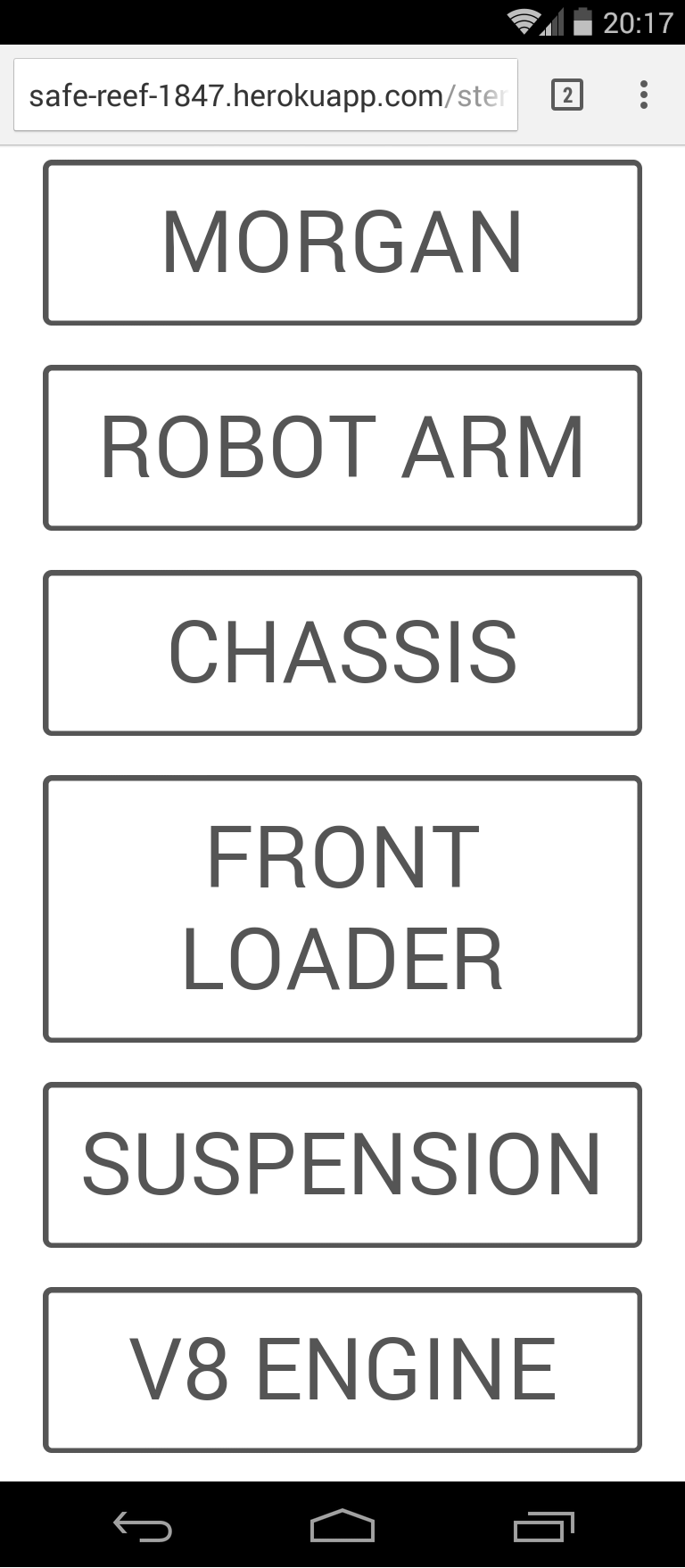
When you launch the HTML page it looks a bit different from last time, but only in the fact there's now a choice of models to select from.
Here's a slightly faked view of the UI on a mobile device (I've combined two screenshots to get the full UI on one screen):
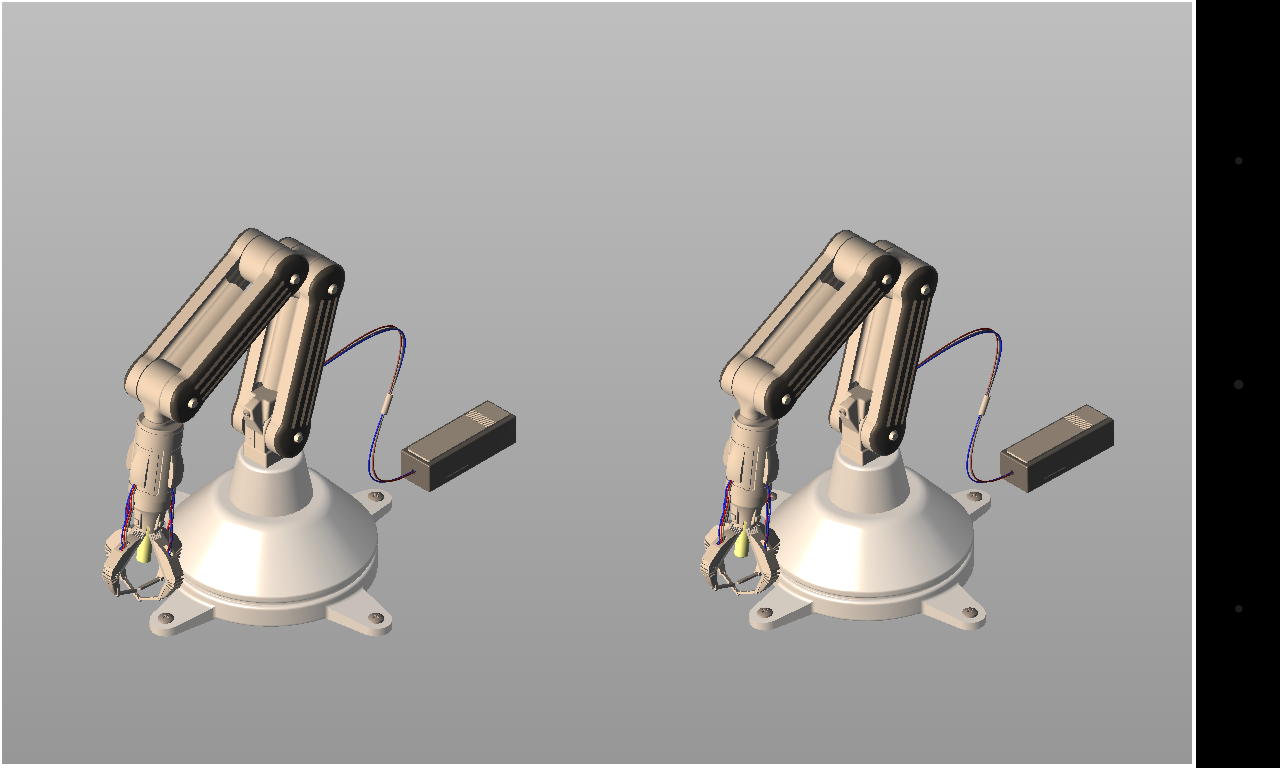
We've seen plenty of the Morgan model, but here's a quick taste of the others. There isn't currently a back button in the UI, so you'll have to reload the page to switch between models.
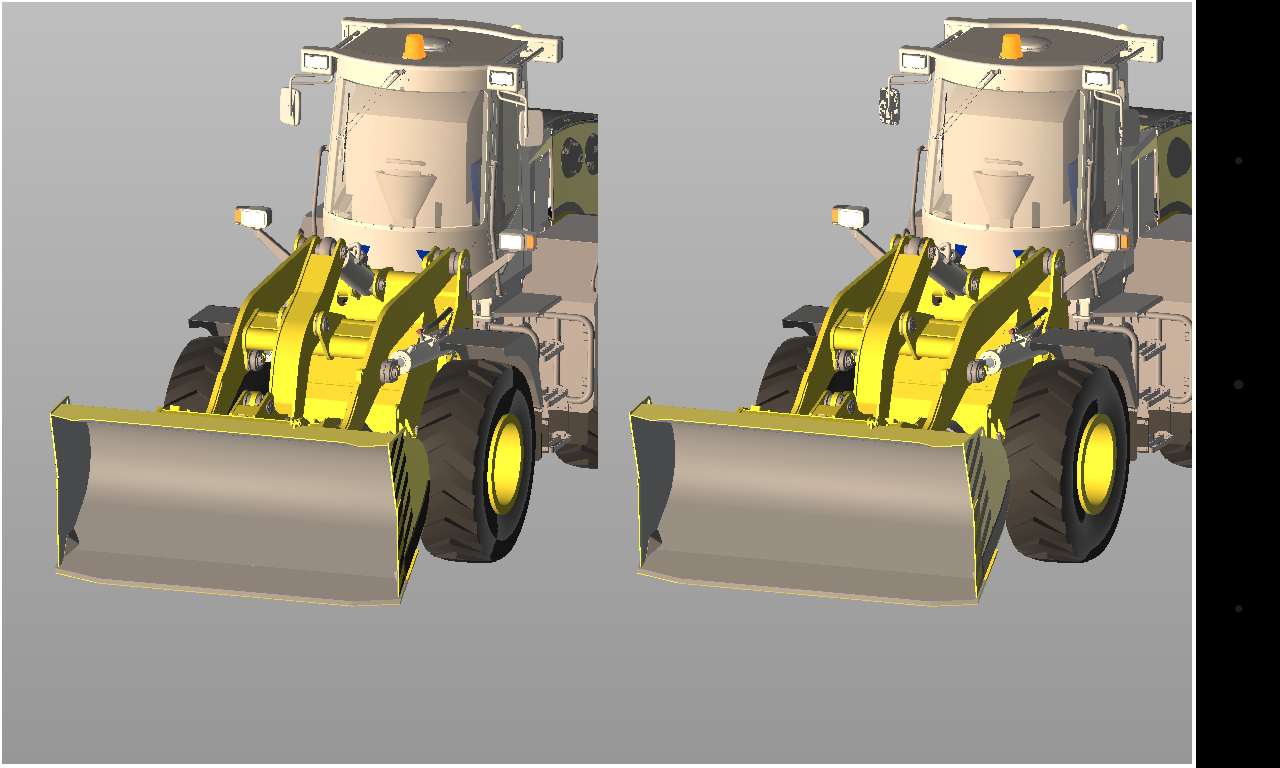
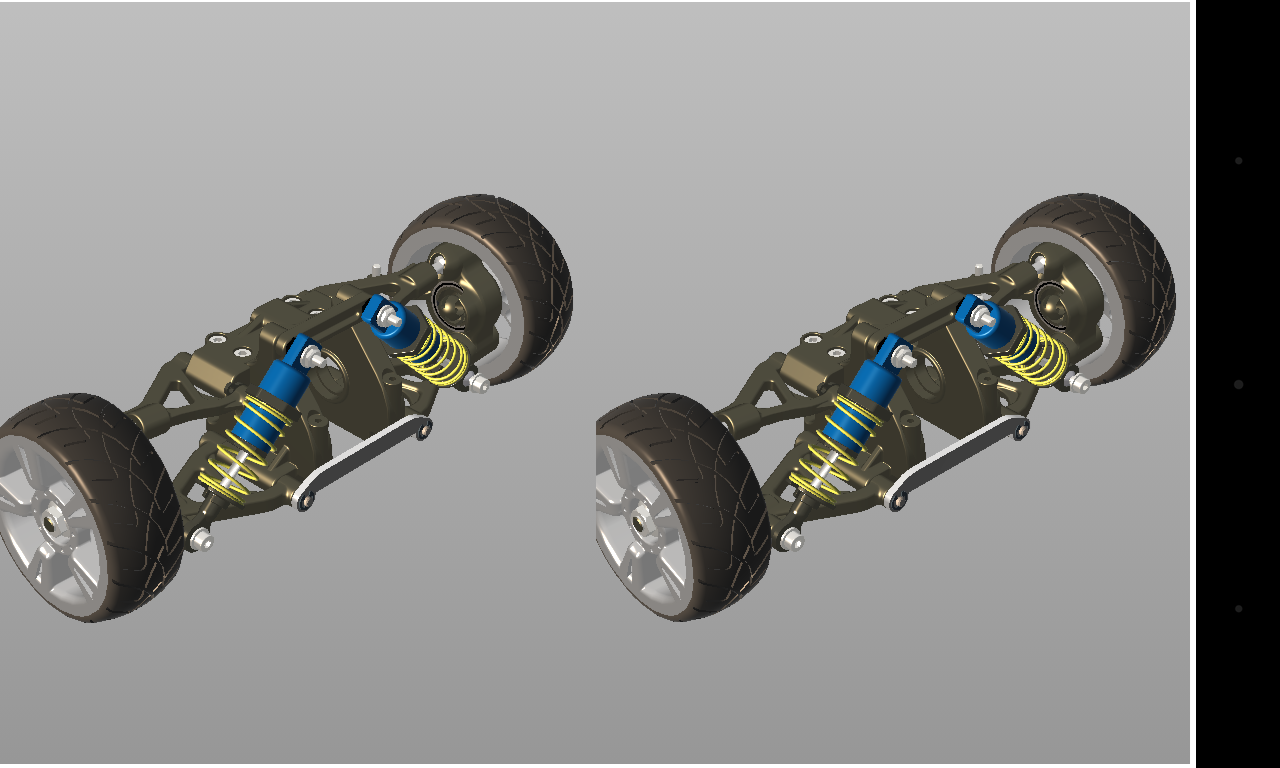
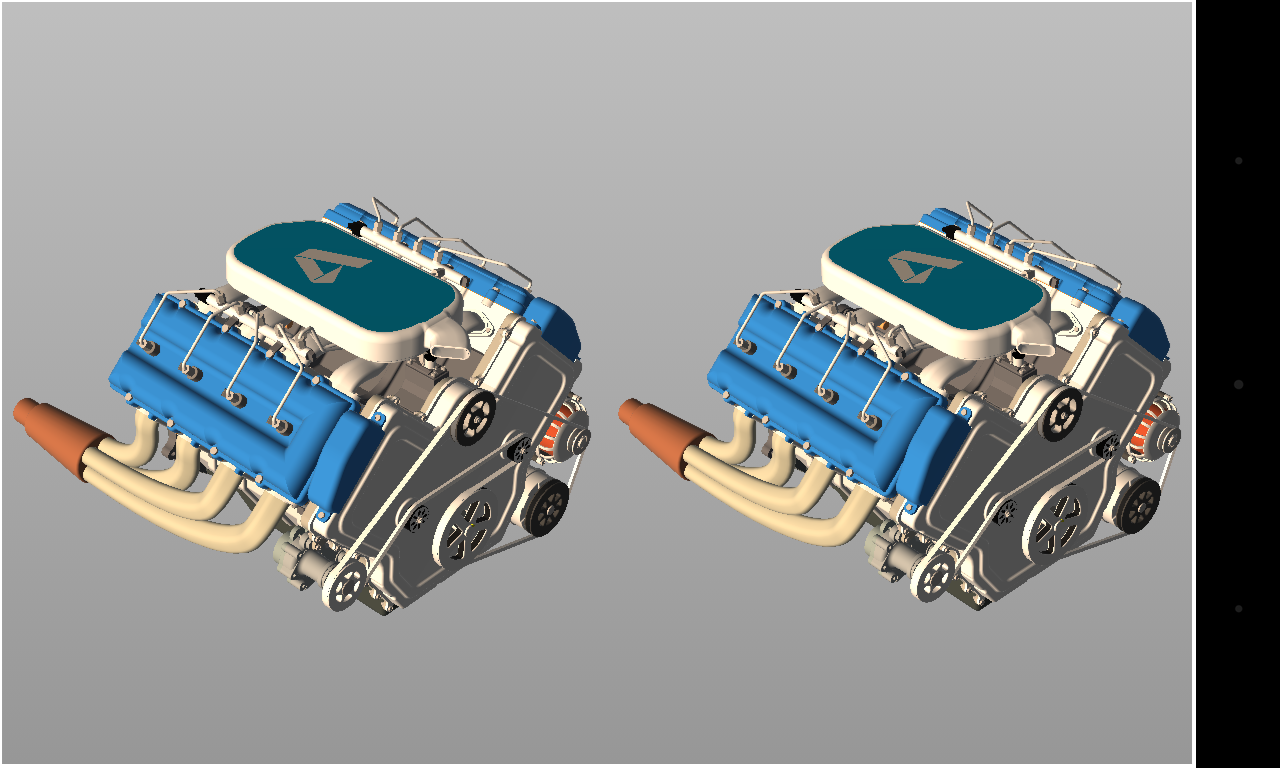
I haven't included the "Chassis" model, here: for some reason this looks great on my PC but is all black on my Android device. I'm not sure why, but I've nonetheless left it in the model list, for now.
I've now arrived in San Francisco and have been finally able to test with DODOcase's Google Cardboard viewer. And it looks really good! I was expecting to have to tweak the camera offset, but that seems to be fine. I was also concerned I'd need to put a spherical warp on each viewer to compensate for lens distortion, but honestly that seems unnecessary, too. Probably because we're dealing with a central object view rather than walking through a scene.
I have to admit to finding the experience quite compelling. If you're coming to AU or to the upcoming DevDays tour then you'll be able to see for yourself there. Assuming you don't want to buy or build your own and try it in the meantime, of course. 🙂


Leave a Reply