After introducing this project in the last post, now it's time to share some code. The project, as it currently stands, contains three source files: the first one relates to AutoCAD – it implements the various commands we'll use to attach event handlers to tell us when to display (or hide) keywords and the other two files relate to the UI we'll use to display them. We're going to use an invisible window which has a child popup containing a listbox of our keywords.
Here's the application in action – for now in English AutoCAD, as that's what I have installed – helping us with the keywords during the PLINE and HATCH commands:
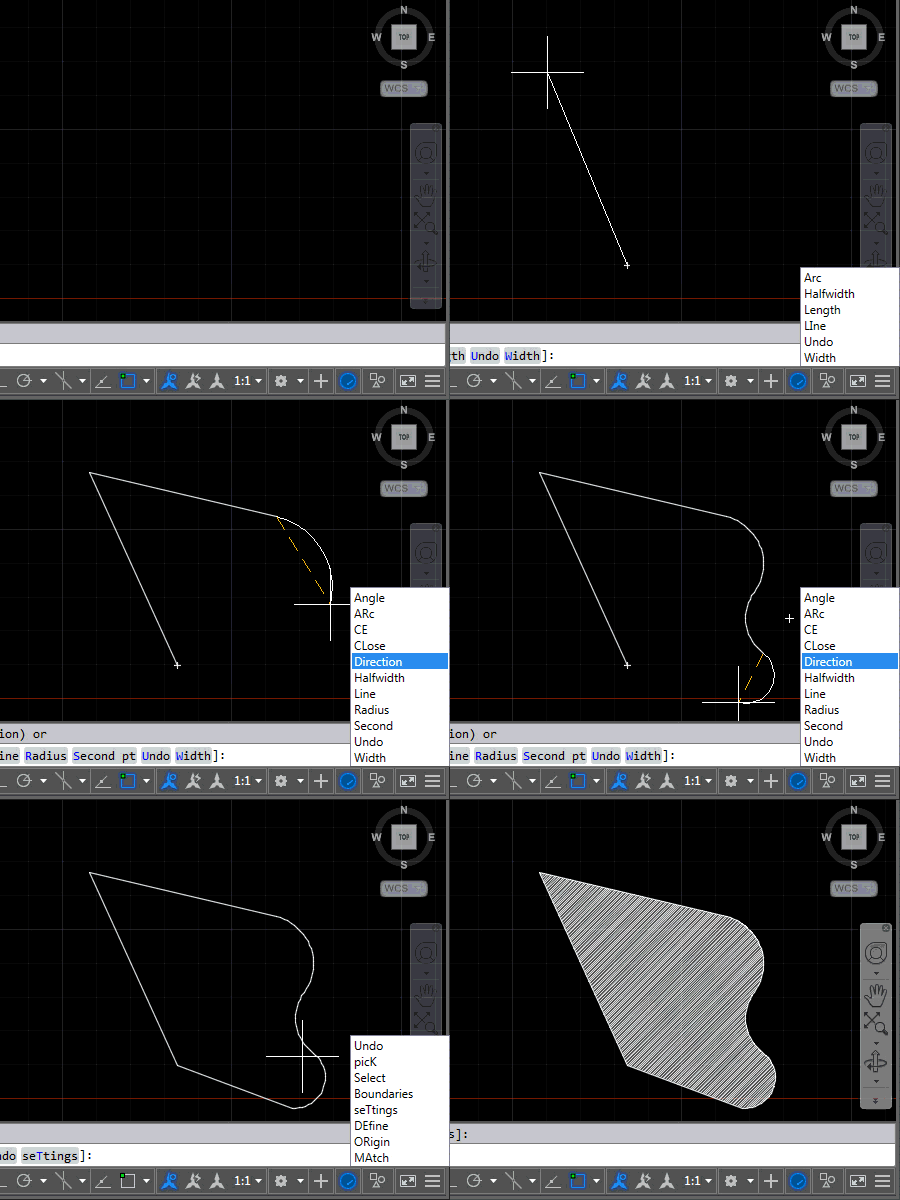
Now for the source. Let's start with the AutoCAD-related C# file, which I've called keyword-helper.cs:
using Autodesk.AutoCAD.ApplicationServices;
using Autodesk.AutoCAD.EditorInput;
using Autodesk.AutoCAD.Runtime;
using System;
using System.Collections.Specialized;
namespace KeywordHelper
{
public class Commands
{
// The keyword display window
private KeywordWindow _window = null;
// List of "special" commands that need a timer to reset
// the keyword list
private readonly string[] specialCmds = { "MTEXT" };
[CommandMethod("KWS")]
public void KeywordTranslation()
{
var doc = Application.DocumentManager.MdiActiveDocument;
if (doc == null)
return;
var ed = doc.Editor;
if (_window == null)
{
_window = new KeywordWindow();
_window.Show();
Application.MainWindow.Focus();
}
// Add our various event handlers
// For displaying the keyword list...
ed.PromptingForAngle += OnPromptingForAngle;
ed.PromptingForCorner += OnPromptingForCorner;
ed.PromptingForDistance += OnPromptingForDistance;
ed.PromptingForDouble += OnPromptingForDouble;
ed.PromptingForEntity += OnPromptingForEntity;
ed.PromptingForInteger += OnPromptingForInteger;
ed.PromptingForKeyword += OnPromptingForKeyword;
ed.PromptingForNestedEntity += OnPromptingForNestedEntity;
ed.PromptingForPoint += OnPromptingForPoint;
ed.PromptingForSelection += OnPromptingForSelection;
ed.PromptingForString += OnPromptingForString;
// ... and removing it
doc.CommandWillStart += OnCommandEnded;
doc.CommandEnded += OnCommandEnded;
doc.CommandCancelled += OnCommandEnded;
doc.CommandFailed += OnCommandEnded;
ed.EnteringQuiescentState += OnEnteringQuiescentState;
}
[CommandMethod("KWSX")]
public void StopKeywordTranslation()
{
var doc = Application.DocumentManager.MdiActiveDocument;
if (doc == null)
return;
var ed = doc.Editor;
if (_window == null)
{
_window.Hide();
_window = null;
}
// Remove our various event handlers
// For displaying the keyword list...
ed.PromptingForAngle -= OnPromptingForAngle;
ed.PromptingForCorner -= OnPromptingForCorner;
ed.PromptingForDistance -= OnPromptingForDistance;
ed.PromptingForDouble -= OnPromptingForDouble;
ed.PromptingForEntity -= OnPromptingForEntity;
ed.PromptingForInteger -= OnPromptingForInteger;
ed.PromptingForKeyword -= OnPromptingForKeyword;
ed.PromptingForNestedEntity -= OnPromptingForNestedEntity;
ed.PromptingForPoint -= OnPromptingForPoint;
ed.PromptingForSelection -= OnPromptingForSelection;
ed.PromptingForString -= OnPromptingForString;
// ... and removing it
doc.CommandWillStart -= OnCommandEnded;
doc.CommandEnded -= OnCommandEnded;
doc.CommandCancelled -= OnCommandEnded;
doc.CommandFailed -= OnCommandEnded;
ed.EnteringQuiescentState -= OnEnteringQuiescentState;
}
// Event handlers to display the keyword list
// (each of these handlers needs a separate function due to the
// signature, but they all do the same thing)
void OnPromptingForAngle(
object sender, PromptAngleOptionsEventArgs e
)
{
DisplayKeywords(e.Options.Keywords);
}
void OnPromptingForCorner(
object sender, PromptPointOptionsEventArgs e
)
{
DisplayKeywords(e.Options.Keywords);
}
void OnPromptingForDistance(
object sender, PromptDistanceOptionsEventArgs e
)
{
DisplayKeywords(e.Options.Keywords);
}
void OnPromptingForDouble(
object sender, PromptDoubleOptionsEventArgs e
)
{
DisplayKeywords(e.Options.Keywords);
}
void OnPromptingForEntity(
object sender, PromptEntityOptionsEventArgs e
)
{
DisplayKeywords(e.Options.Keywords);
}
void OnPromptingForInteger(
object sender, PromptIntegerOptionsEventArgs e
)
{
DisplayKeywords(e.Options.Keywords);
}
void OnPromptingForKeyword(
object sender, PromptKeywordOptionsEventArgs e
)
{
DisplayKeywords(e.Options.Keywords);
}
void OnPromptingForNestedEntity(
object sender, PromptNestedEntityOptionsEventArgs e
)
{
DisplayKeywords(e.Options.Keywords);
}
void OnPromptingForPoint(
object sender, PromptPointOptionsEventArgs e
)
{
DisplayKeywords(e.Options.Keywords);
}
void OnPromptingForSelection(
object sender, PromptSelectionOptionsEventArgs e
)
{
// Nested selection sometimes happens (e.g. the HATCH command)
// so only display keywords when there are some to display
if (e.Options.Keywords.Count > 0)
DisplayKeywords(e.Options.Keywords);
}
void OnPromptingForString(
object sender, PromptStringOptionsEventArgs e
)
{
DisplayKeywords(e.Options.Keywords);
}
void OnCommandEnded(object sender, CommandEventArgs e)
{
_window.ClearKeywords(true);
}
// Event handlers to clear & hide the keyword list
void OnEnteringQuiescentState(object sender, EventArgs e)
{
_window.ClearKeywords(true);
}
// Helper to display our keyword list
private void DisplayKeywords(
KeywordCollection kws
)
{
// First we step through the keywords, collecting those
// we want to display in a collection
var sc = new StringCollection();
if (kws != null && kws.Count > 0)
{
foreach (Keyword kw in kws)
{
if (kw.Enabled && kw.Visible && kw.GlobalName != "dummy")
{
sc.Add(kw.LocalName); // Expected this to be GlobalName
}
}
}
// If we don't have keywords to display, make sure the
// current list is cleared/hidden
if (sc.Count == 0)
{
_window.ClearKeywords(true);
}
else
{
// Otherwise we pass the keywords - as a string array -
// to the display function along with a flag indicating
// whether the current command is considered "special"
var sa = new string[kws.Count];
sc.CopyTo(sa, 0);
// We should probably check for transparent/nested
// command invocation...
var cmd =
(string)Application.GetSystemVariable("CMDNAMES");
_window.ShowKeywords(
sa, Array.IndexOf(specialCmds, cmd) >= 0 //, append
);
}
}
internal static void launchCommand(string cmd)
{
var doc = Application.DocumentManager.MdiActiveDocument;
if (doc == null)
return;
doc.SendStringToExecute(
"_" + cmd + " ", true, false, true
);
}
}
}
I was surprised that the English version of keywords on localized versions were accessible via the LocalName – rather than GlobalName – property. But apparently that's how it works.
Next we have the XAML file for our KeywordWindow which, while invisible, contains the popup we'll use to display the keywords. The file is called KeywordWindow.xaml.
<Window
x:Class="KeywordHelper.KeywordWindow"
xmlns="http://schemas.microsoft.com/winfx/2006/xaml/presentation"
xmlns:x="http://schemas.microsoft.com/winfx/2006/xaml"
Title="KeywordWindow" Height="0" Width="0"
WindowStyle="None" ShowInTaskbar="False" AllowsTransparency="True"
Loaded="Window_Loaded">
<Window.Background>
<SolidColorBrush Opacity="0" Color="White"/>
</Window.Background>
<Grid>
<Popup Name="KeywordPopup" Placement="Custom">
<ListBox x:Name="Keywords" Width="100" Height="auto">Keywords
<ListBox.ItemContainerStyle>
<Style
TargetType="{x:Type ListBoxItem}"
BasedOn="{StaticResource {x:Type ListBoxItem}}">
<EventSetter
Event="MouseDoubleClick"
Handler="ListBoxItem_MouseDoubleClick"/>
</Style>
</ListBox.ItemContainerStyle>
</ListBox>
</Popup>
</Grid>
</Window>
And finally the C# code-behind, KeywordWindow.xaml.cs:
using System;
using System.Windows;
using System.Windows.Controls;
using System.Windows.Controls.Primitives;
using System.Windows.Threading;
namespace KeywordHelper
{
///<summary>
/// Interaction logic for KeywordWindow.xaml
///</summary>
public partial class KeywordWindow : Window
{
private DispatcherTimer _t;
private DateTime _lastOpened;
private bool _special;
public KeywordWindow()
{
InitializeComponent();
KeywordPopup.CustomPopupPlacementCallback =
new CustomPopupPlacementCallback(PlacePopup);
_t = null;
}
public void ShowKeywords(
string[] keywords, bool special = false, bool append = false
)
{
// Store the flag in a member variable so we can access it
// from a lambda event handler
_special = special;
// Get the listbox contents
var items = ((ListBox)KeywordPopup.Child).Items;
// The first test of difference is whether the number of items
// is different
if (append)
{
foreach (var kw in keywords)
{
items.Add(kw);
}
}
else
{
bool different = keywords.Length != items.Count;
if (!different)
{
// If lists are the same length, check the contents
// item by item
for (int i = 0; i < items.Count; i++)
{
var kw = keywords[i];
var item = (string)items[i];
if (String.Compare(kw, item) != 0)
{
different = true;
break;
}
}
}
// If the items are different, let's clear the list and
// rebuild it
if (different)
{
items.Clear();
foreach (var kw in keywords)
{
items.Add(kw);
}
}
}
KeywordPopup.IsOpen = true;
// We're going to use a timer to close the popup in case
// it isn't closed by one of the various callbacks we have
// in place
if (_t == null)
{
// Choose an interval of 2 seconds
var ts = new TimeSpan(TimeSpan.TicksPerSecond * 2);
_t = new DispatcherTimer { Interval = ts };
_t.Tick += (s, e) =>
{
// If 2s or more has elapsed since the last popup
// was displayed, close it
if (_special && (DateTime.Now - _lastOpened >= ts))
KeywordPopup.IsOpen = false;
};
_t.Start();
}
// Record when the latest popup was displayed
_lastOpened = DateTime.Now;
}
public void ClearKeywords(bool hide)
{
// Optionally hide the popup
KeywordPopup.IsOpen = !hide;
// Clear the keyword contents
((ListBox)KeywordPopup.Child).Items.Clear();
}
private void ListBoxItem_MouseDoubleClick(
object s, System.Windows.Input.MouseButtonEventArgs e
)
{
// When an item is double-clicked, simply send it to the
// command-line with an underscore prefix
var item = (ListBoxItem)s;
Commands.launchCommand((string)item.Content);
}
public CustomPopupPlacement[] PlacePopup(
Size popupSize, Size targetSize, Point offset
)
{
// We want to place the popup relative to the AutoCAD
// main window
var win =
Autodesk.AutoCAD.ApplicationServices.Application.MainWindow;
// Calculate the bottom-right of the popup - both x and y -
// relative to the location of the parent window (this)
var x =
win.DeviceIndependentLocation.X +
win.DeviceIndependentSize.Width - this.Left;
// 33 is the height of the bottom window border/status bar
var y =
win.DeviceIndependentLocation.Y +
win.DeviceIndependentSize.Height - this.Top - 33;
// The above values need scaling for DPI
var s =
Autodesk.AutoCAD.Windows.Window.GetDeviceIndependentScale(
IntPtr.Zero
);
// Get our scaled position, taking into account the
// size of the popip
var p =
new System.Windows.Point(
(int)(x * s.X - popupSize.Width),
(int)(y * s.Y - popupSize.Height)
);
// Return that position as our custom placement
return new CustomPopupPlacement[] {
new CustomPopupPlacement(p, PopupPrimaryAxis.Vertical)
};
}
}
}
So far I've had to code a few caveats for command behaviour: the HATCH command displays a selection prompt – without keywords – within a point prompt (which does have keywords). So I make sure we don't clear the menu, in this case. Then there's the MTEXT command, which performs a point selection for the window area – with keywords – before displaying its IPE (in-place editor). We use a timer to close the popup in the case that 500ms elapses without a request for keywords to be displayed. I have no doubt other commands will present other quirks, but we'll address those as they crop up.
There's still some work to do to hide the popup when AutoCAD is minimized – as well as to make sure our invisible window doesn't appear in the Alt-Tab program switcher – but that's left for the reader (or for another day, we'll see).
One additional requirement I do want to address – probably in the next post – is to automatically prefix underscores on unknown commands, to see if someone has entered an English command by mistake on a localization version of AutoCAD.


Leave a Reply to 5th Cancel reply