As promised yesterday, this post deals with modifying your CRX module to make it work with AutoCAD I/O.
A quick reminder on what writing a CRX app means for .NET developers: we're still creating a .DLL (unlike ObjectARX developers, whose CRX modules have the .crx extension), but it can only reference AcDbMgd.dll and AcCoreMgd.dll (not AcMgd.dll). Importantly the module must be loadable – and testable – in the Core Console.
The basic C# code we're going to extend is from this previous post.
The real change that's required for commands to work in AutoCAD I/O is how they get user-input from the command-line. We'll see in a future post that we're going to create a custom Activity in the AutoCAD I/O service. You can think of an Activity as analogous to a function definition. Later still we'll show how to create WorkItems that make use of this Activity – analogous to function calls. The Activity will hard-code the arguments to the commands they call, so these commands will have to read the input data they need from a file that's passed in (it will be found in a fixed location but the contents will vary from WorkItem to WorkItem).
So rather than prompting for the width, height and number of pieces for our puzzle, this data needs to be coded into a JSON file and the command will prompt for the its location. We might also prompt for a script to execute, of course, but in our case we're going to use .NET code to do most of the work.
Before we look at the code, a quick word on the JSON data we're going to pass in. I've already mentioned width, height and number of pieces, but we are also going to encode and send some "pixel data". This is the engraving that's been extracted from an image selected in our web-site, as we can see in the below photo. I chose a nice picture of a dog, as that seems to be the kind of thing people like to put on jigsaw puzzles. 🙂
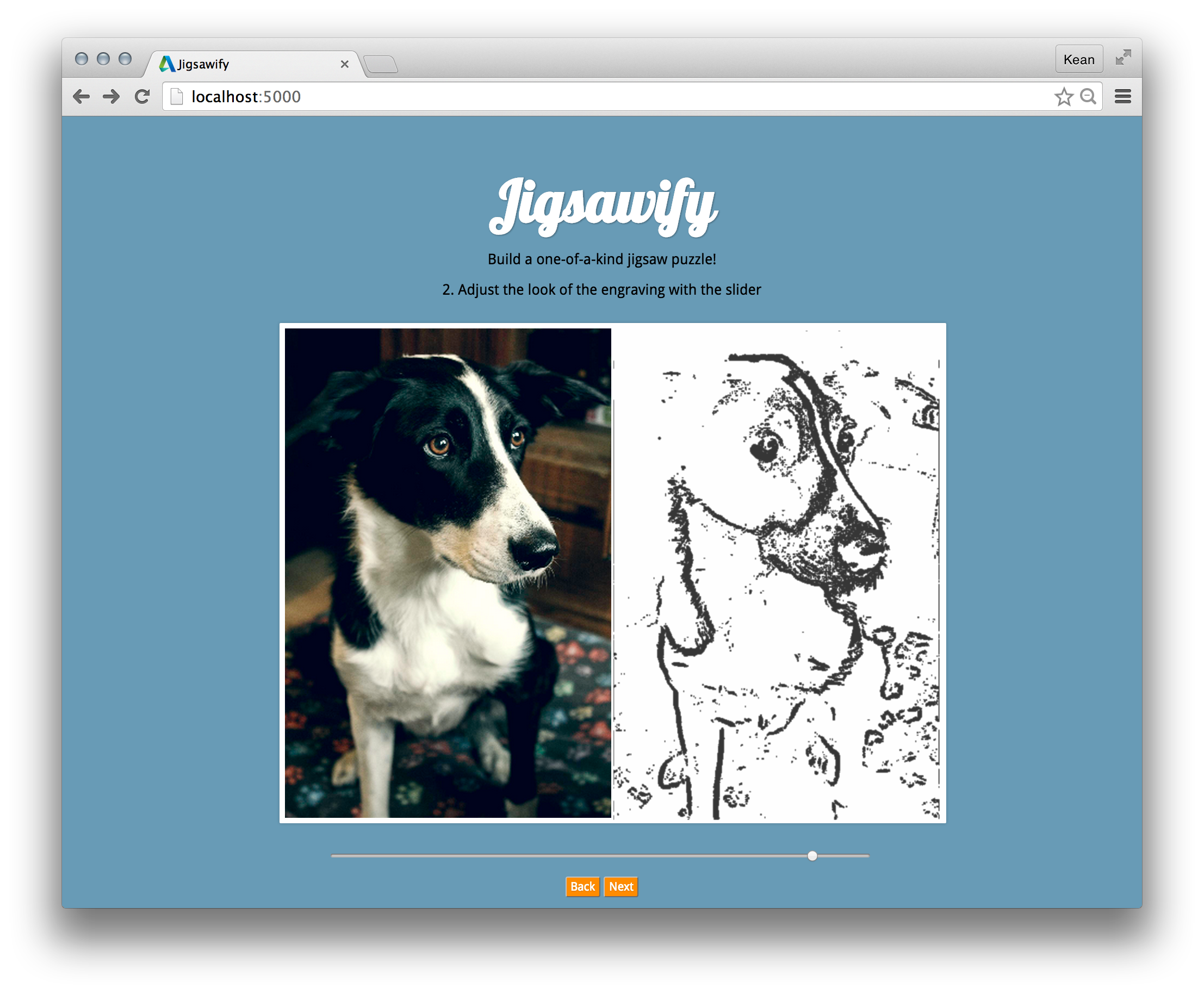
Let's not worry about how the JSON data gets created – we're going to see that later – but we can look at an excerpt of the JSON our command is going to read and use:
{
"width": 12,
"height": 18,
"pieces": 1000,
"xres": 200,
"yres": 300,
"pixels": [
{ "x": 58, "y": 0 }, { "x": 59, "y": 0 }, { "x": 140, "y": 0 },
{ "x": 141, "y": 0 }, { "x": 58, "y": 1 }, { "x": 59, "y": 1 },
{ "x": 189, "y": 1 }, { "x": 58, "y": 2 }, { "x": 59, "y": 2 },
{ "x": 71, "y": 2 }, { "x": 72, "y": 2 }, { "x": 189, "y": 2 },
...
]
}
In this case we're looking at a 12 x 18 puzzle (I probably need to encode units, too, thinking about it) of approximately 1000 pieces. We have an engraving of 200 x 300 pixels encoded, with the various "on" pixels listed in the pixels array. In the final version I'll use a higher resolution engraving – right now this is just for testing.
We've added a command named JIGIO which is going to do much the same as the previous JIGG command but it will get its input from a JSON file and use the additional engraving data to create a set of Solids (yes, 2D solids) for the various pixels. There may well be a better way to do this, especially once we see what objects can be engraved by our laser cutter.
Here's what gets created by the JIGIO command:
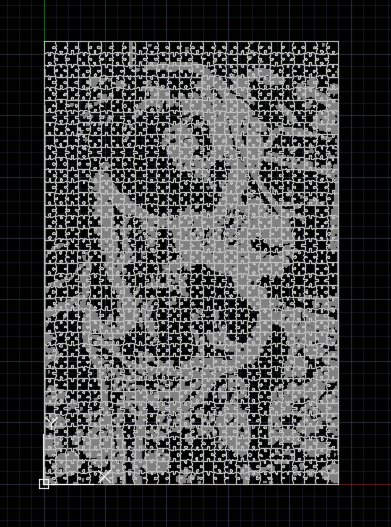
We aren't yet doing this, but we will also need to save the drawing to DWG/DXF and perhaps publish an image to retrieve and display in the web-page. Something for a later post.
Here's the updated C# code including our new JIGIO command:
using Autodesk.AutoCAD.ApplicationServices.Core;
using Autodesk.AutoCAD.Colors;
using Autodesk.AutoCAD.DatabaseServices;
using Autodesk.AutoCAD.EditorInput;
using Autodesk.AutoCAD.Geometry;
using Autodesk.AutoCAD.Runtime;
using Newtonsoft.Json;
using System;
using System.IO;
[assembly: CommandClass(typeof(JigsawGenerator.Commands))]
[assembly: ExtensionApplication(null)]
namespace JigsawGenerator
{
public class Pixel
{
public int X { get; set; }
public int Y { get; set; }
}
public class Parameters
{
public double Width { get; set; }
public double Height { get; set; }
public int Pieces { get; set; }
public int XRes { get; set; }
public int YRes { get; set; }
public Pixel[] Pixels { get; set; }
}
public class Commands
{
// The WIGL command asks the user to enter this value (which
// influences the extent of the "wiggle"). For the JIG, JIGG
// and JIGL commands we just use this hardcoded value.
// We could certainly ask the user to enter it or get it
// from a system variable, of course
const double wigFac = 0.8;
// We'll store a central random number generator,
// which means we'll get more random results
private Random _rnd = null;
// Constructor
public Commands()
{
_rnd = new Random();
}
[CommandMethod("JIG")]
public void JigEntity()
{
var doc = Application.DocumentManager.MdiActiveDocument;
if (null == doc)
return;
var db = doc.Database;
var ed = doc.Editor;
// Select our entity to create a tab for
var peo = new PromptEntityOptions("\nSelect entity to jig");
peo.SetRejectMessage("\nEntity must be a curve.");
peo.AddAllowedClass(typeof(Curve), false);
var per = ed.GetEntity(peo);
if (per.Status != PromptStatus.OK)
return;
// We'll ask the user to select intersecting/delimiting
// entities: if they choose none we use the whole length
ed.WriteMessage(
"\nSelect intersecting entities. " +
"Hit enter to use whole entity."
);
var pso = new PromptSelectionOptions();
var psr = ed.GetSele
ction();
if (
psr.Status != PromptStatus.OK &&
psr.Status != PromptStatus.Error // No selection
)
return;
using (var tr = doc.TransactionManager.StartTransaction())
{
// Open our main curve
var cur =
tr.GetObject(per.ObjectId, OpenMode.ForRead) as Curve;
double start = 0, end = 0;
bool bounded = false;
if (cur != null)
{
// We'll collect the intersections, if we have
// delimiting entities selected
var pts = new Point3dCollection();
if (psr.Value != null)
{
// Loop through and collect the intersections
foreach (var id in psr.Value.GetObjectIds())
{
var ent = (Entity)tr.GetObject(id, OpenMode.ForRead);
cur.IntersectWith(
ent,
Intersect.OnBothOperands,
pts,
IntPtr.Zero,
IntPtr.Zero
);
}
}
ed.WriteMessage(
"\nFound {0} intersection points.", pts.Count
);
// If we have no intersections, use the start and end
// points
if (pts.Count == 0)
{
start = cur.StartParam;
end = cur.EndParam;
pts.Add(cur.StartPoint);
pts.Add(cur.EndPoint);
bounded = true;
}
else if (pts.Count == 2)
{
start = cur.GetParameterAtPoint(pts[0]);
end = cur.GetParameterAtPoint(pts[1]);
bounded = true;
}
// If we have a bounded length, create our tab in a random
// direction
if (bounded)
{
var left = _rnd.NextDouble() >= 0.5;
var sp = CreateTab(cur, start, end, pts, left);
var btr =
(BlockTableRecord)tr.GetObject(
SymbolUtilityServices.GetBlockModelSpaceId(db),
OpenMode.ForWrite
);
btr.AppendEntity(sp);
tr.AddNewlyCreatedDBObject(sp, true);
}
}
tr.Commit();
}
}
[CommandMethod("JIGL")]
public void JigLines()
{
var doc = Application.DocumentManager.MdiActiveDocument;
if (null == doc)
return;
var db = doc.Database;
var ed = doc.Editor;
// Here we're going to get a selection set, but only care
// about lines
var psr = ed.GetSelection();
if (psr.Status != PromptStatus.OK)
return;
using (var tr = doc.TransactionManager.StartTransaction())
{
var btr =
(BlockTableRecord)tr.GetObject(
SymbolUtilityServices.GetBlockModelSpaceId(db),
OpenMode.ForWrite
);
// We'll be generating random numbers to decide direction
// for each tab
foreach (var id in psr.Value.GetObjectIds())
{
// We only care about lines
var ln = tr.GetObject(id, OpenMode.ForRead) as Line;
if (ln != null)
{
// Get the start and end points in a collection
var pts =
new Point3dCollection(
new Point3d[] {
ln.StartPoint,
ln.EndPoint
}
);
// Decide the direction (randomly) then create the tab
var left = _rnd.NextDouble() >= 0.5;
var sp =
CreateTab(ln, ln.StartParam, ln.EndParam, pts, left);
btr.AppendEntity(sp);
; tr.AddNewlyCreatedDBObject(sp, true);
}
}
tr.Commit();
}
}
[CommandMethod("JIGG")]
public void JigGrid()
{
var doc = Application.DocumentManager.MdiActiveDocument;
if (null == doc)
return;
var db = doc.Database;
var ed = doc.Editor;
// Get overall dimensions of the puzzle
var pdo = new PromptDoubleOptions("\nEnter puzzle width");
pdo.AllowNegative = false;
pdo.AllowNone = false;
pdo.AllowZero = false;
var pdr = ed.GetDouble(pdo);
if (pdr.Status != PromptStatus.OK)
return;
var width = pdr.Value;
pdo.Message = "\nEnter puzzle height";
pdr = ed.GetDouble(pdo);
if (pdr.Status != PromptStatus.OK)
return;
var height = pdr.Value;
// Get the (approximate) number of pieces
var pio =
new PromptIntegerOptions("\nApproximate number of pieces");
pio.AllowNegative = false;
pio.AllowNone = false;
pio.AllowZero = false;
var pir = ed.GetInteger(pio);
if (pir.Status != PromptStatus.OK)
return;
var pieces = pir.Value;
RectangularJigsaw(
ed, db,
new Parameters()
{ Width = width, Height = height, Pieces = pieces }
);
}
[CommandMethod("JIGIO")]
public void JigGridIo()
{
var doc = Application.DocumentManager.MdiActiveDocument;
if (doc == null)
return;
var db = doc.Database;
var ed = doc.Editor;
// Get input parameters
var pfnr = ed.GetFileNameForOpen("\nSpecify parameter file");
if (pfnr.Status != PromptStatus.OK)
return;
// Get the output folder
var pr = ed.GetString("\nSpecify output folder");
if (pr.Status != PromptStatus.OK)
return;
string outFolder = pr.StringResult;
try
{
// Get our parameters from the JSON provided
var parameters =
JsonConvert.DeserializeObject<Parameters>(
File.ReadAllText(pfnr.StringResult)
);
// The "essential" parameters are height, width & number
// of pieces (but we pass in the whole object)
if (
parameters.Height > 0 &&
parameters.Width > 0 &&
parameters.Pieces > 0
)
{
RectangularJigsaw(ed, db, parameters);
// If we have a valid output folder...
if (!String.IsNullOrEmpty(outFolder) || Directory.Exists(outFolder))
{
var dwgOut = Path.Combine(outFolder, "jigsaw.dwg");
var pngOut = Path.Combine(outFolder, "jigsaw.png");
// Save the DWG to it...
db.SaveAs(dwgOut, DwgVersion.Current);
// ... and create a PNG in the same location
ed.Command("_zoom", "_extents");
ed.Command("_pngout", pngOut, "");
}
}
}
catch (System.Exception e)
{
ed.WriteMessage("Error: {0}", e);
}
}
private void RectangularJigsaw(
Editor ed, Database db, Parameters args
)
{
var width = args.Width;
var height = args.Height;
var pieces = args.Pieces;
var aspect = height / width;
var piecesY = Math.Floor(Math.Sqrt(aspect * pieces));
var piecesX = Math.Floor(pieces / piecesY);
ed.WriteMessage(
"\nPuzzle will be {0} x {1} ({2} in total).",
piecesX, piecesY, piecesX * piecesY
);
using (var tr = db.TransactionManager.StartTransaction())
{
// Get or create the layers for our geometry and engraving
const string puzLayName = "Puzzle";
const string engLayName = "Engraving";
var puzLayId = ObjectId.Null;
&
#160; var engLayId = ObjectId.Null;
var lt =
(LayerTable)tr.GetObject(
db.LayerTableId, OpenMode.ForRead
);
puzLayId =
GetOrCreateLayer(
tr, lt, puzLayName,
Color.FromColorIndex(ColorMethod.ByAci, 9) // light grey
);
engLayId =
GetOrCreateLayer(
tr, lt, engLayName,
Color.FromColorIndex(ColorMethod.ByAci, 8) // darker grey
);
var btr =
(BlockTableRecord)tr.GetObject(
SymbolUtilityServices.GetBlockModelSpaceId(db),
OpenMode.ForWrite
);
// Create the outline and internal lines of the puzzle
CreatePuzzleLines(
tr, btr, puzLayId, width, height, piecesY, piecesX
);
// If we have some additional pixel data, create an
// engraving layer
if (args.Pixels != null && args.XRes > 0 && args.YRes > 0)
{
CreatePuzzleEngraving(
tr, btr, engLayId, args.Pixels,
width / args.XRes, height / args.YRes, height
);
}
tr.Commit();
}
}
private static ObjectId GetOrCreateLayer(
Transaction tr, LayerTable lt, string layName, Color col
)
{
// If the layer table contains our layer, return its ID
if (lt.Has(layName))
{
return lt[layName];
}
else
{
// Otherwise create a new layer, add it to the layer table
// and the transaction
bool upgraded = false;
var ltr = new LayerTableRecord();
ltr.Name = layName;
ltr.Color = col;
if (!lt.IsWriteEnabled)
{
lt.UpgradeOpen();
upgraded = true;
}
var id = lt.Add(ltr);
tr.AddNewlyCreatedDBObject(ltr, true);
// If we had to open for write, downgrade the open status
// (not strictly needed, but seems cleaner to leave things
// as we found them)
if (upgraded)
{
lt.DowngradeOpen();
}
return id;
}
}
private void CreatePuzzleLines(
Transaction tr, BlockTableRecord btr,
ObjectId layId,
double width, double height,
double piecesY, double piecesX
)
{
var incX = width / piecesX;
var incY = height / piecesY;
var tol = Tolerance.Global.EqualPoint;
for (double x = 0; x < width - tol; x += incX)
{
for (double y = 0; y < height - tol; y += incY)
{
var nextX = x + incX;
var nextY = y + incY;
// At each point in the grid - apart from when along
// the axes - we're going to create two lines, one
// in the X direction and one in the Y (along the axes
// we'll usually be creating one or the other, unless
// at the origin 🙂
if (y > 0)
{
var sp =
CreateTabFromPoints(
new Point3d(x, y, 0),
new Point3d(nextX, y, 0)
);
sp.LayerId = layId;
btr.AppendEntity(sp);
tr.AddNewlyCreatedDBObject(sp, true);
}
if (x > 0)
{
var sp =
CreateTabFromPoints(
new Point3d(x, y, 0),
new Point3d(x, nextY, 0)
);
sp.LayerId = layId;
btr.AppendEntity(sp);
tr.AddNewlyCreatedDBObject(sp, true);
}
}
}
// Create the puzzle border as a closed polyline
var pl = new Polyline(4);
pl.AddVertexAt(0, Point2d.Origin, 0, 0, 0);
pl.AddVertexAt(1, new Point2d(width, 0), 0, 0, 0);
pl.AddVertexAt(2, new Point2d(width, height), 0, 0, 0);
pl.AddVertexAt(3, new Point2d(0, height), 0, 0, 0);
pl.Closed = true;
pl.LayerId = layId;
btr.AppendEntity(pl);
tr.AddNewlyCreatedDBObject(pl, true);
}
private void CreatePuzzleEngraving(
Transaction tr, BlockTableRecord btr, ObjectId layId,
Pixel[] pixels, double xfac, double yfac, double height
)
{
foreach (var pixel in pixels)
{
// Get the X and Y values for our pixel
// Y is provided from the top, hence our need to invert
var x = pixel.X * xfac;
var y = height - ((pixel.Y + 1) * yfac);
var sol =
new Solid(
new Point3d(x, y, 0),
new Point3d(x + xfac, y, 0),
new Point3d(x, y + yfac, 0),
new Point3d(x + xfac, y + yfac, 0)
);
sol.LayerId = layId;
btr.AppendEntity(sol);
tr.AddNewlyCreatedDBObject(sol, true);
}
}
private Curve CreateTabFromPoints(Point3d start, Point3d end)
{
using (var ln = new Line(start, end))
{
// Get the start and end points in a collection
var pts =
new Point3dCollection(new Point3d[] { start, end });
// Decide the direction (randomly) then create the tab
var left = _rnd.NextDouble() >= 0.5;
return CreateTab(ln, ln.StartParam, ln.EndParam, pts, left);
}
}
[CommandMethod("WIGL")]
public void AdjustTabs()
{
var doc = Application.DocumentManager.MdiActiveDocument;
if (null == doc)
return;
var db = doc.Database;
var ed = doc.Editor;
// Here we're going to get a selection set, but only care
// about splines
var pso = new PromptSelectionOptions();
var psr = ed.GetSelection();
if (psr.Status != PromptStatus.OK)
return;
var pdo = new PromptDoubleOptions("\nEnter wiggle factor");
pdo.DefaultValue = 0.8;
pdo.UseDefaultValue = true;
pdo.AllowNegative = false;
pdo.AllowZero = false;
var pdr = ed.GetDouble(pdo);
if (pdr.Status != PromptStatus.OK)
return;
using (var tr = doc.TransactionManager.StartTransaction())
{
foreach (var id in psr.Value.GetObjectIds())
{
// We only care about splines
var sp = tr.GetObject(id, OpenMode.ForRead) as Spline;
if (sp != null && sp.NumFitPoints == 6)
{
// Collect the fit points
var pts = sp.FitData.GetFitPoints();
// Adjust them
AddWiggle(pts, pdr.Value);
// Set back the top points to the spline
// (we know these are the ones that have changed)
sp.UpgradeOpen();
sp.SetFitPointAt(2, pts[2]);
sp.SetFitPointAt(3, pts[3]);
}
}
tr.Commit();
}
}
private Curve CreateTab(
Curve cur, double start, double end, Point3dCollection pts,
bool left = true
)
{
// Calculate the length of this curve (or section)
var len =
Math.Abs(
cur.GetDistanceAtParameter(end) -
cur.GetDistanceAtParameter(start)
);
// We're calculating a random delta to adjust the location
// of the tab along the length
double delta = 0.01 * len * (_rnd.NextDouble() - 0.5);
// We're going to offset to the side of the core curve for
// the tab points. This is currently a fixed tab size
// (could also make this proportional to the curve)
double off = 0.2 * len; // was 0.5
double fac = 0.5 * (len - 0.5 * off) / len;
if (left) off = -off;
// Get the next parameter along the length of the curve
// and add the point associated with it into our fit points
var nxtParam = start + (end - start) * (fac + delta);
var nxt = cur.GetPointAtParameter(nxtParam);
pts.Insert(1, nxt);
// Get the direction vector of the curve
var vec = pts[1] - pts[0];
// Rotate it by 90 degrees in the direction we chose,
// then normalise it and use it to calculate the location
// of the next point
vec = vec.RotateBy(Math.PI * 0.5, Vector3d.ZAxis);
vec = off * vec / vec.Length;
pts.Insert(2, nxt + vec);
// Now we calculate the mirror points to complete the
// splines definition
nxtParam = end - (end - start) * (fac - delta);
nxt = cur.GetPointAtParameter(nxtParam);
pts.Insert(3, nxt + vec);
pts.Insert(4, nxt);
AddWiggle(pts, wigFac);
// Finally we create our spline
return new Spline(pts, 1, 0);
}
private void AddWiggle(Point3dCollection pts, double fac)
{
const double rebase = 0.3;
// Works on sets of six points only
//
// 2--------3
// | |
// | |
// 0-----------1 4-----------5
if (pts.Count != 6)
return;
// Our spline's direction, tab width and perpendicular vector
var dir = pts[5] - pts[0];
dir = dir / dir.Length;
var tab = (pts[4] - pts[1]).Length;
var cross = dir.RotateBy(Math.PI * 0.5, Vector3d.ZAxis);
cross = cross / cross.Length;
// Adjust the "top left" and "top right" points outwards,
// multiplying by fac1 and the random factor (0-1) brought
// back towards -0.5 to 0.5 by fac2
pts[2] =
pts[2]
- (dir * tab * fac * (_rnd.NextDouble() - rebase))
+ (cross * tab * fac * (_rnd.NextDouble() - rebase));
pts[3] =
pts[3]
+ (dir * tab * fac * (_rnd.NextDouble() - rebase))
+ (cross * tab * fac * (_rnd.NextDouble() - rebase));
}
}
}
That's it for today's post. Next time we'll start looking at how to package for use in an AutoCAD I/O Activity. If you're impatient to look into this yourself, in the meantime, I recommend this sample on GitHub.
photo credit: Annie via photopin (license)
Update:
As predicted, I ended up having to worry about outputs. Just a little sooner than expected. As soon as I ended up writing the post in this series focused on creating the Activity and executing WorkItems against it, I found I really needed to extend our core command implementation.
The above code has some additional capabilities: at the beginning of the JIGIO command, we prompt for an output folder. If one is provided, then at the end of the command we save the DWG to that folder as well as executing the PNGOUT command to generate a PNG there, too.


Leave a Reply to Jmaes Maeding Cancel reply