In the last post we saw the process for getting content uploaded to Autodesk storage and translated into the format required by the Autodesk 360 viewer. In this post we're going to show the steps to take that data and embed it in a "simple" HTML page. (Any complex capability in this page it's due to the UI code that Dan Wellman kindly allowed me to borrow for the sample: otherwise what it does is very simple indeed.)
There are, of course, more complex samples that the ADN team has developed to demonstrate the richness of the new View & Data API. You can, for example, isolate geometry and search for particular metadata.
As I've mentioned before, the model I've used for this sample is big and flat, so isolating sets of components was out of the question: I've opted to use simple view changes to highlight different sections of the model. And the latest functionality that was pushed live in late July provides some nice navigation capabilities, smoothly transitioning the view where possible.
Firstly, though, here's the code for the very basic HTML page:
<!DOCTYPE HTML>
<html>
<head>
<meta charset="utf-8">
<title>Steampunk Morgan Viewer</title>
<link rel="stylesheet" href="css/css-transforms-viewer.css">
<meta
name="viewport"
content="width=device-width, minimum-scale=1.0, maximum-scale=1.0" />
<meta charset="utf-8">
<link
rel="stylesheet"
href="https://developer.api.autodesk.com/viewingservice/v1/viewers/style.css"
type="text/css">
<script
src="https://developer.api.autodesk.com/viewingservice/v1/viewers/viewer3D.min.js">
</script>
<script src="js/jquery.js"></script>
<script src="js/jquery.easing.1.3.js"></script>
<script src="js/jquery.csstransform.pack.js"></script>
<script src="js/steampunk.js"></script>
</head>
<body onload="initialize();" oncontextmenu="return false;">
<div id="viewer">
<div id="cog"><!-- --></div>
<div id="window">
<div id="viewer3d"
style="width:468px; height:468px; overflow: hidden;">
</div>
</div>
<div id="ui">
<ul>
<li id="label1">
<a href="#entirety" title="Entirety">Entirety</a>
</li>
<li id="label2">
<a href="#engine" title="Engine">Engine</a>
</li>
<li id="label3">
<a href="#body" title="Body">Body</a>
</li>
<li id="label4">
<a href="#interior" title="Interior">Interior</a>
</li>
<li id="label5">
<a href="#wheels" title="Wheels">Wheels</a>
</li>
</ul>
<div><!-- --></div>
</div>
</div>
</body>
</html>
Here's the main custom JavaScript it references (steampunk.js):
var viewer;
// Many thanks to Dan Wellman (@danwellman). Not only did he write
// the excellent post that formed the basis for this application's
// Steampunk UI, he provided the artwork to help build a custom
// version...
// http://www.dmxzone.com/go/18220/an-image-viewer-with-the-dmxzone-universal-css-transforms-library/
function initialize() {
// Get our access token from the internal web-service API
$.get("http://" + window.location.host + '/api/token',
function (accessToken) {
var options = {};
options.env = "AutodeskProduction";
options.accessToken = accessToken;
options.document = "dXJuOmFkc2sub2JqZWN0czpvcy5vYmplY3Q6c3RlYW1idWNrL1NwTTNXNy5mM2Q=";
// Create and initialize our 3D viewer
var elem = document.getElementById('viewer3d');
viewer = new Autodesk.Viewing.Viewer3D(elem, {});
Autodesk.Viewing.Initializer(options, function () {
viewer.initialize();
// Go with the "Riverbank" lighting and background effect
viewer.impl.setLightPreset(8);
// We have a heavy model, so let's save some work during
// navigation
viewer.setOptimizeNavigation(true);
// Let's zoom in and out of the pivot - the screen
// real estate is fairly limited - and reverse the
// zoom direction
viewer.navigation.setZoomTowardsPivot(true);
viewer.navigation.setReverseZoomDirection(true);
loadDocument(viewer, options.document);
});
}
);
// Set up some UI elements for the Steampunk UI
$("#ui").find("div").attr("id", "over");
$("#window").wrapInner("<div id=\"wrapper\">");
// Store positions
var overPositions =
{
entirety: 0, engine: 75, body: 152,
interior: 230, wheels: 310
},
cogPositions =
{
entirety: 5, engine: 80, body: 154,
interior: 235, wheels: 310
},
previousCogPosition = 0;
// Animation function
function animator(pointer, callback) {
// Move cog
$("#cog").animate({
"translateY": parseInt(cogPositions[pointer]),
"rotate":
(parseInt(cogPositions[pointer]) < previousCogPosition) ?
"-=365" : "+=365"
}, function () {
previousCogPosition = cogPositions[pointer];
});
// Move over
$("#over").animate({
"translateY": parseInt(overPositions[pointer])
});
// Add a delay so the camera changes after the cog has stopped
// whirring
if (callback) {
setTimeout(function () { callback(); }, 400);
}
}
// Is there a hash?
if (window.location.hash) {
// Store the hash
var hash = window.location.hash.split("#")[1];
// Position over
animator(hash);
}
// Add transitions
$("#ui a").click(function (e) {
e.preventDefault();
// Store new pointer
var pointer = $(this).attr("href").split("#")[1];
// Call animation function
animator(pointer, function () {
if (pointer === "entirety") {
zoomEntirety();
} else if (pointer === "engine") {
zoomEngine();
} else if (pointer === "body") {
zoomBody();
} else if (pointer === "interior") {
zoomInterior();
} else if (pointer === "wheels") {
zoomWheels();
}
});
});
}
// Helper functions to zoom into a specific part of the model
function zoomEntirety() {
zoom(-48722.5, -54872, 44704.8, 10467.3, 1751.8, 1462.8);
}
function zoomEngine() {
zoom(-17484, -364, 4568, 12927, 173, 1952);
}
function zoomBody() {
zoom(53143, -7200, 5824, 12870, -327.5, 1674);
}
function zoomInterior() {
zoom(20459, -19227, 19172.5, 13845, 1228.6, 2906);
}
function zoomWheels() {
zoom(260.3, 26327, 954, 371.5, 134, 2242.7);
}
// Set the camera based on a position and target location
function zoom(px, py, pz, tx, ty, tz) {
// Make sure our up vector is correct for this model
var camera = viewer.autocamCamera;
camera.up = new THREE.Vector3(0, 0, 1);
viewer.navigation.setWorldUpVector(camera.up);
// This performs a smooth view transition (we might also use
// setView() to get there more directly)
viewer.impl.controls.transitionView(
new THREE.Vector3(px, py, pz), new THREE.Vector3(tx, ty, tz),
camera.fov, camera.up, true
);
//viewer.navigation.setRequestTransition(
// true,
// new THREE.Vector3(px, py, pz), new THREE.Vector3(tx, ty, tz),
// viewer.getFOV()
//);
}
// Progress listener to set the view once the data has started
// loading properly (we get a 5% notification early on that we
// need to ignore - it comes too soon)
function progressListener(param) {
if (param.percent > 0.1 && param.percent < 5) {
// Remove the listener once called - one-time operation
viewer.removeEventListener("progress", progressListener);
// Iterate the materials to change any red ones to grey
for (var p in viewer.impl.matman().materials) {
var m = viewer.impl.matman().materials[p];
if (m.color.r >= 0.5 && m.color.g == 0 && m.color.b == 0) {
m.color.r = m.color.g = m.color.b = 0.5;
m.needsUpdate = true;
}
}
// Zoom to the overal view initially
zoomEntirety();
}
}
function loadDocument(viewer, docId) {
if (docId.substring(0, 4) !== 'urn:')
docId = 'urn:' + docId;
Autodesk.Viewing.Document.load(docId,
function (document) {
var geometryItems = [];
if (geometryItems.length == 0) {
geometryItems =
Autodesk.Viewing.Document.getSubItemsWithProperties(
document.getRootItem(),
{ 'type': 'geometry', 'role': '3d' },
true
);
}
if (geometryItems.length > 0) {
viewer.load(document.getViewablePath(geometryItems[0]));
}
viewer.addEventListener("progress", progressListener);
},
function (errorMsg, httpErrorCode) {
var container = document.getElementById('viewer3d');
if (container) {
alert("Load error " + errorMsg);
}
}
);
}
A couple of things to note: the document ID is the Base64-encoded URN we saw last time. Which is hosted on my storage, so you'll need to change this to the equivalent URN on your own, in due course.
You'll also note that the code calls a REST API on the server hosting the page (/api/token) in order to get an access token. This is the internal API that very simply calls into the Autodesk web-service that deals with authentication.
Here's the JavaScript code – using the Node.js framework – that implements this API:
var CONSUMER_KEY = 'K8whhq86fnoYqw4GXAW0ID1hH';
var CONSUMER_SECRET = 'DC2cBoXIy8';
var BASE_URL = 'https://developer.api.autodesk.com';
var request = require('request');
exports.getToken = function (req, res) {
var params = {
client_id: CONSUMER_KEY,
client_secret: CONSUMER_SECRET,
grant_type: 'client_credentials'
}
request.post(BASE_URL + '/authentication/v1/authenticate',
{ form: params },
function (error, response, body) {
if (!error && response.statusCode == 200) {
var authResponse = JSON.parse(body);
res.send(authResponse.access_token);
}
}
);
};
The key and secret are the same (edited) ones we saw in the last post. The caller will receive an authorization token they can then use to call into the View & Data API directly, without requiring further API calls from this particular web-service. (Unless the viewer needs another token, in which case this should get called again.)
So how do you get this sample working? The simplest way would be to clone the sample's public GitHub repository to your local system (this can be done either using a GitHub client app or the command-line) and then create a new, private repository on GitHub containing this sample with a couple of modified files: you should (of course) change the key and secret to be your own in api.js, but you will also need to update the document ID (the value of options.document in steampunk.js) to point to your own content that was uploaded and translated using the process we saw last time.
Once these changes are committed to GitHub, you can create a free app on Heroku, which connects directly to GitHub and pulls down the code from there in order to build it. Very, very easy to deploy an app in this way (I won't go through the specific steps in this post, but if there's demand I can certainly do so in a follow-up – just post a comment if you'd like to see that).
Et voilà, the working application (if you see white mudguards and interior leather, give it some time: some materials are still loading). Hopefully you can see that it's possible to create a fairly impressive web-based viewer for your content without a great deal of code.
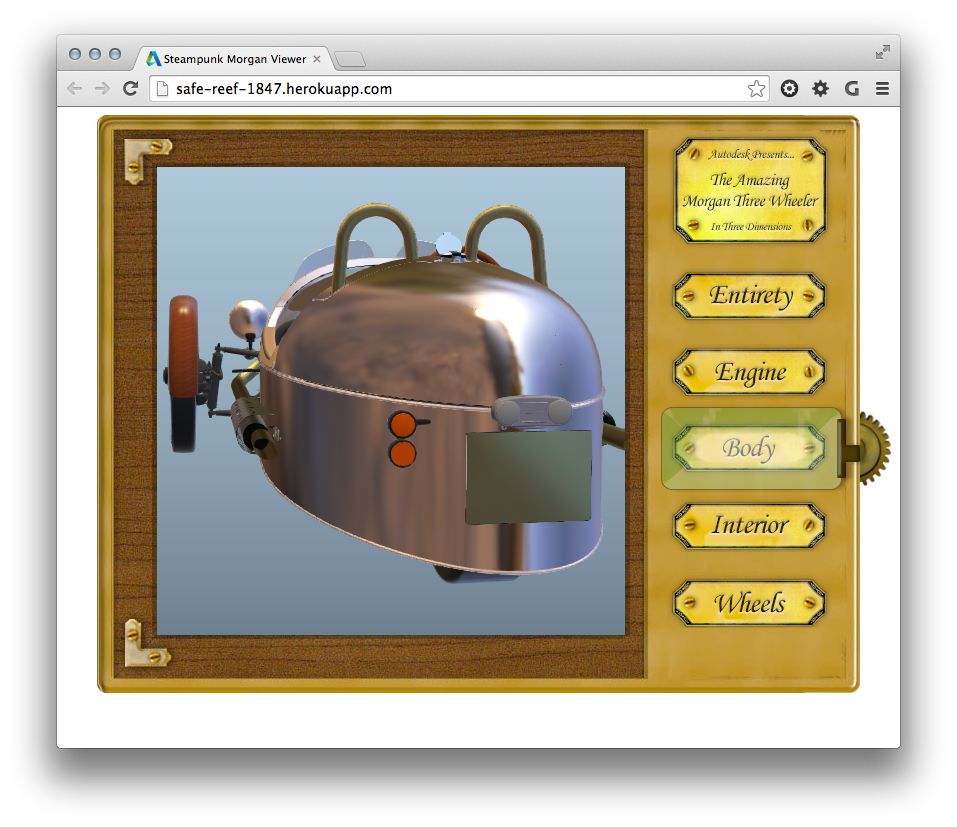
Of course there's much more you can do with the View & Data API than I've shown in this sample, so I do recommend perusing the other samples on GitHub, as well as playing with the running samples themselves. And you'll find more information on this interesting new API on the ADN team's Cloud & Mobile DevBlog.
Update:
I've had to make s few changes to the client-side JavaScript file for it to work with a recent release of the viewer. I've gone ahead and updated the code in the post (you can always see what changes have been made in GitHub, of course).


Leave a Reply to Khoa Ho Cancel reply