A mere 2 among 100 million registered users, my boys are crazy about Minecraft. I've been looking into how I might be able to help them use Autodesk tools (well, AutoCAD) to generate Minecraft content. In this post we'll take a look at importing Minecraft data into AutoCAD, but ultimately the creation/export story is clearly more interesting (something we'll look at in the next post, I expect).
To investigate dealing with Minecraft data – bearing in mind I didn't actually know anything much about its file formats – I took a look at the Minecraft export you can perform from Tinkercad, which has been part of that product for just over a year. I took one of my algorithmically-created Tinkercad designs and clicked on "Download for Minecraft":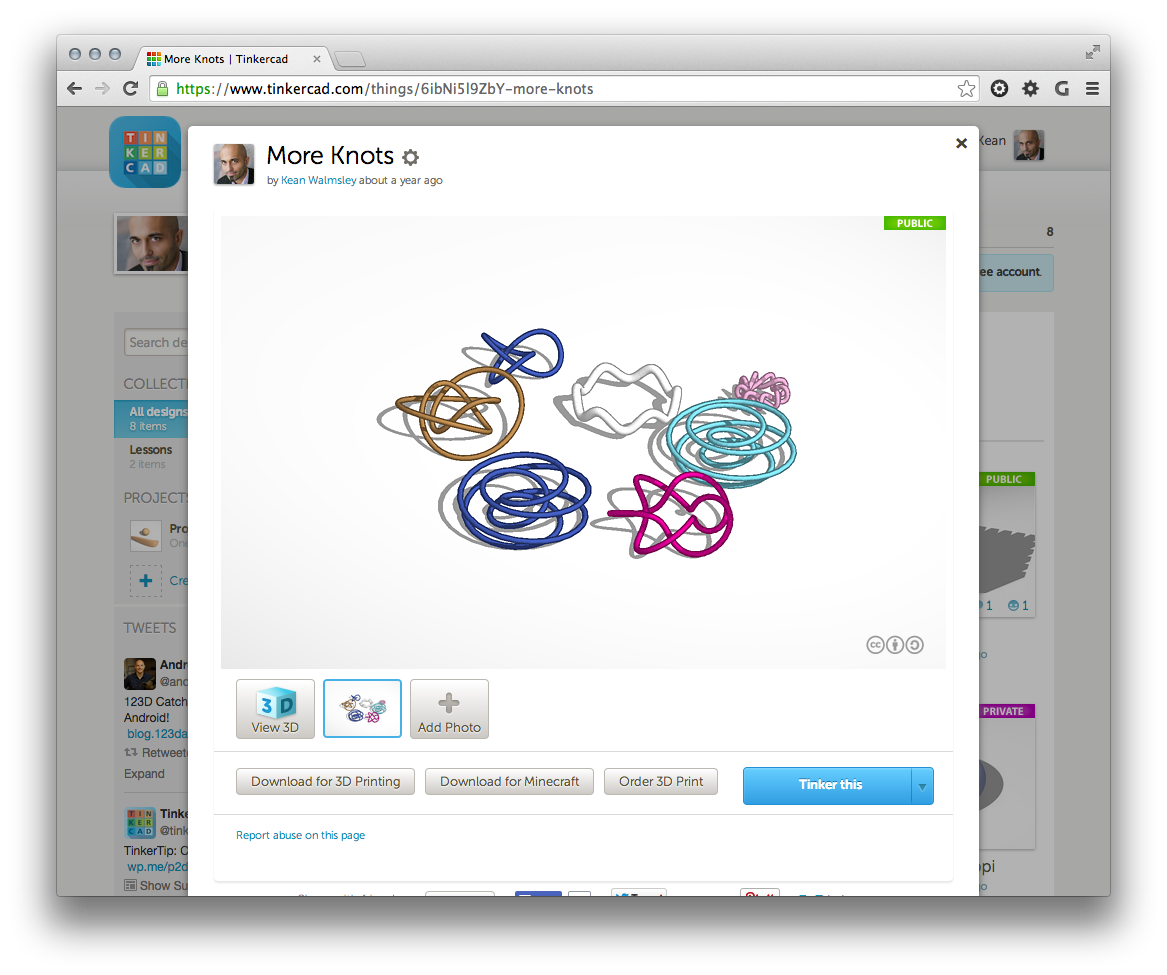
This created a local "more_knots.schematic" file, which presumably has information that Minecraft can make sense of. To check this out, I went and installed MCEdit and imported the schematic file into a new world. It was quite fun to see the Tinkercad geometry appear in a Minecraft-like environment:
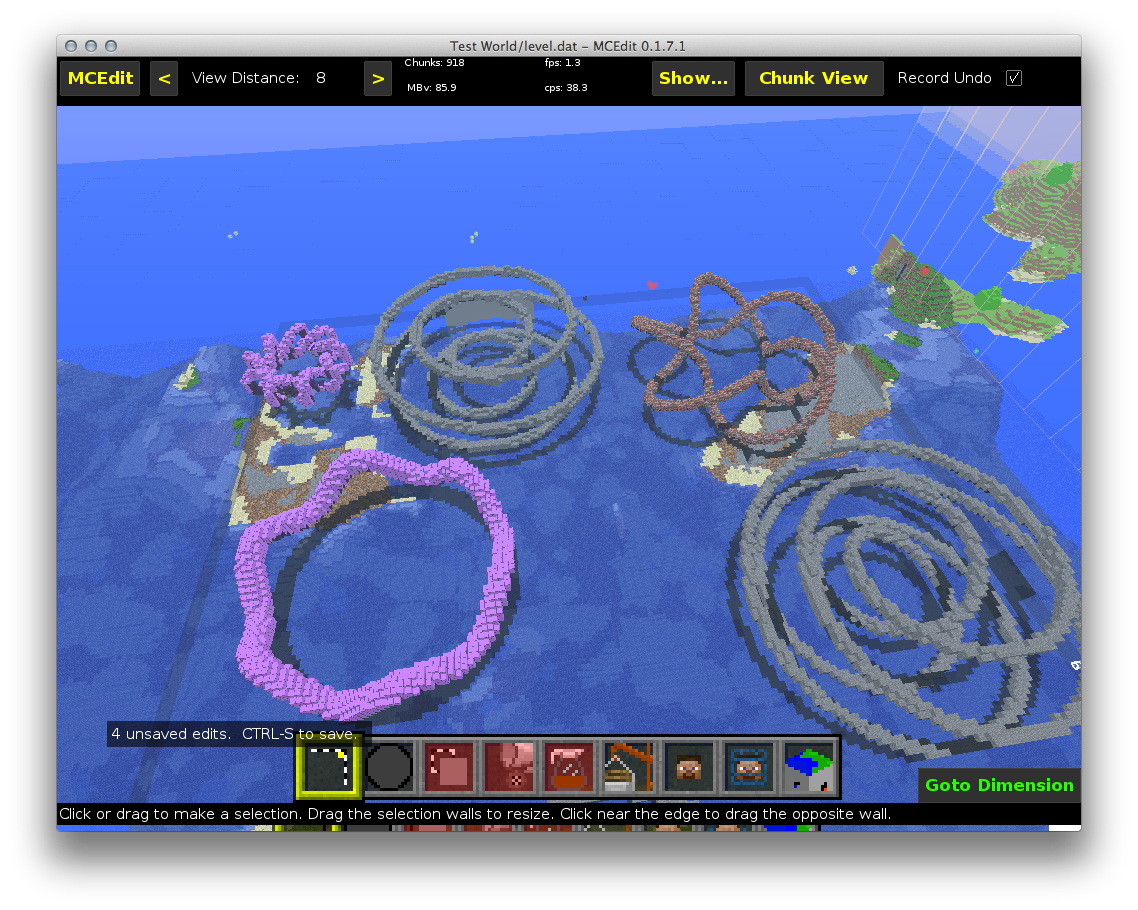
Next step, then, was to work out how to get access to the ".schematics" format from .NET. A quick web-search led me to Substrate. I cloned it from GitHub and built it into an AutoCAD plug-in that uses the ImportExport capability to bring in a Schematic file.
It was then a reasonably simple matter to access the blocks and create cubic solids at the right locations to represent them. The only tricky piece, here, is that Minecraft uses a right-handed coordinate system with Z and Y swapped – from our perspective, anyway – and then the Y-axis negated… so it's X, –Z, Y, I suppose. Because the Y axis is negated – and the geometry will be relative to an origin that isn't specified in the .schematics file – the position of the model may well need to be moved if you want to check its overlap with source geometry. That's why the user can select the position and the block size in the import command (which we will set in memory from our export command, making it really easy for the user to export and then reimport to check the quality).
Rather than just creating hundreds or thousands of cubic Solid3d objects, I've coded the (default) option to create a single Solid3d in a BlockTableRecord and then create a BlockReference for each Minecraft block. This has advantages both from a file size and memory consumption perspective (AutoCAD's 3D graphics system is optimised for instanced geometry such as block references).
The code adds blocks to layers based on the names of their materials (I've also neglected adding "Air" blocks to the drawing, for obvious reasons). It's then up to the user to assign appropriate colours to the various layers, as they see fit.
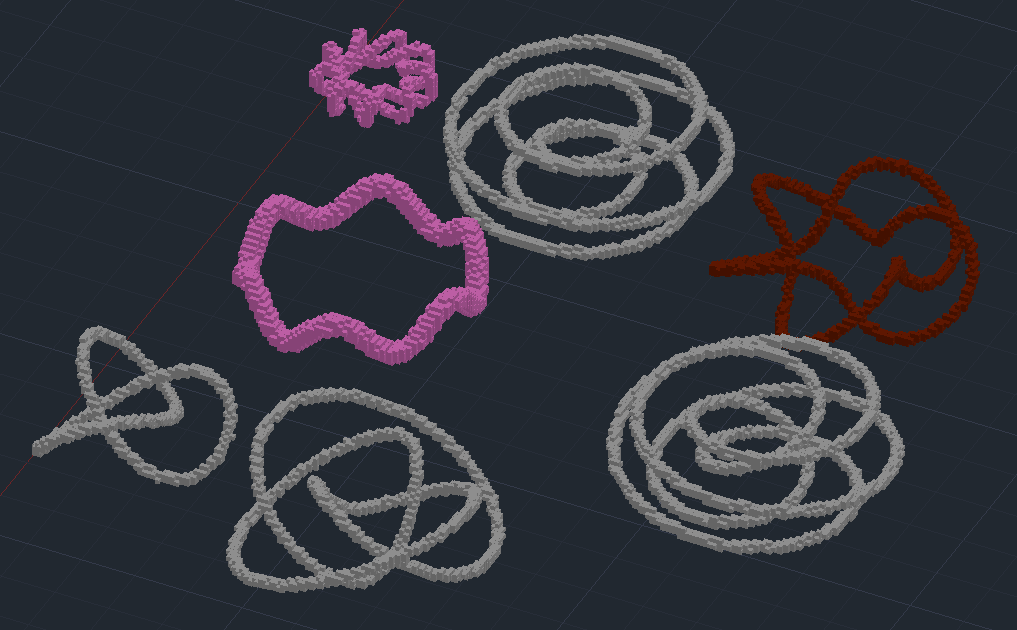
Here's the Tinkercad data brought into AutoCAD (with my own layer colouring) using the IMC command:
Here's the C# code that implements the IMC command, performing a simple import of Minecraft data:
using Autodesk.AutoCAD.ApplicationServices;
using Autodesk.AutoCAD.DatabaseServices;
using Autodesk.AutoCAD.EditorInput;
using Autodesk.AutoCAD.Geometry;
using Autodesk.AutoCAD.Runtime;
namespace Minecraft
{
public class Commands
{
// Members that will be set by the EMC command and
// picked up by the IMC command
private double _blockSize = 1.0;
private Point3d _origin = Point3d.Origin;
[CommandMethod("IMC")]
public void ImportMinecraft()
{
var doc = Application.DocumentManager.MdiActiveDocument;
if (doc == null)
return;
var ed = doc.Editor;
var db = doc.Database;
// Request the name of the file to import
var opts =
new PromptOpenFileOptions(
"Import from Minecraft"
);
opts.Filter =
"Minecraft schematic (*.schematic)|*.schematic|" +
"All files (*.*)|*.*";
var pr = ed.GetFileNameForOpen(opts);
if (pr.Status != PromptStatus.OK)
return;
// Read in the selected Schematic file
var schem =
Substrate.ImportExport.Schematic.Import(pr.StringResult);
if (schem == null)
{
ed.WriteMessage("\nCould not find Minecraft schematic.");
return;
}
// Let the user choose the location of the geometry
ed.WriteMessage(
"\nDefault insert is {0}", _origin
);
var ppo = new PromptPointOptions("\nInsertion point or ");
ppo.Keywords.Add("Default");
ppo.AllowNone = true;
var ppr = ed.GetPoint(ppo);
Vector3d offset;
if (ppr.Status == PromptStatus.Keyword)
{
offset = _origin.GetAsVector();
}
else if (ppr.Status == PromptStatus.OK)
{
offset = ppr.Value.GetAsVector();
}
else
{
return;
}
// Let the user choose the size of the block
var pdo = new PromptDoubleOptions("\nEnter block size");
pdo.AllowNegative = false;
pdo.AllowNone = true;
pdo.DefaultValue = _blockSize;
pdo.UseDefaultValue = true;
var pdr = ed.GetDouble(pdo);
if (pdr.Status != PromptStatus.OK)
return;
_blockSize = pdr.Value;
var step = _blockSize;
// We only really care about the blocks
var blks = schem.Blocks;
// We can either create Solid3d objects for each Minecraft
// block, or we can create a BlockTableRecord containing
// a single Solid3d that we reference for each block
// (if useBlock is set to true)
var blkId = ObjectId.Null;
var useBlock = true;
using (var tr = db.TransactionManager.StartTransaction())
{
var bt =
&
#160; (BlockTable)tr.GetObject(
db.BlockTableId, OpenMode.ForRead
);
if (useBlock)
{
bt.UpgradeOpen();
// Create our block and add it to the db & transaction
var btr = new BlockTableRecord();
btr.Name = "Minecraft Block";
blkId = bt.Add(btr);
tr.AddNewlyCreatedDBObject(btr, true);
// Create our cube and add it to the block & transaction
var cube = new Solid3d();
cube.CreateBox(step, step, step);
btr.AppendEntity(cube);
tr.AddNewlyCreatedDBObject(cube, true);
bt.DowngradeOpen();
}
var ms =
tr.GetObject(
bt[BlockTableRecord.ModelSpace], OpenMode.ForWrite
) as BlockTableRecord;
if (ms != null)
{
using (var pm = new ProgressMeter())
{
pm.Start("Importing Minecraft schematic");
pm.SetLimit(blks.XDim * blks.YDim * blks.ZDim);
// Create a cubic solid for each block
for (int x = 0; x < blks.XDim; ++x)
{
for (int y = 0; y < blks.YDim; ++y)
{
for (int z = 0; z < blks.ZDim; ++z)
{
var blk = blks.GetBlock(x, y, z);
if (blk != null && blk.Info.Name != "Air")
{
// Minecraft has a right-handed coordinate
// system with Z & Y swapped and Z negated
var disp =
new Point3d(x * step, -z * step, y * step) +
offset;
AcDb.Entity ent;
if (useBlock)
{
ent = new BlockReference(disp, blkId);
&
#160; }
else
{
var sol = new Solid3d();
sol.CreateBox(step, step, step);
sol.TransformBy(
Matrix3d.Displacement(disp.GetAsVector())
);
ent = sol;
}
// Assign the layer based on the material
ent.LayerId =
LayerForMaterial(tr, db, blk.Info.Name);
ms.AppendEntity(ent);
tr.AddNewlyCreatedDBObject(ent, true);
}
pm.MeterProgress();
System.Windows.Forms.Application.DoEvents();
}
}
}
pm.Stop();
System.Windows.Forms.Application.DoEvents();
}
tr.Commit();
}
}
// Zoom to the model's extents
ed.Command("_.ZOOM", "_EXTENTS");
}
private ObjectId LayerForMaterial(
Transaction tr, Database db, string layname
)
{
// If a layer with the material's name exists, return its id
var lt =
(LayerTable)tr.GetObject(db.LayerTableId, OpenMode.ForRead);
if (lt.Has(layname))
{
return lt[layname];
}
// Otherwise create a new layer for this material
var ltr = new LayerTableRecord();
ltr.Name = layname;
lt.UpgradeOpen();
var ltrId = lt.Add(ltr);
lt.DowngradeOpen();
tr.AddNewlyCreatedDBObject(ltr, true);
return ltrId;
}
}
}
So far so good! It's not the best way to bring data from Tinkercad into AutoCAD, but then that's not the point, of course. This is just about getting access to Minecraft data before we look at the more interesting use case of dicing the current AutoCAD model and generating a .schematic output file.


Leave a Reply to Kean Walmsley Cancel reply