To follow on from my post showing how to get point cloud information from Kinect into AutoCAD – using Microsoft's official SDK – this post looks at getting skeleton information inside AutoCAD.
The code in today's post extends the last – although I won't go ahead and denote the specific lines that have changed – by registering an additional callback called by the Microsoft runtime which, in turn, stores data in memory to be displayed when the jig's WorldDraw() is next called inside AutoCAD.
The main thing to note is what's needed to map the skeleton information into AutoCAD's world coordinate space (ultimately relatively little, as we essentially mapped the point cloud previously into "skeleton space", which some minor adjustments to make the Z axis point "upwards").
I decided to draw transient graphics in the jig for the skeleton which do not get refreshed away, allowing us to do some rudimentary motion capture (although we're not creating really geometry or storing the data anywhere – that's left as an exercise for the reader).
Here's the C# code:
using Autodesk.AutoCAD.ApplicationServices;
using Autodesk.AutoCAD.DatabaseServices;
using Autodesk.AutoCAD.EditorInput;
using Autodesk.AutoCAD.Geometry;
using Autodesk.AutoCAD.Runtime;
using AcGi = Autodesk.AutoCAD.GraphicsInterface;
using System.Runtime.InteropServices;
using System.Collections.Generic;
using System.Diagnostics;
using System.Reflection;
using System.IO;
using System;
using Microsoft.Research.Kinect.Nui;
namespace KinectIntegration
{
// Our own class duplicating the one implemented by nKinect
// to aid with porting
public class ColorVector3
{
public double X, Y, Z;
public int R, G, B;
}
public class KinectJig : DrawJig
{
[DllImport("acad.exe", CharSet = CharSet.Auto,
CallingConvention = CallingConvention.Cdecl,
EntryPoint = "?acedPostCommand@@YAHPB_W@Z"
)]
extern static private int acedPostCommand(string strExpr);
// A transaction and database to add polylines
private Transaction _tr;
private Document _doc;
// We need our Kinect sensor
private Runtime _kinect = null;
// With the images collected by it
private ImageFrame _depth = null;
private ImageFrame _video = null;
// A list of points captured by the sensor
// (for eventual export)
private List<ColorVector3> _vecs;
// A list of points to be displayed
// (we use this for the jig)
private Point3dCollection _points;
// A list of vertices to draw between
// (we use this for the final polyline creation)
private Point3dCollection _vertices;
// A list of line segments being collected
// (pass these as AcGe objects as they may
// get created on a background thread)
private List<LineSegment3d> _lineSegs;
// The database lines we use for temporary
// graphics (that need disposing afterwards)
private DBObjectCollection _lines;
// An offset value we use to move the mouse back
// and forth by one screen unit
private int _offset;
// Flags to indicate Kinect gesture modes
private bool _finished; // Finished - want to exit
public bool Finished
{
get { return _finished; }
}
public KinectJig(Document doc, Transaction tr)
{
// Initialise the various members
_doc = doc;
_tr = tr;
_points = new Point3dCollection();
_vertices = new Point3dCollection();
_lineSegs = new List<LineSegment3d>();
_lines = new DBObjectCollection();
_offset = 1;
_finished = false;
// Create our sensor object - the constructor takes
// three callbacks to receive various data:
// - skeleton movement
// - rgb data
// - depth data
_kinect = new Runtime();
_kinect.SkeletonFrameReady +=
new EventHandler<SkeletonFrameReadyEventArgs>(
OnSkeletonFrameReady
);
_kinect.VideoFrameReady +=
new EventHandler<ImageFrameReadyEventArgs>(
OnVideoFrameReady
);
_kinect.DepthFrameReady +=
new EventHandler<ImageFrameReadyEventArgs>(
OnDepthFrameReady
);
}
void OnDepthFrameReady(
object sender, ImageFrameReadyEventArgs e
)
{
_depth = e.ImageFrame;
}
void OnVideoFrameReady(
object sender, ImageFrameReadyEventArgs e
)
{
_video = e.ImageFrame;
}
void OnSkeletonFrameReady(
object sender, SkeletonFrameReadyEventArgs e
)
{
DrawSkeleton(e.SkeletonFrame);
}
public void StartSensor()
{
if (_kinect != null)
{
_kinect.Initialize(
RuntimeOptions.UseDepth |
RuntimeOptions.UseColor |
RuntimeOptions.UseSkeletalTracking
);
_kinect.VideoStream.Open(
ImageStreamType.Video, 2,
ImageResolution.Resolution640x480,
ImageType.Color
);
_kinect.DepthStream.Open(
ImageStreamType.Depth, 2,
ImageResolution.Resolution640x480,
ImageType.Depth
);
}
}
public void StopSensor()
{
if (_kinect != null)
{
_kinect.Uninitialize();
_kinect = null;
}
}
public void UpdatePointCloud()
{
_vecs = GeneratePointCloud(true);
}
private List<ColorVector3> GeneratePointCloud(
bool withColor = false
)
{
// We will return a list of our ColorVector3 objects
List<ColorVector3> res = new List<ColorVector3>();
// Let's start by determining the dimensions of the
// respective images
int depHeight = _depth.Image.Height;
int depWidth = _depth.Image.Width;
int vidHeight = _video.Image.Height;
int vidWidth = _video.Image.Width;
// For the sake of this initial implementation, we
// expect them to be the same size. But this should not
// actually need to be a requirement
if (vidHeight != depHeight || vidWidth != depWidth)
{
Application.DocumentManager.MdiActiveDocument.
Editor.WriteMessage(
"\nVideo and depth images are of different sizes."
);
return null;
}
// Depth and color data for each pixel
Byte[] depthData = _depth.Image.Bits;
Byte[] colorData = _video.Image.Bits;
// Loop through the depth information - we process two
// bytes at a time
for (int i = 0; i < depthData.Length; i += 2)
{
// The depth pixel is two bytes long - we shift the
// upper byte by 8 bits (a byte) and "or" it with the
// lower byte
int depthPixel = (depthData[i + 1] << 8) | depthData[i];
// The x and y positions can be calculated using modulus
// division from the array index
int x = (i / 2) % depWidth;
int y = (i / 2) / depWidth;
// The x and y we pass into DepthImageToSkeleton() need to
// be normalised (between 0 and 1), so we divide by the
// width and height of the depth image, respectively
// As we're using UseDepth (not UseDepthAndPlayerIndex) in
// the depth sensor settings, we also need to shift the
// depth pixel by 3 bits
Vector v =
_kinect.SkeletonEngine.DepthImageToSkeleton(
((float)x) / ((float)depWidth),
((float)y) / ((float)depHeight),
(short)(depthPixel << 3)
);
// A zero value for Z means there is no usable depth for
// that pixel
if (v.Z > 0)
{
// Create a ColorVector3 to store our XYZ and RGB info
// for a pixel
ColorVector3 cv = new ColorVector3();
cv.X = v.X;
cv.Y = v.Z;
cv.Z = v.Y;
// Only calculate the colour when it's needed (as it's
// now more expensive, albeit more accurate)
if (withColor)
{
// Get the colour indices for that particular depth
// pixel. We once again need to shift the depth pixel
// and also need to flip the x value (as UseDepth means
// it is mirrored on X) and do so on the basis of
// 320x240 resolution (so we divide by 2, assuming
// 640x480 is chosen earlier), as that's what this
// function expects. Phew!
int colorX, colorY;
_kinect.NuiCamera.
GetColorPixelCoordinatesFromDepthPixel(
_video.Resolution, _video.ViewArea,
320 - (x/2), (y/2), (short)(depthPixel << 3),
out colorX, out colorY
);
// Make sure both indices are within bounds
colorX = Math.Max(0, Math.Min(vidWidth - 1, colorX));
colorY = Math.Max(0, Math.Min(vidHeight - 1, colorY));
// Extract the RGB data from the appropriate place
// in the colour data
int colIndex = 4 * (colorX + (colorY * vidWidth));
cv.B = (byte)(colorData[colIndex + 0]);
cv.G = (byte)(colorData[colIndex + 1]);
cv.R = (byte)(colorData[colIndex + 2]);
}
else
{
// If we don't need colour information, just set each
// pixel to white
cv.B = 255;
cv.G = 255;
cv.R = 255;
}
// Add our pixel data to the list to return
res.Add(cv);
}
}
return res;
}
private Point3d PointFromVector(Vector v)
{
// Rather than just return a point, we're effectively
// transforming it to the drawing space: flipping the
// Y and Z axes (which makes it consistent with the
// point cloud, and makes sure Z is actually up - from
// the Kinect's perspective Y is up), and reversing
// the X axis (which is the result of choosing UseDepth
// rather than UseDepthAndPlayerIndex)
return new Point3d(-v.X, v.Z, v.Y);
}
private void GetBodySegment(
JointsCollection joints, List<LineSegment3d> segs,
params JointID[] ids
)
{
// Get the sequence of segments connecting the
// locations of the joints passed in
Point3d start, end;
start = PointFromVector(joints[ids[0]].Position);
for (int i = 1; i < ids.Length; ++i )
{
end = PointFromVector(joints[ids[i]].Position);
segs.Add(new LineSegment3d(start, end));
start = end;
}
}
private void DrawSkeleton(SkeletonFrame s)
{
// We won't simply append but replace what's there
_lineSegs.Clear();
foreach (SkeletonData data in s.Skeletons)
{
if (SkeletonTrackingState.Tracked == data.TrackingState)
{
// Draw dem bones, dem bones, dem dry bones...
// Hip bone's conected to the spine bone,
// Spine bone's connected to the shoulders bone,
// Shoulders bone's connected to the head bone
GetBodySegment(
data.Joints, _lineSegs,
JointID.HipCenter, JointID.Spine,
JointID.ShoulderCenter, JointID.Head
);
// Middle of the shoulders connected to the
// left shoulder,
// Left shoulder's connected to the left elbow,
// Left elbow's connected to the left wrist,
// Left wrist's connected to the left hand
GetBodySegment(
data.Joints, _lineSegs,
JointID.ShoulderCenter, JointID.ShoulderLeft,
JointID.ElbowLeft, JointID.WristLeft,
JointID.HandLeft
);
// Middle of the shoulders is connected to the
// right shoulder,
// Right shoulder's connected to the right elbow,
// Right elbow's connected to the right wrist,
// Right wrist's connected to the right hand
GetBodySegment(
data.Joints, _lineSegs,
JointID.ShoulderCenter, JointID.ShoulderRight,
JointID.ElbowRight, JointID.WristRight,
JointID.HandRight
);
// Middle of the hips is connected to the left hip,
// Left hip's connected to the left knee,
// Left knee's connected to the left ankle,
// Left ankle's connected to the left foot
GetBodySegment(
data.Joints, _lineSegs,
JointID.HipCenter, JointID.HipLeft,
JointID.KneeLeft, JointID.AnkleLeft,
JointID.FootLeft
);
// Middle of the hips is connected to the right hip,
// Right hip's connected to the right knee,
// Right knee's connected to the right ankle,
// Right ankle's connected to the right foot
GetBodySegment(
data.Joints, _lineSegs,
JointID.HipCenter, JointID.HipRight,
JointID.KneeRight, JointID.AnkleRight,
JointID.FootRight
);
}
}
}
protected override SamplerStatus Sampler(JigPrompts prompts)
{
// We don't really need a point, but we do need some
// user input event to allow us to loop, processing
// for the Kinect input
PromptPointResult ppr =
prompts.AcquirePoint("\nClick to capture: ");
if (ppr.Status == PromptStatus.OK)
{
if (_finished)
{
acedPostCommand("CANCELCMD");
return SamplerStatus.Cancel;
}
// Generate a point cloud
try
{
if (_depth != null && _video != null)
{
_vecs = GeneratePointCloud();
// Extract the points for display in the jig
// (note we only take 1 in 5)
_points.Clear();
for (int i = 0; i < _vecs.Count; i += 20)
{
ColorVector3 vec = _vecs[i];
_points.Add(
new Point3d(vec.X, vec.Y, vec.Z)
);
}
// Let's move the mouse slightly to avoid having
// to do it manually to keep the input coming
System.Drawing.Point pt =
System.Windows.Forms.Cursor.Position;
System.Windows.Forms.Cursor.Position =
new System.Drawing.Point(
pt.X, pt.Y + _offset
);
_offset = -_offset;
}
}
catch {}
return SamplerStatus.OK;
}
return SamplerStatus.Cancel;
}
protected override bool WorldDraw(AcGi.WorldDraw draw)
{
// This simply draws our points
draw.Geometry.Polypoint(_points, null, null);
AcGi.TransientManager ctm =
AcGi.TransientManager.CurrentTransientManager;
IntegerCollection ints = new IntegerCollection();
// Draw any outstanding segments (and do so only once)
while (_lineSegs.Count > 0)
{
// Get the line segment and remove it from the list
LineSegment3d ls = _lineSegs[0];
_lineSegs.RemoveAt(0);
// Create an equivalent, yellow, database line
Line ln = new Line(ls.StartPoint, ls.EndPoint);
ln.ColorIndex = 2;
_lines.Add(ln);
// Draw it as transient graphics
ctm.AddTransient(
ln, AcGi.TransientDrawingMode.DirectShortTerm,
128, ints
);
}
return true;
}
public void ClearTransients()
{
AcGi.TransientManager ctm =
AcGi.TransientManager.CurrentTransientManager;
// Erase the various transient graphics
ctm.EraseTransients(
AcGi.TransientDrawingMode.DirectShortTerm, 128,
new IntegerCollection()
);
}
public void ExportPointCloud(string filename)
{
if (_vecs.Count > 0)
{
using (StreamWriter sw = new StreamWriter(filename))
{
// For each pixel, write a line to the text file:
// X, Y, Z, R, G, B
foreach (ColorVector3 pt in _vecs)
{
sw.WriteLine(
"{0}, {1}, {2}, {3}, {4}, {5}",
pt.X, pt.Y, pt.Z, pt.R, pt.G, pt.B
);
}
}
}
}
}
public class Commands
{
[CommandMethod("ADNPLUGINS", "KINECT", CommandFlags.Modal)]
public void ImportFromKinect()
{
Document doc =
Autodesk.AutoCAD.ApplicationServices.
Application.DocumentManager.MdiActiveDocument;
Editor ed = doc.Editor;
Transaction tr =
doc.TransactionManager.StartTransaction();
KinectJig kj = new KinectJig(doc, tr);
try
{
kj.StartSensor();
}
catch (System.Exception ex)
{
ed.WriteMessage(
"\nUnable to start Kinect sensor: " + ex.Message
);
tr.Dispose();
return;
}
PromptResult pr = ed.Drag(kj);
if (pr.Status != PromptStatus.OK && !kj.Finished)
{
kj.ClearTransients();
kj.StopSensor();
tr.Dispose();
return;
}
// Generate a final point cloud with color before stopping
// the sensor
kj.UpdatePointCloud();
kj.StopSensor();
tr.Commit();
// Manually dispose to avoid scoping issues with
// other variables
tr.Dispose();
// We'll store most local files in the temp folder.
// We get a temp filename, delete the file and
// use the name for our folder
string localPath = Path.GetTempFileName();
File.Delete(localPath);
Directory.CreateDirectory(localPath);
localPath += "\\";
// Paths for our temporary files
string txtPath = localPath + "points.txt";
string lasPath = localPath + "points.las";
// Our PCG file will be stored under My Documents
string outputPath =
Environment.GetFolderPath(
Environment.SpecialFolder.MyDocuments
) + "\\Kinect Point Clouds\\";
if (!Directory.Exists(outputPath))
Directory.CreateDirectory(outputPath);
// We'll use the title as a base filename for the PCG,
// but will use an incremented integer to get an unused
// filename
int cnt = 0;
string pcgPath;
do
{
pcgPath =
outputPath + "Kinect" +
(cnt == 0 ? "" : cnt.ToString()) + ".pcg";
cnt++;
}
while (File.Exists(pcgPath));
// The path to the txt2las tool will be the same as the
// executing assembly (our DLL)
string exePath =
Path.GetDirectoryName(
Assembly.GetExecutingAssembly().Location
) + "\\";
if (!File.Exists(exePath + "txt2las.exe"))
{
ed.WriteMessage(
"\nCould not find the txt2las tool: please make sure " +
"it is in the same folder as the application DLL."
);
return;
}
// Export our point cloud from the jig
ed.WriteMessage(
"\nSaving TXT file of the captured points.\n"
);
kj.ExportPointCloud(txtPath);
// Use the txt2las utility to create a .LAS
// file from our text file
ed.WriteMessage(
"\nCreating a LAS from the TXT file.\n"
);
ProcessStartInfo psi =
new ProcessStartInfo(
exePath + "txt2las",
"-i \"" + txtPath +
"\" -o \"" + lasPath +
"\" -parse xyzRGB"
);
psi.CreateNoWindow = false;
psi.WindowStyle = ProcessWindowStyle.Hidden;
// Wait up to 20 seconds for the process to exit
try
{
using (Process p = Process.Start(psi))
{
p.WaitForExit();
}
}
catch
{ }
// If there's a problem, we return
if (!File.Exists(lasPath))
{
ed.WriteMessage(
"\nError creating LAS file."
);
return;
}
File.Delete(txtPath);
ed.WriteMessage(
"Indexing the LAS and attaching the PCG.\n"
);
// Index the .LAS file, creating a .PCG
string lasLisp = lasPath.Replace('\\', '/'),
pcgLisp = pcgPath.Replace('\\', '/');
doc.SendStringToExecute(
"(command \"_.POINTCLOUDINDEX\" \"" +
lasLisp + "\" \"" +
pcgLisp + "\")(princ) ",
false, false, false
);
// Attach the .PCG file
doc.SendStringToExecute(
"_.WAITFORFILE \"" +
pcgLisp + "\" \"" +
lasLisp + "\" " +
"(command \"_.-POINTCLOUDATTACH\" \"" +
pcgLisp +
"\" \"0,0\" \"1\" \"0\")(princ) ",
false, false, false
);
doc.SendStringToExecute(
"_.-VISUALSTYLES _C _Conceptual ",
false, false, false
);
//Cleanup();
}
// Return whether a file is accessible
private bool IsFileAccessible(string filename)
{
// If the file can be opened for exclusive access it means
// the file is accesible
try
{
FileStream fs =
File.Open(
filename, FileMode.Open,
FileAccess.Read, FileShare.None
);
using (fs)
{
return true;
}
}
catch (IOException)
{
return false;
}
}
// A command which waits for a particular PCG file to exist
[CommandMethod(
"ADNPLUGINS", "WAITFORFILE", CommandFlags.NoHistory
)]
public void WaitForFileToExist()
{
Document doc =
Application.DocumentManager.MdiActiveDocument;
Editor ed = doc.Editor;
HostApplicationServices ha =
HostApplicationServices.Current;
PromptResult pr = ed.GetString("Enter path to PCG: ");
if (pr.Status != PromptStatus.OK)
return;
string pcgPath = pr.StringResult.Replace('/', '\\');
pr = ed.GetString("Enter path to LAS: ");
if (pr.Status != PromptStatus.OK)
return;
string lasPath = pr.StringResult.Replace('/', '\\');
ed.WriteMessage(
"\nWaiting for PCG creation to complete...\n"
);
// Check the write time for the PCG file...
// if it hasn't been written to for at least half a second,
// then we try to use a file lock to see whether the file
// is accessible or not
const int ticks = 50;
TimeSpan diff;
bool cancelled = false;
// First loop is to see when writing has stopped
// (better than always throwing exceptions)
while (true)
{
if (File.Exists(pcgPath))
{
DateTime dt = File.GetLastWriteTime(pcgPath);
diff = DateTime.Now - dt;
if (diff.Ticks > ticks)
break;
}
System.Windows.Forms.Application.DoEvents();
if (HostApplicationServices.Current.UserBreak())
{
cancelled = true;
break;
}
}
// Second loop will wait until file is finally accessible
// (by calling a function that requests an exclusive lock)
if (!cancelled)
{
int inacc = 0;
while (true)
{
if (IsFileAccessible(pcgPath))
break;
else
inacc++;
System.Windows.Forms.Application.DoEvents();
if (HostApplicationServices.Current.UserBreak())
{
cancelled = true;
break;
}
}
ed.WriteMessage("\nFile inaccessible {0} times.", inacc);
try
{
CleanupTmpFiles(lasPath);
}
catch
{ }
}
}
internal void CleanupTmpFiles(string txtPath)
{
if (File.Exists(txtPath))
File.Delete(txtPath);
Directory.Delete(
Path.GetDirectoryName(txtPath)
);
}
}
}
Here's what happens when we run the updated KINECT command and walk across the area being tracked by the Kinect device:
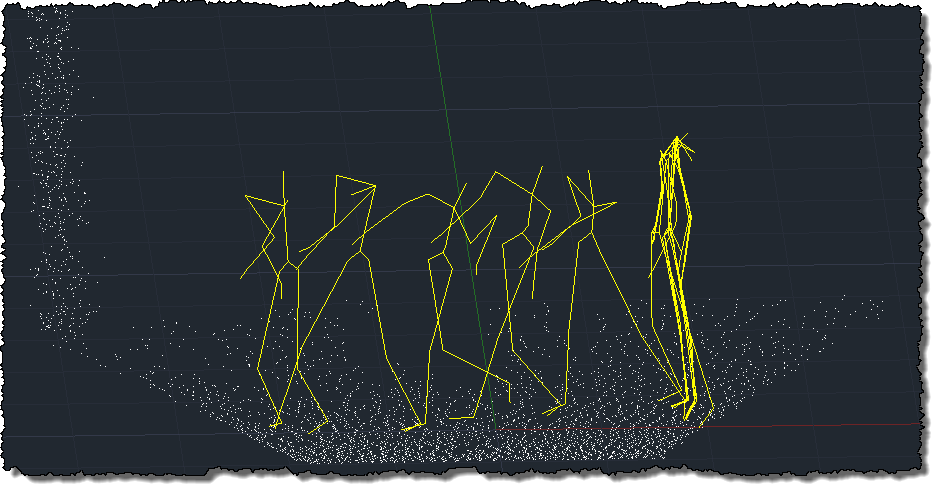
Now that the skeleton data is mapped appropriately into world coordinates, the next step is to get proper gestures working again (to re-enable the previous code generating 3D geometry, for instance).


Leave a Reply to Kean Walmsley Cancel reply