As promised in this previous post, I've been playing around with understanding Kinect gestures inside AutoCAD. My first step – after upgrading the OpenNI modules and drivers to more recent versions, which always seems time-consuming, for some reason – was to work out how to get gesture information via nKinect. It turned out to be very straightforward – as it's based on OpenNI and NITE, the user-tracking and gesture detection come pretty much for free.
A few things I had to work out:
- We needed a "skeleton callback", which is called when body movements are detected
- Because this is fired on a non-UI thread, we need to be careful not to use it to create DBObject-derived objects
- We get around this by create LineSegment3d objects which we then convert to Lines for transient display later on
- It takes time for NITE to detect and start tracking a user – until this happens the above callback doesn't get called
Once I'd understood the mechanism, it was reasonably straightforward to track the position of the user's right hand and draw – both transiently and more permanently – a set of line segments tracking the hand's movement. The Transient Graphics sub-system ended up proving a better choice for displaying our temporary line segments than the jig, as the line segments are actually pretty static with new segments just building on the ones drawn previously.
Here's the updated (refactored and extended) C# code:
using Autodesk.AutoCAD.ApplicationServices;
using Autodesk.AutoCAD.DatabaseServices;
using Autodesk.AutoCAD.EditorInput;
using Autodesk.AutoCAD.Geometry;
using Autodesk.AutoCAD.Runtime;
using AcGi = Autodesk.AutoCAD.GraphicsInterface;
using System.Runtime.InteropServices;
using System.Collections.Generic;
using System.Windows.Media;
using System.Diagnostics;
using System.Reflection;
using System.IO;
using System;
using NKinect;
namespace KinectIntegration
{
public class KinectJig : DrawJig
{
// We need our nKinect sensor
private Sensor _kinect = null;
// A list of points captured by the sensor
// (for eventual export)
private List<ColorVector3> _vecs;
// A list of points to be displayed
// (we use this for the jig)
private Point3dCollection _points;
// A list of vertices to draw between
// (we use this for the final polyline creation)
private Point3dCollection _vertices;
// A list of line segments being collected
// (pass these as AcGe objects as they may
// get created on a background thread)
private List<LineSegment3d> _lineSegs;
// The database lines we use for temporary
// graphics (that need disposing afterwards)
private DBObjectCollection _lines;
public KinectJig()
{
// Initialise the collections
_points = new Point3dCollection();
_vertices = new Point3dCollection();
_lineSegs = new List<LineSegment3d>();
_lines = new DBObjectCollection();
// Create our sensor object - the constructor takes
// three callbacks to receive various data:
// - skeleton movement
// - rgb data
// - depth data
_kinect =
new Sensor(
s =>
{
// Get the current position of the right hand
Point3d newVert =
new Point3d(
s.RightHand.X,
s.RightHand.Y,
s.RightHand.Z
);
// If we have at least one prior vertex...
if (_vertices.Count > 0)
{
// ... connect them together with
// a temp LineSegment3d
Point3d lastVert = _vertices[_vertices.Count - 1];
if (lastVert.DistanceTo(newVert) >
Tolerance.Global.EqualPoint)
{
_lineSegs.Add(
new LineSegment3d(lastVert, newVert)
);
}
}
// Add the new vertex to our list
_vertices.Add(newVert);
},
r =>
{
},
d =>
{
}
);
}
public void StartSensor()
{
if (_kinect != null)
{
_kinect.Start();
}
}
public void StopSensor()
{
if (_kinect != null)
{
_kinect.Stop();
_kinect.Dispose();
}
}
protected override SamplerStatus Sampler(JigPrompts prompts)
{
// Se don't really need a point, but we do need some
// user input event to allow us to loop, processing
// for the Kinect input
PromptPointResult ppr =
prompts.AcquirePoint("\nClick to capture: ");
if (ppr.Status == PromptStatus.OK)
{
// Generate a point cloud via nKinect
_vecs = _kinect.GeneratePointCloud();
// Extract the points for display in the jig
// (note we only take 1 in 5)
_points.Clear();
for (int i = 0; i < _vecs.Count; i += 10)
{
ColorVector3 vec = _vecs[i];
_points.Add(
new Point3d(vec.X, vec.Y, vec.Z)
);
}
return SamplerStatus.OK;
}
return SamplerStatus.Cancel;
}
protected override bool WorldDraw(AcGi.WorldDraw draw)
{
// This simply draws our points
draw.Geometry.Polypoint(_points, null, null);
AcGi.TransientManager ctm =
AcGi.TransientManager.CurrentTransientManager;
IntegerCollection ints = new IntegerCollection();
// Draw any outstanding segments (and do so only once)
while (_lineSegs.Count > 0)
{
// Get the line segment and remove it from the list
LineSegment3d ls = _lineSegs[0];
_lineSegs.RemoveAt(0);
// Create an equivalent, red, database line
Line ln = new Line(ls.StartPoint, ls.EndPoint);
ln.ColorIndex = 1;
_lines.Add(ln);
// Draw it as transient graphics
ctm.AddTransient(
ln, AcGi.TransientDrawingMode.DirectShortTerm,
128, ints
);
}
return true;
}
public void AddPolylines(Database db)
{
AcGi.TransientManager ctm =
AcGi.TransientManager.CurrentTransientManager;
// Erase the various transient graphics
ctm.EraseTransients(
AcGi.TransientDrawingMode.DirectShortTerm, 128,
new IntegerCollection()
);
// Dispose of the database objects
foreach (DBObject obj in _lines)
{
obj.Dispose();
}
_lines.Clear();
// Create a true database-resident 3D polyline
// (and let it be green)
if (_vertices.Count > 1)
{
Transaction tr =
db.TransactionManager.StartTransaction();
using (tr)
{
BlockTableRecord btr =
(BlockTableRecord)tr.GetObject(
db.CurrentSpaceId,
OpenMode.ForWrite
);
Polyline3d pl =
new Polyline3d(
Poly3dType.SimplePoly, _vertices, false
);
pl.ColorIndex = 3;
btr.AppendEntity(pl);
tr.AddNewlyCreatedDBObject(pl, true);
tr.Commit();
}
}
}
public void ExportPointCloud(string filename)
{
if (_vecs.Count > 0)
{
using (StreamWriter sw = new StreamWriter(filename))
{
// For each pixel, write a line to the text file:
// X, Y, Z, R, G, B
foreach (ColorVector3 pt in _vecs)
{
sw.WriteLine(
"{0}, {1}, {2}, {3}, {4}, {5}",
pt.X, pt.Y, pt.Z, pt.R, pt.G, pt.B
);
}
}
}
}
}
public class Commands
{
[CommandMethod("ADNPLUGINS", "KINECT", CommandFlags.Modal)]
public static void ImportFromKinect()
{
Document doc =
Autodesk.AutoCAD.ApplicationServices.
Application.DocumentManager.MdiActiveDocument;
Editor ed = doc.Editor;
KinectJig kj = new KinectJig();
kj.StartSensor();
PromptResult pr = ed.Drag(kj);
kj.StopSensor();
if (pr.Status == PromptStatus.OK)
{
kj.AddPolylines(doc.Database);
// We'll store most local files in the temp folder.
// We get a temp filename, delete the file and
// use the name for our folder
string localPath = Path.GetTempFileName();
File.Delete(localPath);
Directory.CreateDirectory(localPath);
localPath += "\\";
// Paths for our temporary files
string txtPath = localPath + "points.txt";
string lasPath = localPath + "points.las";
// Our PCG file will be stored under My Documents
string outputPath =
Environment.GetFolderPath(
Environment.SpecialFolder.MyDocuments
) + "\\Kinect Point Clouds\\";
if (!Directory.Exists(outputPath))
Directory.CreateDirectory(outputPath);
// We'll use the title as a base filename for the PCG,
// but will use an incremented integer to get an unused
// filename
int cnt = 0;
string pcgPath;
do
{
pcgPath =
outputPath + "Kinect" +
(cnt == 0 ? "" : cnt.ToString()) + ".pcg";
cnt++;
}
while (File.Exists(pcgPath));
// The path to the txt2las tool will be the same as the
// executing assembly (our DLL)
string exePath =
Path.GetDirectoryName(
Assembly.GetExecutingAssembly().Location
) + "\\";
if (!File.Exists(exePath + "txt2las.exe"))
{
ed.WriteMessage(
"\nCould not find the txt2las tool: please make sure " +
"it is in the same folder as the application DLL."
);
return;
}
// Export our point cloud from the jig
ed.WriteMessage(
"\nSaving TXT file of the captured points.\n"
);
kj.ExportPointCloud(txtPath);
// Use the txt2las utility to create a .LAS
// file from our text file
ed.WriteMessage(
"\nCreating a LAS from the TXT file.\n"
);
ProcessStartInfo psi =
new ProcessStartInfo(
exePath + "txt2las",
"-i \"" + txtPath +
"\" -o \"" + lasPath +
"\" -parse xyzRGB"
);
psi.CreateNoWindow = false;
psi.WindowStyle = ProcessWindowStyle.Hidden;
// Wait up to 20 seconds for the process to exit
try
{
using (Process p = Process.Start(psi))
{
p.WaitForExit();
}
}
catch
{ }
// If there's a problem, we return
if (!File.Exists(lasPath))
{
ed.WriteMessage(
"\nError creating LAS file."
);
return;
}
File.Delete(txtPath);
ed.WriteMessage(
"Indexing the LAS and attaching the PCG.\n"
);
// Index the .LAS file, creating a .PCG
string lasLisp = lasPath.Replace('\\', '/'),
pcgLisp = pcgPath.Replace('\\', '/');
doc.SendStringToExecute(
"(command \"_.POINTCLOUDINDEX\" \"" +
lasLisp + "\" \"" +
pcgLisp + "\")(princ) ",
false, false, false
);
// Attach the .PCG file
doc.SendStringToExecute(
"_.WAITFORFILE \"" +
pcgLisp + "\" \"" +
lasLisp + "\" " +
"(command \"_.-POINTCLOUDATTACH\" \"" +
pcgLisp +
"\" \"0,0\" \"1\" \"0\")(princ) ",
false, false, false
);
doc.SendStringToExecute(
"_.-VISUALSTYLES _C _Conceptual _.ZOOM _E ",
false, false, false
);
//Cleanup();
}
}
// Return whether a file is accessible
private bool IsFileAccessible(string filename)
{
// If the file can be opened for exclusive access it means
// the file is accesible
try
{
FileStream fs =
File.Open(
filename, FileMode.Open,
FileAccess.Read, FileShare.None
);
using (fs)
{
return true;
}
}
catch (IOException)
{
return false;
}
}
// A command which waits for a particular PCG file to exist
[CommandMethod(
"ADNPLUGINS", "WAITFORFILE", CommandFlags.NoHistory
)]
public void WaitForFileToExist()
{
Document doc =
Application.DocumentManager.MdiActiveDocument;
Editor ed = doc.Editor;
HostApplicationServices ha =
HostApplicationServices.Current;
PromptResult pr = ed.GetString("Enter path to PCG: ");
if (pr.Status != PromptStatus.OK)
return;
string pcgPath = pr.StringResult.Replace('/', '\\');
pr = ed.GetString("Enter path to LAS: ");
if (pr.Status != PromptStatus.OK)
return;
string lasPath = pr.StringResult.Replace('/', '\\');
ed.WriteMessage(
"\nWaiting for PCG creation to complete...\n"
);
// Check the write time for the PCG file...
// if it hasn't been written to for at least half a second,
// then we try to use a file lock to see whether the file
// is accessible or not
const int ticks = 50;
TimeSpan diff;
bool cancelled = false;
// First loop is to see when writing has stopped
// (better than always throwing exceptions)
while (true)
{
if (File.Exists(pcgPath))
{
DateTime dt = File.GetLastWriteTime(pcgPath);
diff = DateTime.Now - dt;
if (diff.Ticks > ticks)
break;
}
System.Windows.Forms.Application.DoEvents();
}
// Second loop will wait until file is finally accessible
// (by calling a function that requests an exclusive lock)
if (!cancelled)
{
int inacc = 0;
while (true)
{
if (IsFileAccessible(pcgPath))
break;
else
inacc++;
System.Windows.Forms.Application.DoEvents();
}
ed.WriteMessage("\nFile inaccessible {0} times.", inacc);
try
{
CleanupTmpFiles(lasPath);
}
catch
{ }
}
}
internal static void CleanupTmpFiles(string txtPath)
{
if (File.Exists(txtPath))
File.Delete(txtPath);
Directory.Delete(
Path.GetDirectoryName(txtPath)
);
}
}
}
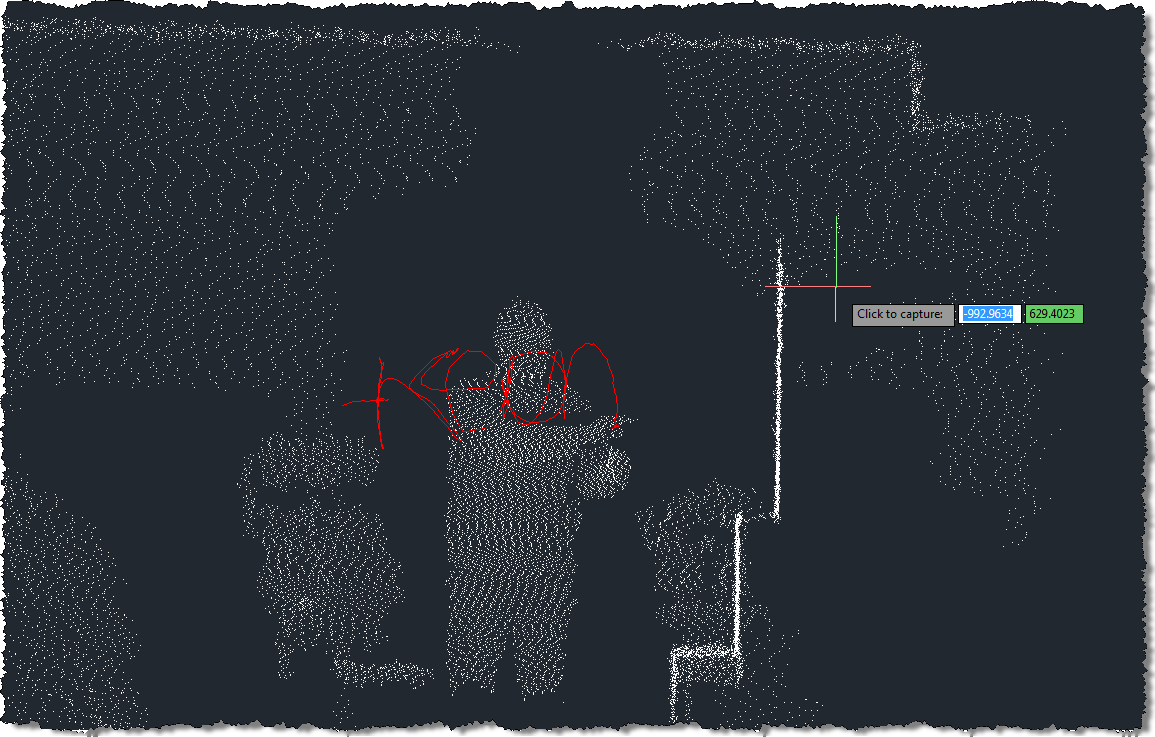
Here's an attempt, using the updated KINECT command, to write my name in 3D. While jigging we see the transient graphics in red:
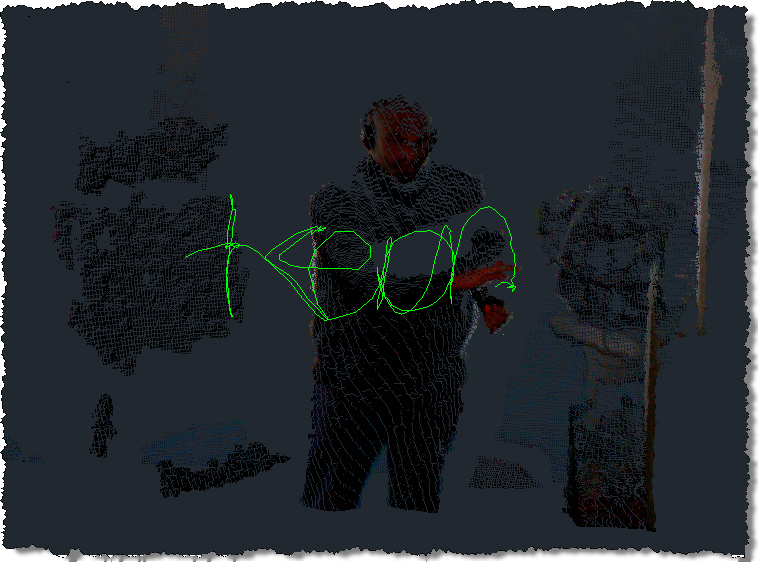
When the final point cloud import happens, we create a green, database-persistent Polyline3d:
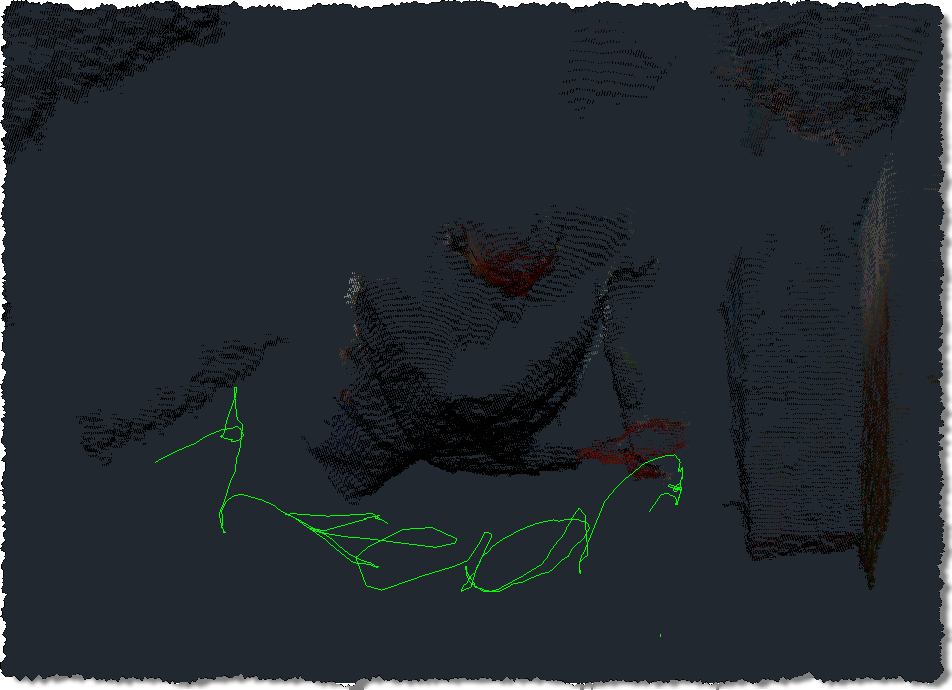
Here's another angle, to show the 3D location of the text:
This is clearly not the ultimate goal – just one more (admittedly quite fun) step on the way – and now that the concept of hooking into Kinect gestures into AutoCAD has been proven, it'll be interesting to see how much further it can be taken. Watch this space! 🙂


Leave a Reply to Kean Walmsley Cancel reply