JavaScript
-
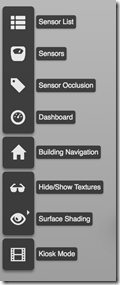
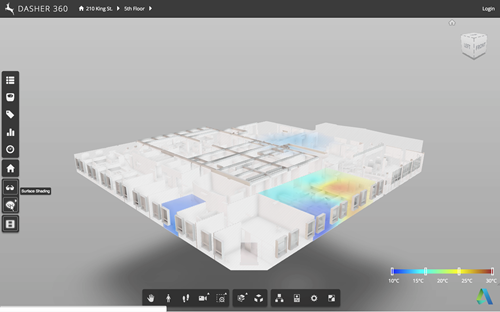
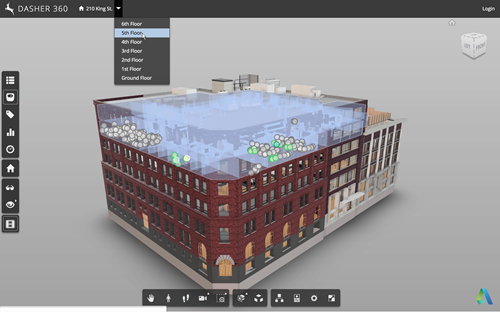
This week we rolled out a significant update to Dasher 360. Those of you who follow this blog regularly will already have seen the implementation details for a number of the features in this release, from point cloud-based sensor dots to "Kiosk Mode". I've linked to those posts wherever possible. We'll take a look at the changes in terms of Dasher 360's Forge viewer extensions, which mostly correspond to items in the Dasher 360 toolbar to the left of the page: Here are the major changes since the December release. If you want to skip the details, just open Dasher…
-
In this final (for now, anyway) part of the series, we're going to look at the approach taken in the Dasher 360 kiosk mode to loop the demo indefinitely (although with variations, as mentioned last time) until someone interrupts by moving the mouse. The first piece of this is to track the mouse. We do this by attaching an event handler to 'mousemove'. Here's the TypeScript code we're using: onMouseMove = (event: any): void => { this._canvasX = event.canvasX || event.clientX; this._canvasY = event.canvasY || event.clientY; if (this._startX !== null && this._startY !== null && this._inKioskMode…
-
Now that we've seen how to move a fake cursor across the screen, let's talk about how best to use this technique to implement a demo mode for your Forge viewer-based application. Something I mentioned last time was that – for our purposes – this code needs to be fairly adaptable, whether for different views, models or screen configurations. It also needs to be easy for us to modify or extend. Inside Dasher 360 we've implemented a number of different extensions. Many of these have their own UI, typically launched by a button. One of the first things I did…
-
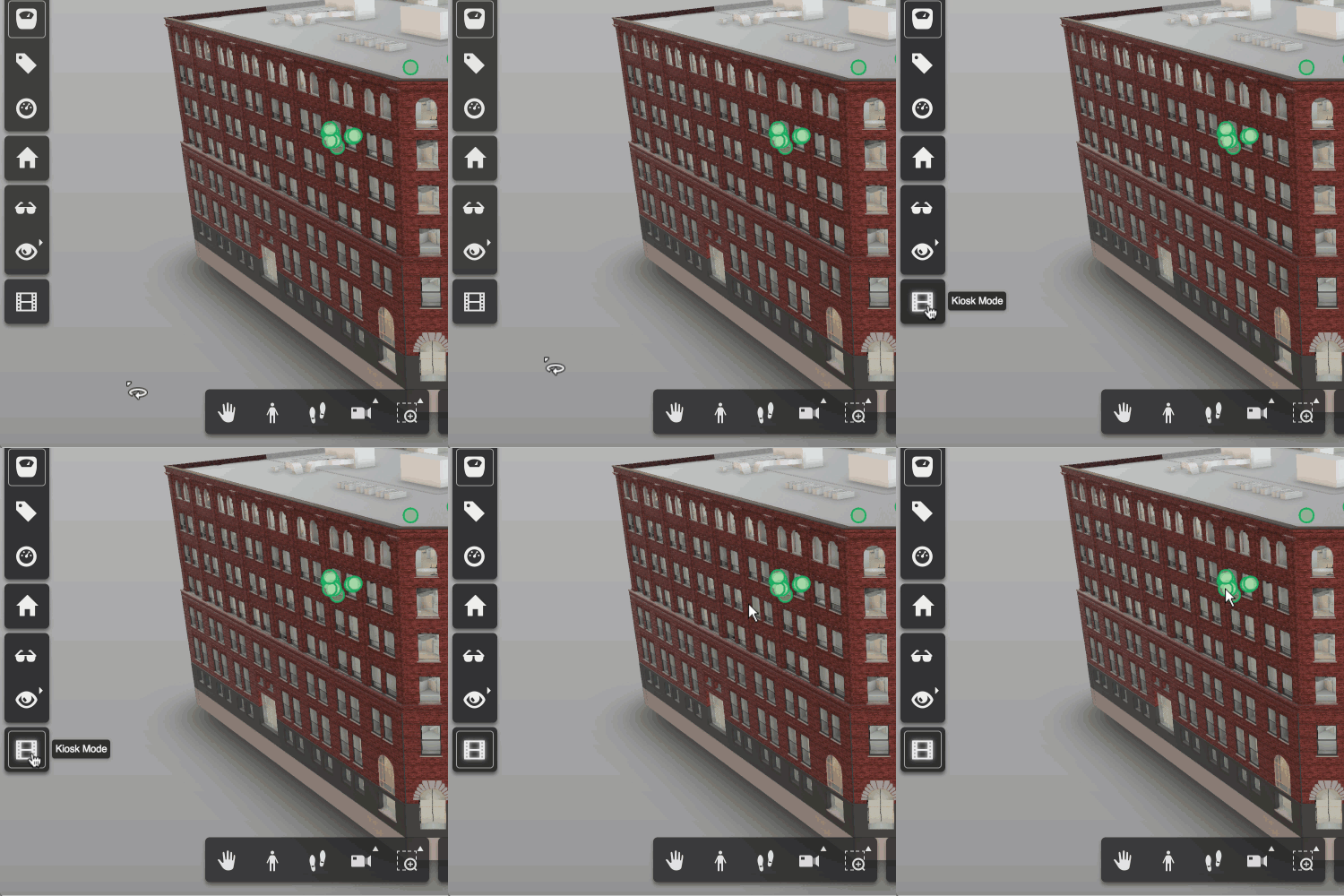
A request came up in a recent meeting talking about future features for Dasher 360. We want to be able to leave Dasher 360 running in "kiosk mode", whereby if left unattended for some time it starts to run through some canned activities, showing off some of the tool's capabilities. The mode should be interruptable: when the mouse moves the mode should stop, allowing the user to continue exploring on their own. This sounded like a really fun problem to tackle, so I started on it right away. My first avenue of research was around tools that already exist for…
-
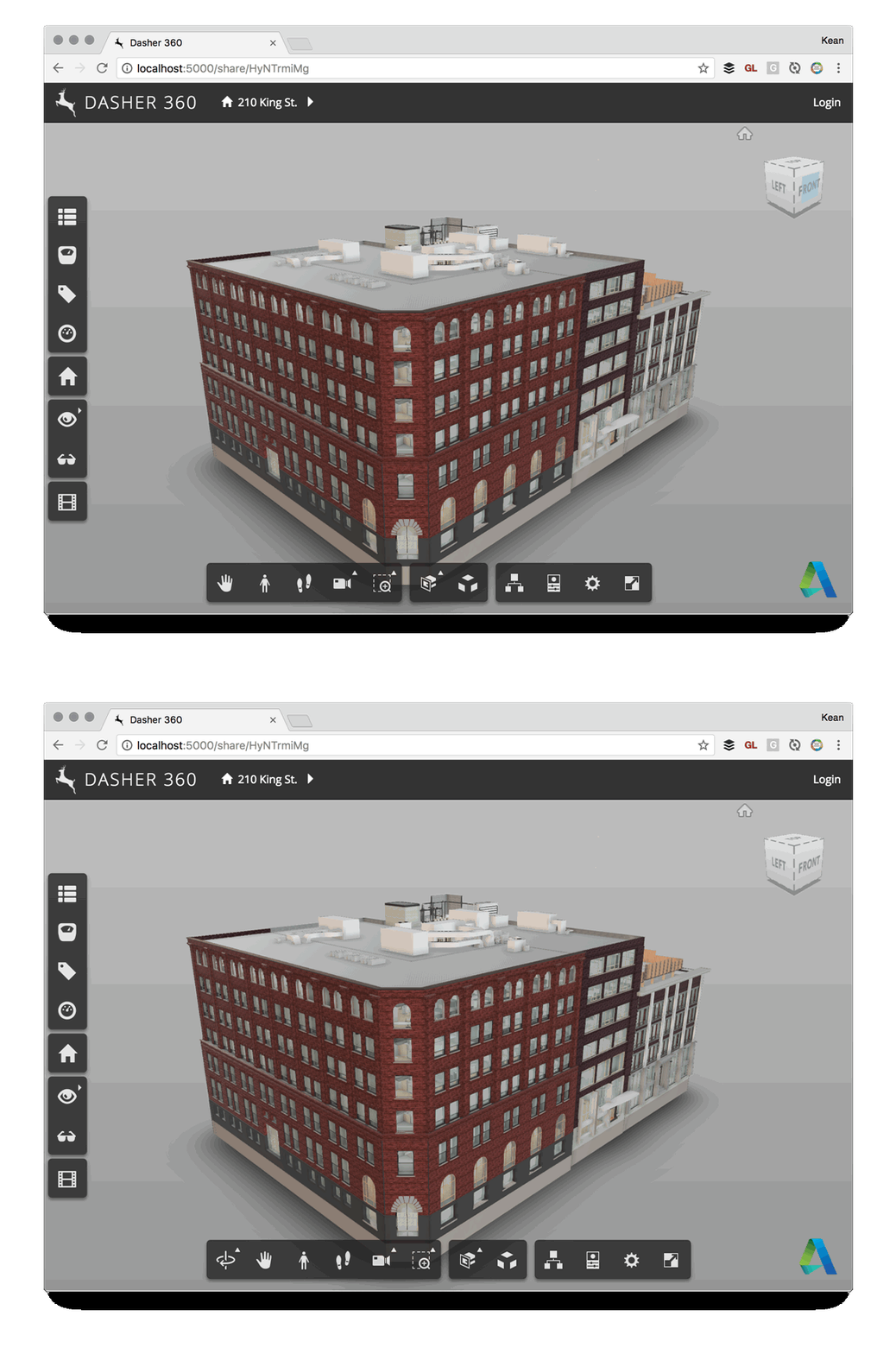
Here's a quick one to wrap up the week. Some time ago we decided that Dasher 360 didn't need to provide the option for users to do an unconstrained orbit: the default mode of turntable orbit would be perfectly adequate, especially as we deal mainly with building models. So it was that I created a simple extension to hide that particular toolbar button. It worked well enough, but after a while I saw the icon creep back into the UI. It turns out that the application resize event – which is called for lots of different reasons – was re-enabling…
-
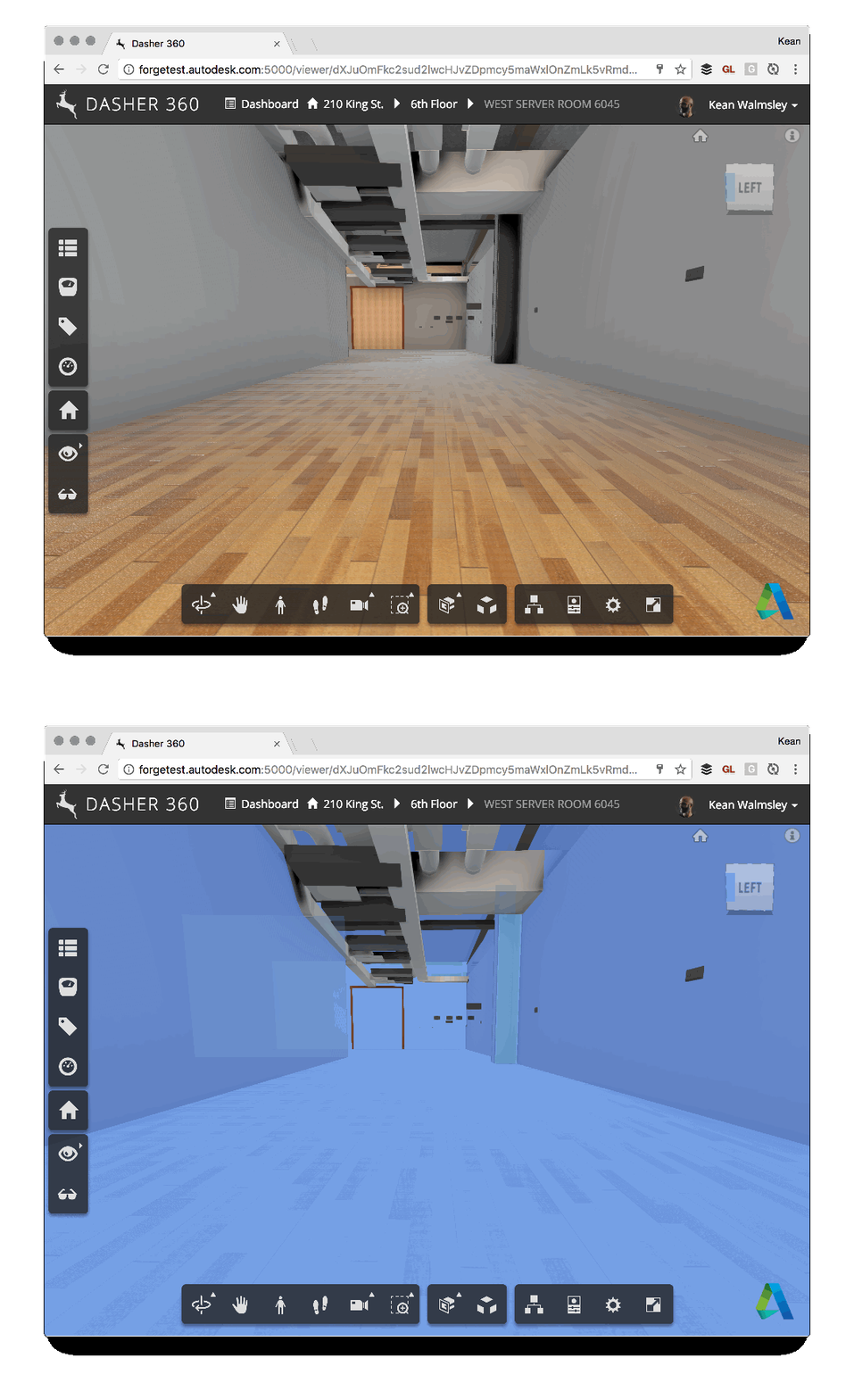
Some of you may remember this post, which talks about the ability to export to Navisworks from Revit to bring room information into the Forge viewer. One of the side effects of using this technique is that there's a bunch of semi-transparent room boundary geometry in the resultant model, which can make navigation a little tricky. For instance, here's what happens when I try to select the wall at the end of a corridor (you can't see the cursor, but you should get the idea – the invisible room geometry gets selected rather than the wall). To help improve the…
-
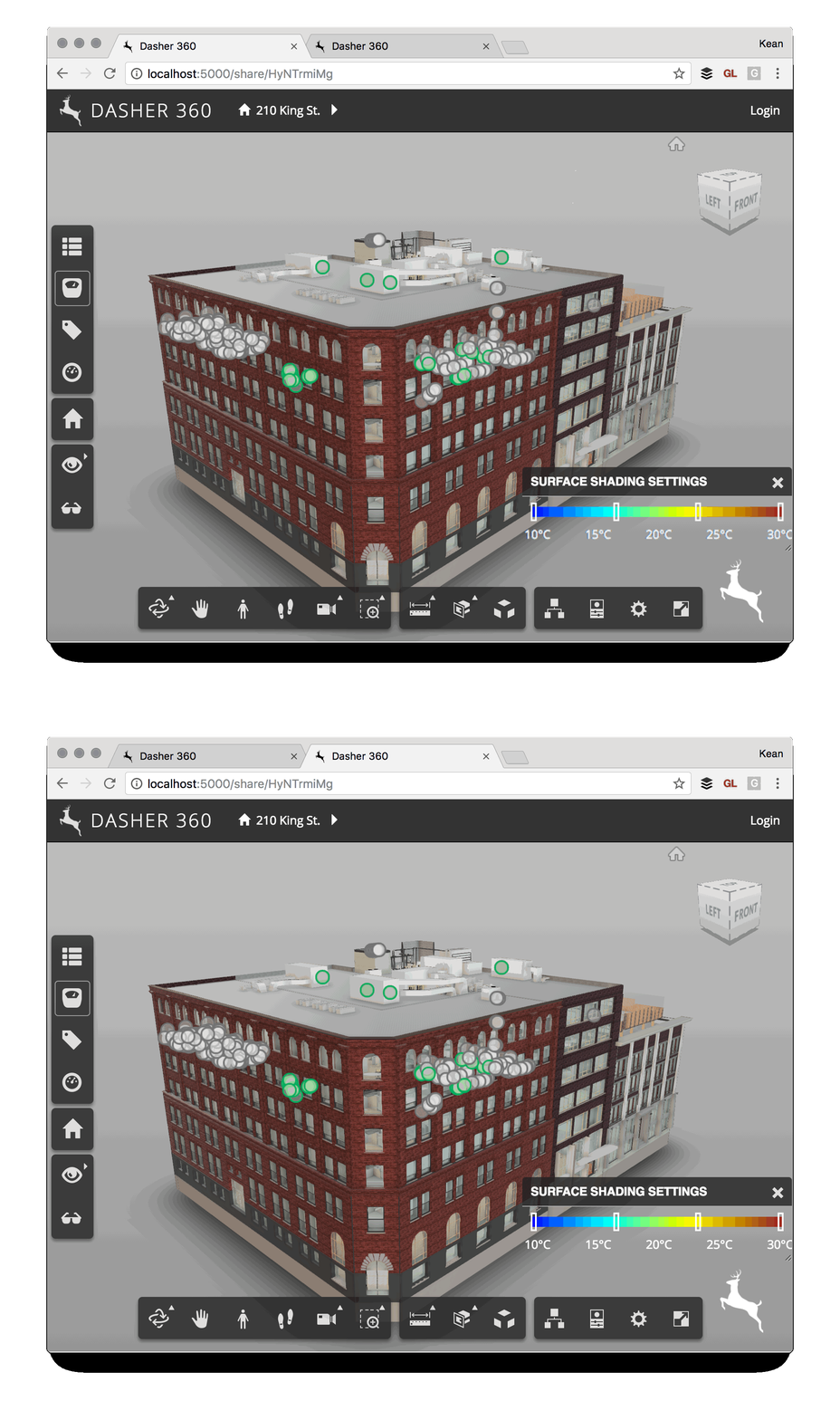
I've been mocking up some UI additions for Dasher 360, today. A big chunk of my time was spent working out how to make flyouts work for vertical toolbars (something I'll address in a future post, if there's interest), but I've just been fighting another problem that's probably not really an issue for anyone using standard DPI (and non-"retina") screens. I've been drawing text to a standard HTML canvas and it's been really ugly. After some minutes of searching the web, I found out it was probably due to my MacBook Pro's retina display. Here's the code I integrated (from…
-
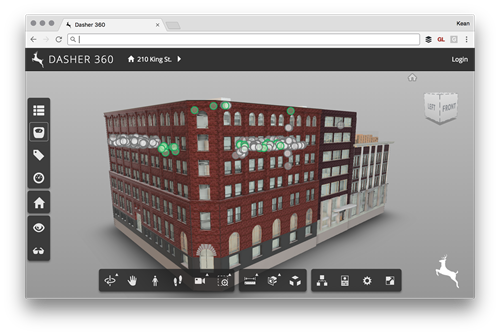
Today I was asked to add the ability to place a custom logo onto an instance of the Forge viewer (in my case for Dasher 360, of course). It seemed like an interesting one to share, as I'm sure others have the same requirement. There are probably lots of ways to solve this – for instance by adding the image with its own camera as an overlay inside the Forge viewer's 3D scene – but I decided to stick to something simple and have the browser overlay the image. There are a few changes needed for this to work. Firstly…
-
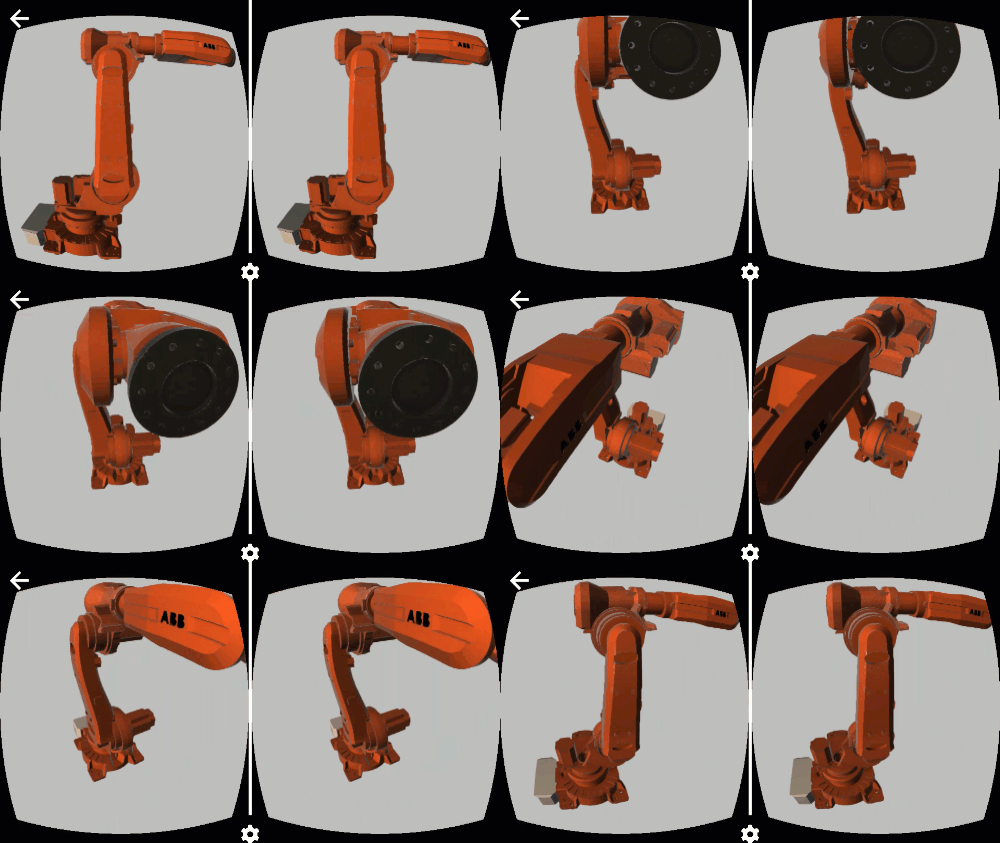
There's a lot happening in the world of WebVR at the moment. Today's big news is that Chrome 56 has now been released for Android, bringing WebVR support to Daydream phones (other devices to follow). This is an important landmark on the journey towards ubiquitous WebVR-capable devices. At some point we'll be getting a desktop version of Chrome that has WebVR, too: for now I'm still testing with Chromium, as suggested by the WebVR download instructions. The other noteworthy event – at least from Autodesk's perspective – is the release of v2.13 of the Forge viewer. This brings some VR-related…
-
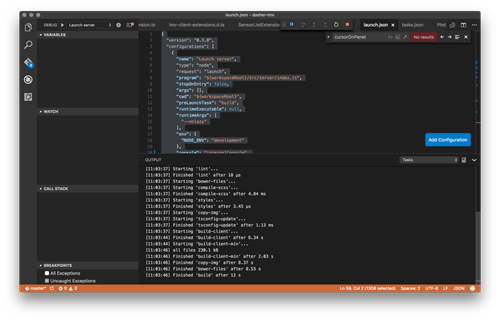
Yesterday I finally took the time to work on one of those tasks that had previously never quite bubbled up to the top of my priority list. Since I've been working on Dasher 360 I've put up with using the developer tools built into Chrome for debugging. While these are pretty good – especially with source-map support, allowing us to debug the source TypeScript code – which is the main reason I haven't taken the time to do otherwise, they do have their limitations: just for instance, you very often start to edit code in the debugger before realising you're…