Drawing structure
-

Earlier in this series, we implemented a jig to rotate, size and place text more easily in an AutoCAD drawing, which we then extended to allow adjustment of font-level properties. In this post, we're going to add some additional functionality to allow the text to be justified differently around the cursor location. It has to be said that the code introduced in this post isn't very extensive, but nonetheless tricky to get right (and therefore deserving of its own post). It's also worth noting that the changes would be much more complicated if we hadn't designed the code to add…
-

In the last post, we saw a simple jig implementation to position, size and rotate standard AutoCAD text. In this post, we're extending that implementation to handle font properties such as bold and italic text. At first blush, this sounds pretty straightforward – how hard can it be, right? The complexity gets introduced when we consider that these are not properties that are exposed directly from the text itself, but from the associated text style (or – to be more accurate – from the font descriptor object associated with the text style). Which begs the question: when the user chooses…
-
In the last few posts on this topic, we saw some examples of getting information from and controlling AutoCAD via its Bindable Object Layer. In this post, we're going to look at a way to find out when changes are made to AutoCAD's layer table: when layers are added, changed or removed. There are certainly other ways to do this: you can use Database.ObjectAppended(), ObjectModified() and ObjectErased() to find out about changes to LayerTableRecords, for instance, but this is an alternative approach that may be interesting to some people. In this implementation, we attach some event handlers to keep an…
-
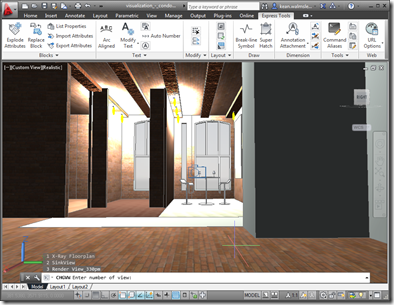
After looking at how the Bindable Object Layer (BOL) in AutoCAD might be used to get information about the current drawing, in today's post we're going to see how it can also be used to manipulate that data (in a fairly limited, albeit useful, way). But first, let's talk a bit about the origins of the BOL. It was first introduced as an architectural feature of AutoCAD when we were looking at delivering AutoCAD for Mac. It's common, these days, for programming frameworks to provide some kind of data-binding facility to simplify the creation of UIs: both WPF and Cocoa…
-
Some time ago, I posted code that used the Autodesk.AutoCAD.Windows.Data namespace to list the hatch patterns in the current drawing. Fenton Webb posted a follow-up on the AutoCAD DevBlog that took this further, extracting additional data from AutoCAD and using it to populate an Excel spreadsheet. Within that post, Fenton showed the technique required to access and iterate across other data collections – something I hadn't managed to do when creating my original post. Rather than repeat exactly what Fenton has put together – which is really nice, do take a look at it – I'm just taking a small…
-
This post was inspired by an email I saw from Philippe Leefsma, from DevTech EMEA, which made use of the Autodesk.AutoCAD.Windows.Data namespace – something I didn't even know existed. The specific example Philippe showed was how to access the list of hatch patterns available in the current drawing without iterating through the relevant dictionary in the named objects dictionary. Here's Philippe's C# code: using Autodesk.AutoCAD.ApplicationServices; using Autodesk.AutoCAD.EditorInput; using Autodesk.AutoCAD.Runtime; using Autodesk.AutoCAD.Windows.Data; public class DataStuff { [CommandMethod("HPS")] static public void GetHatchPatterns() { Editor ed = Application.DocumentManager.MdiActiveDocument.Editor; foreach ( string str in HatchPatterns.Instance.AllPatterns) …
-
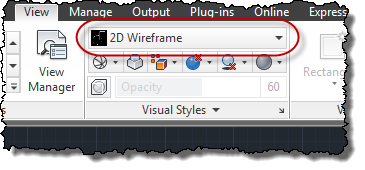
A quick one to end the week, as I really need to start packing for AU. 🙂 Thanks to Augusto Gonçalves, from DevTech Americas, for pointing out this DevNote on the ADN site in a recent email to an ADN member. The below code shows the steps to set the current visual style to "realistic" in AutoCAD. As with many AutoCAD features, you can also set the current visual style by sending commands to the command-line, but then why do something in 3 lines of code when you can do it in 40? 😉 Seriously, there are some advantages to…
-

This post was queued up for Friday, but a technical issue (i.e. probably user error) prevented it from going out. So here we are on Sunday, instead, for another installment of Wayne Brill's AutoCAD .NET training DevTV series (to complement those from previous weeks). Today's session is focused on working with dictionaries and other types of container, as well as using runtime type identification and casting. This series of DevTV sessions is a companion for the new AutoCAD .NET training material available from the AutoCAD .NET Developer Center. Enjoy! 🙂
-
Time to go back to basics. I realised recently – on receiving this comment – that I hadn't specifically covered the nature of Entity.Explode() in a post (even if it's been used in a few of them, over the years). Entity.Explode() is one of those tricky methods: it's actually a faux-ami with the AutoCAD command of the same name, in a very similar way to Database.Purge(). The way in which Explode() and Purge() differ from their "equivalent" commands is that they're non-destructive: they don't actually result in a change to the AutoCAD drawing database. Explode() populates a DBObjectCollection with the…
-
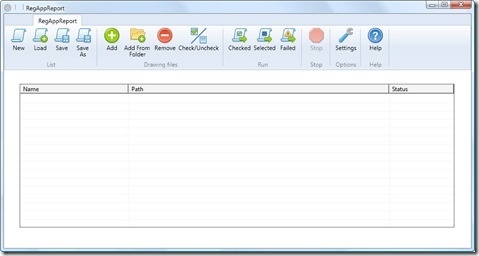
It's time to wrap up the series on batch-reporting Registered Application IDs. For reference, here's how we got to where we are today: Implement a command to collect RegAppId information for the active document Extend this command to work on a drawing not loaded in the editor Save our RegAppId information to some persistent location (XML) Transform the resulting XML file to HTML using XSLT Create a modified version of ScriptPro 2.0 (one of our Plugins of the Month) to call our command without opening the drawing The broader point of today's post – other than simply to deliver on…